Defining and Using URL Parameters
Intro With Wappler you can access the values of your URL Parameters. For example you can access and use the value of myparam from the following URL: https://mysite.com/page.html?myparam=123 Defining U
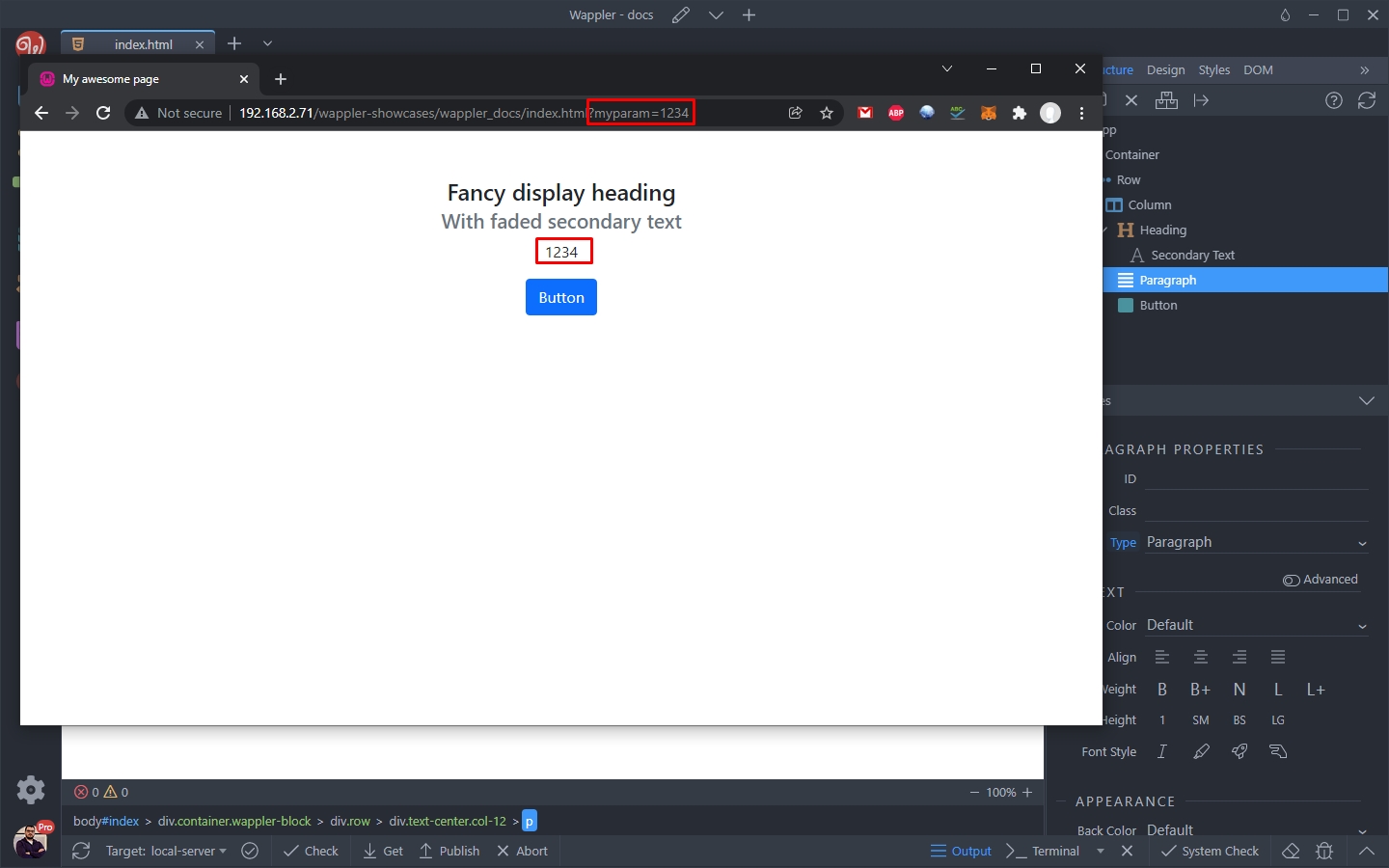
With Wappler you can access the values of your URL Parameters. For example you can access and use the value of myparam from the following URL: https://mysite.com/page.html?myparam=123
Defining URL Parameters
Section titled “Defining URL Parameters”In order to see the URL parameters in the Data Picker and use them on the page - for example to filter a database query or to show/hide specific page elements depending on their values, you’ll first need to define them.
Select App in the App Structure (1), make sure your App has an ID (2) and click the Define Query Params button:

In the query parameters dialog click the add new button:
Section titled “In the query parameters dialog click the add new button:”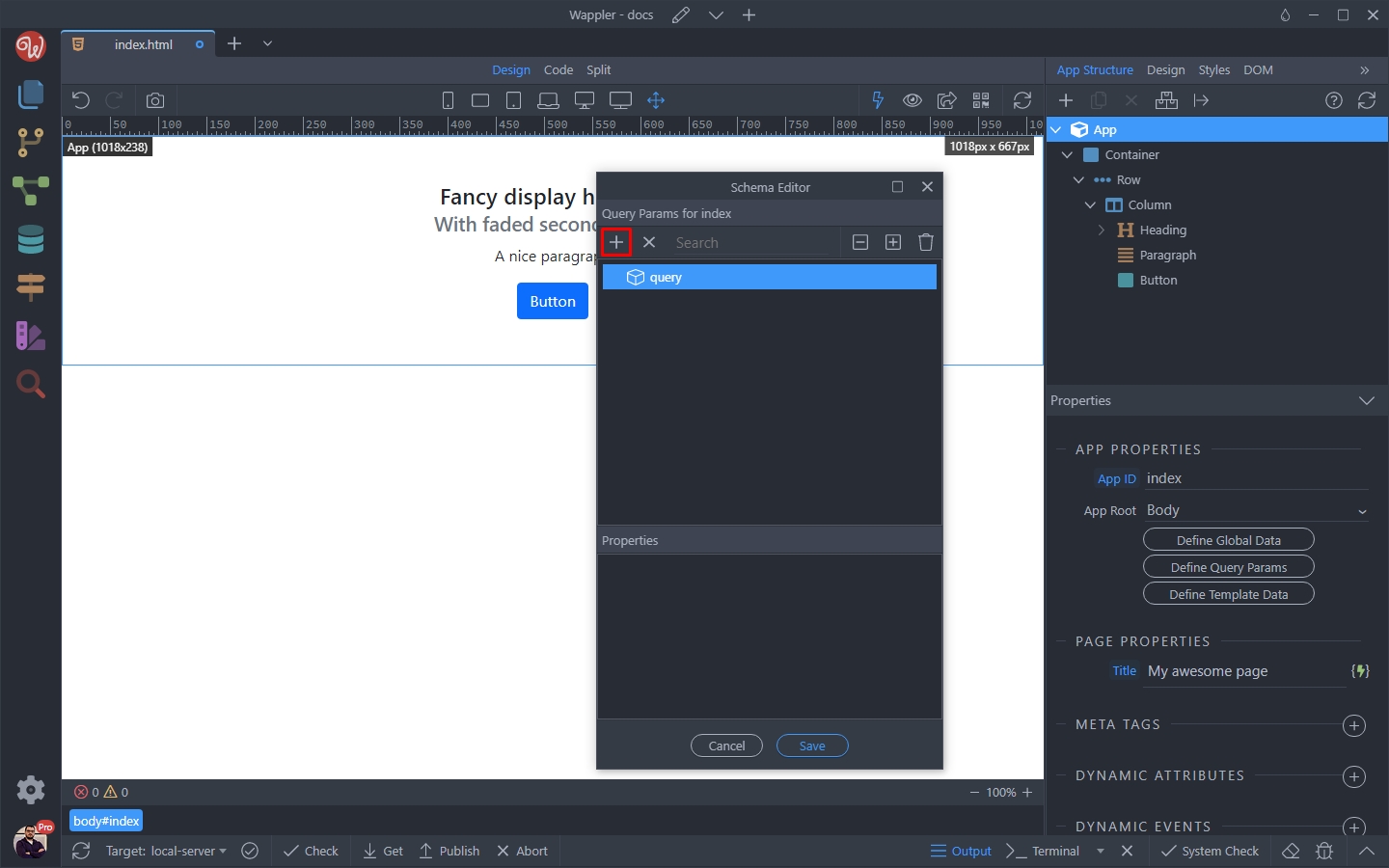
And select add variable:
Section titled “And select add variable:”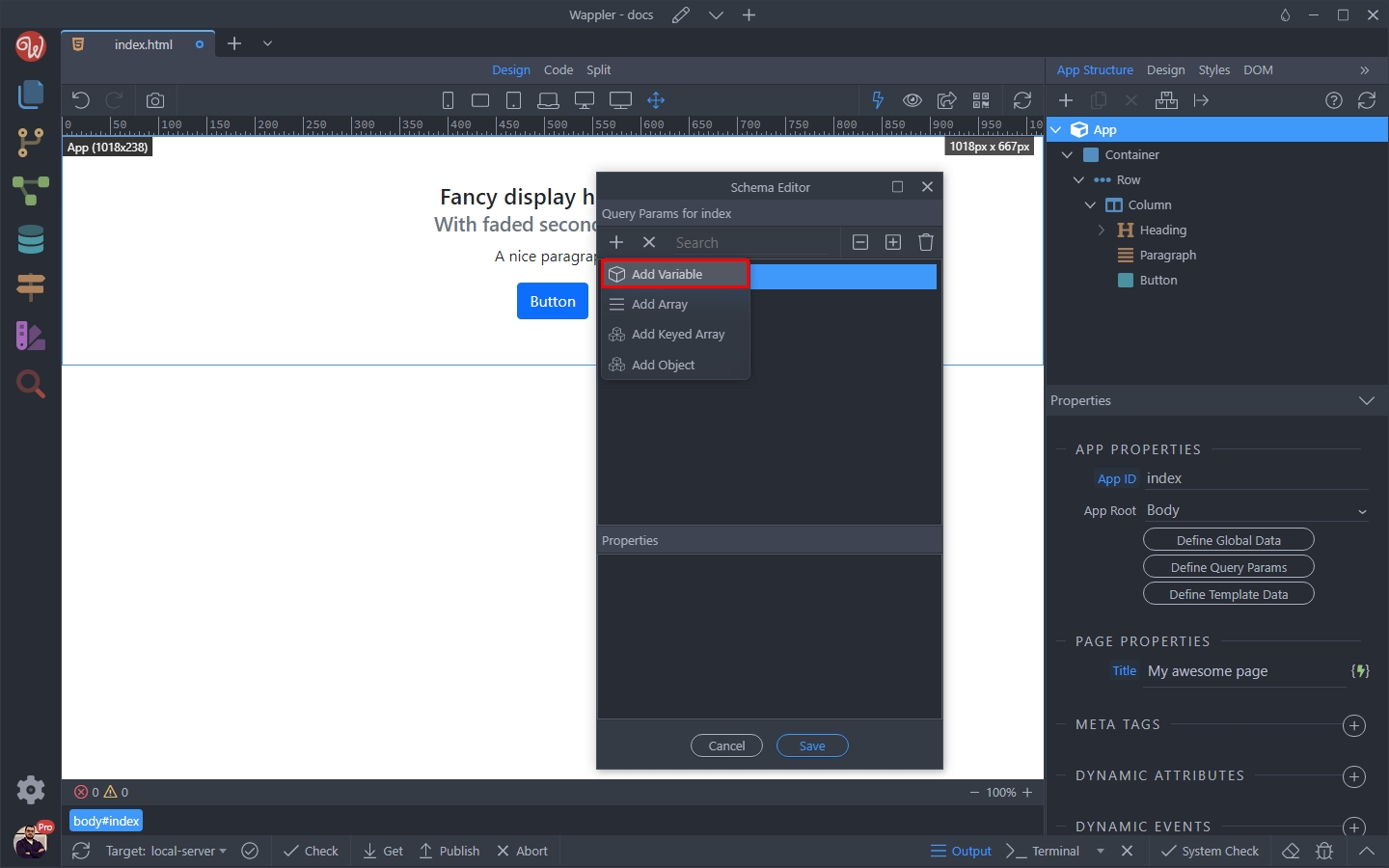
Add the name of your URL parameter and click Save:
Section titled “Add the name of your URL parameter and click Save:”
Do this for all the URL Parameters you want to use in the URL for this page.
Section titled “Do this for all the URL Parameters you want to use in the URL for this page.”Using URL Parameters Values on the Page
Section titled “Using URL Parameters Values on the Page”The defined URL Parameters will now appear in the dynamic data pickers and you can use their values. For example, you can bind their value on the page:
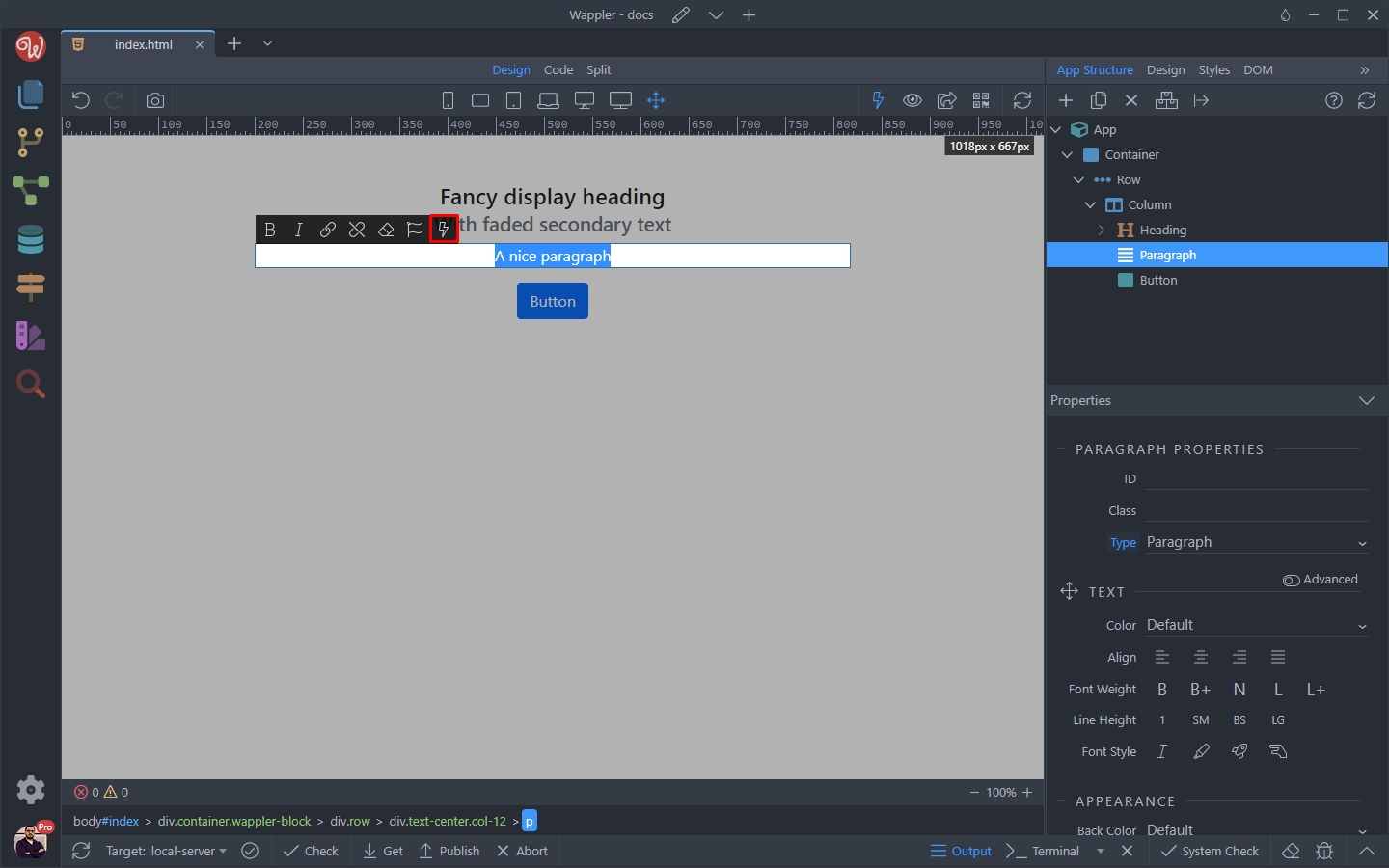
Just select the URL parameter under query:
Section titled “Just select the URL parameter under query:”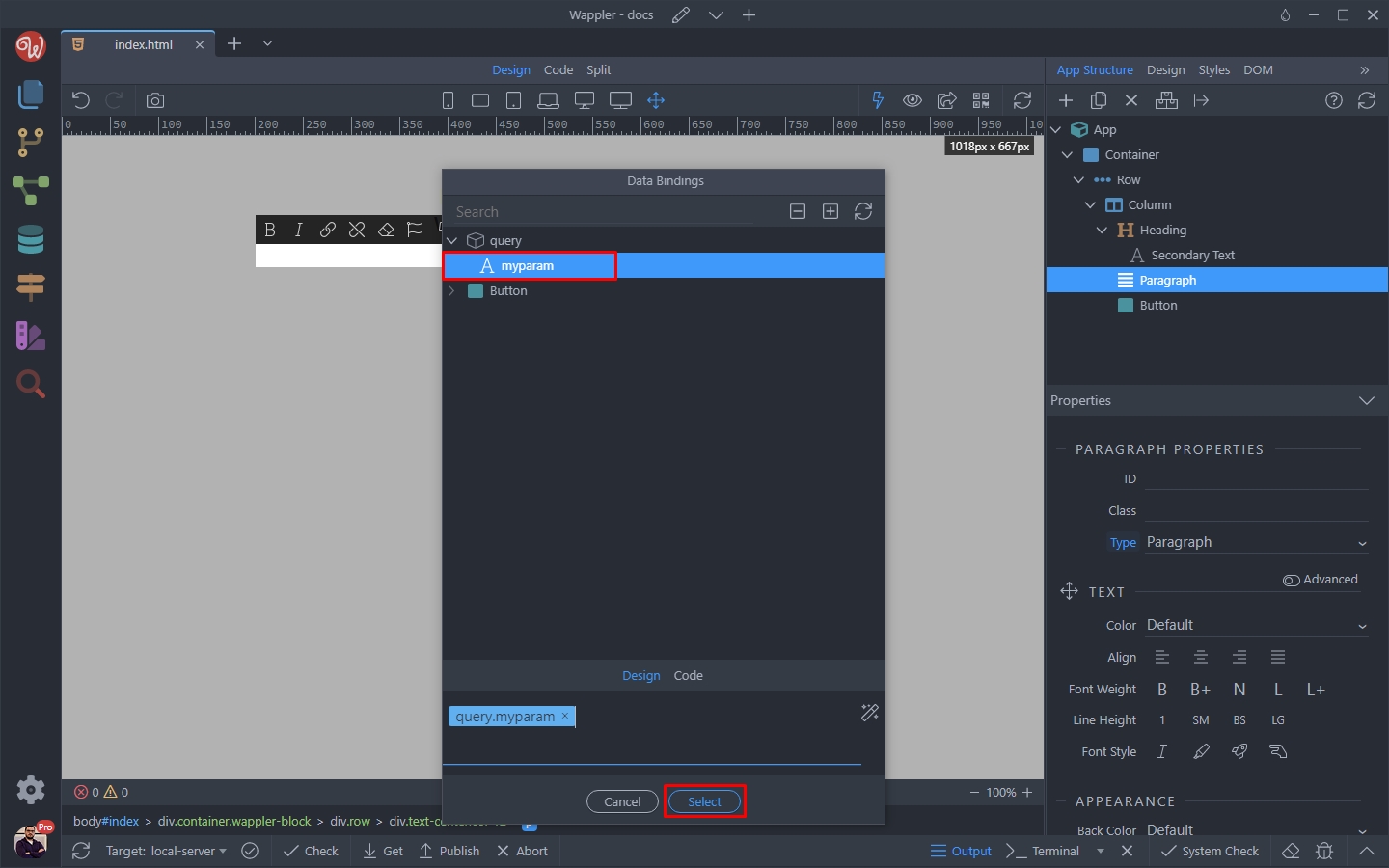
And you are done. You can see the result in the browser:
Section titled “And you are done. You can see the result in the browser:”