Formatting Dynamic Data for Client Side Display
There are different data format options, which you can use to format different data types on your page. The format options depend on the data type - text, numbers, dates etc. In order to format a dyna
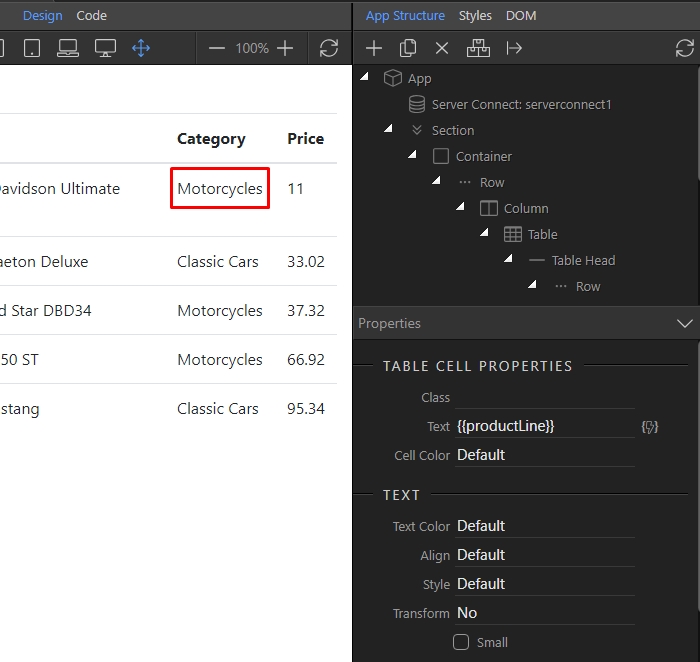
In order to format a dynamic value on your page, first select it either in design view or in App Structure:
Section titled “In order to format a dynamic value on your page, first select it either in design view or in App Structure:”There are different data format options, which you can use to format different data types on your page. The format options depend on the data type - text, numbers, dates etc.
In order to format a dynamic value on your page, first select it either in design view or in App Structure:
Then, select the dynamic data picker:
Section titled “Then, select the dynamic data picker:”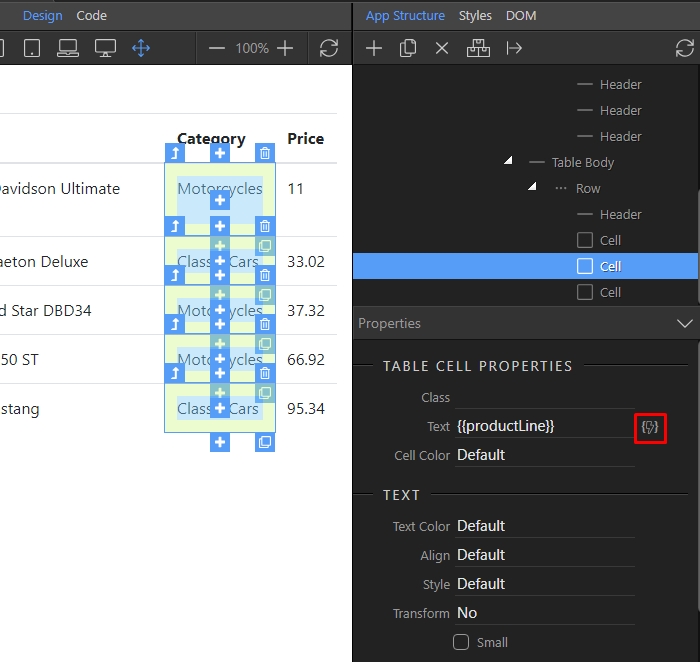
And click the Data Formatter icon for the dynamic value:
Section titled “And click the Data Formatter icon for the dynamic value:”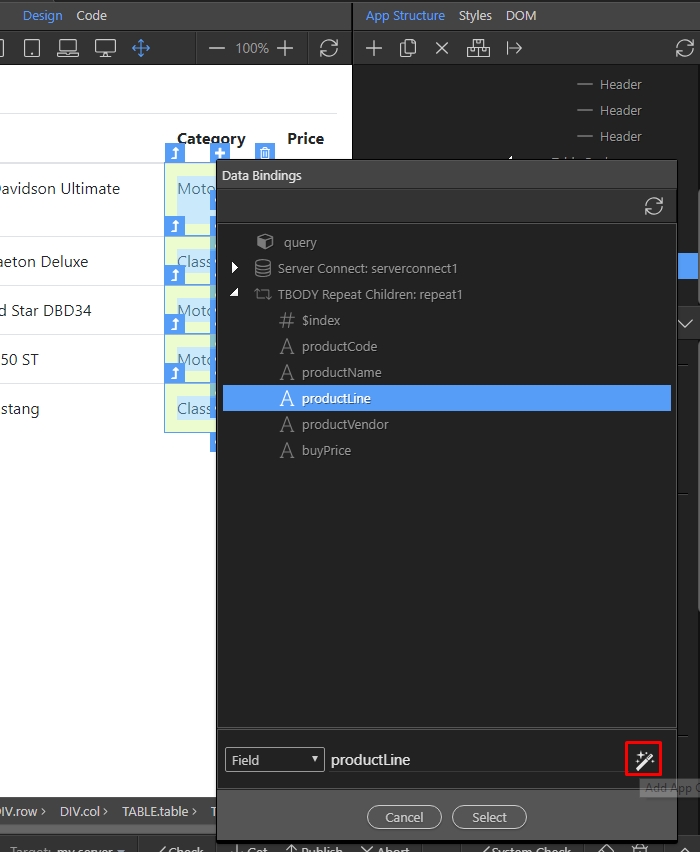
Step 4
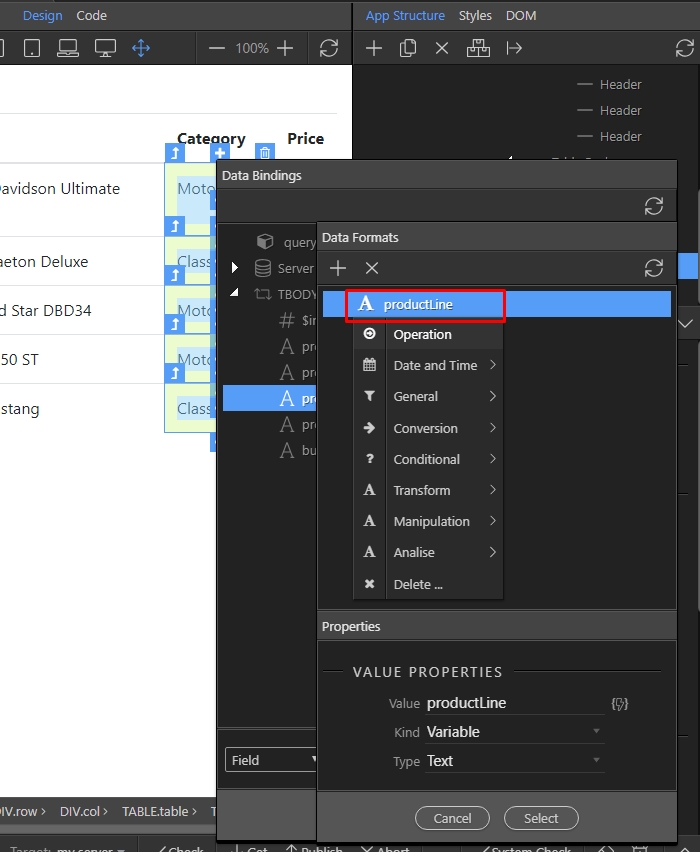
Section titled “Step 4”When the Data Formats dialog appears, right click the value and you will see the available format options for this data type:
In our example we will use the Upper Case format, available under Conversion group:
Section titled “In our example we will use the Upper Case format, available under Conversion group:”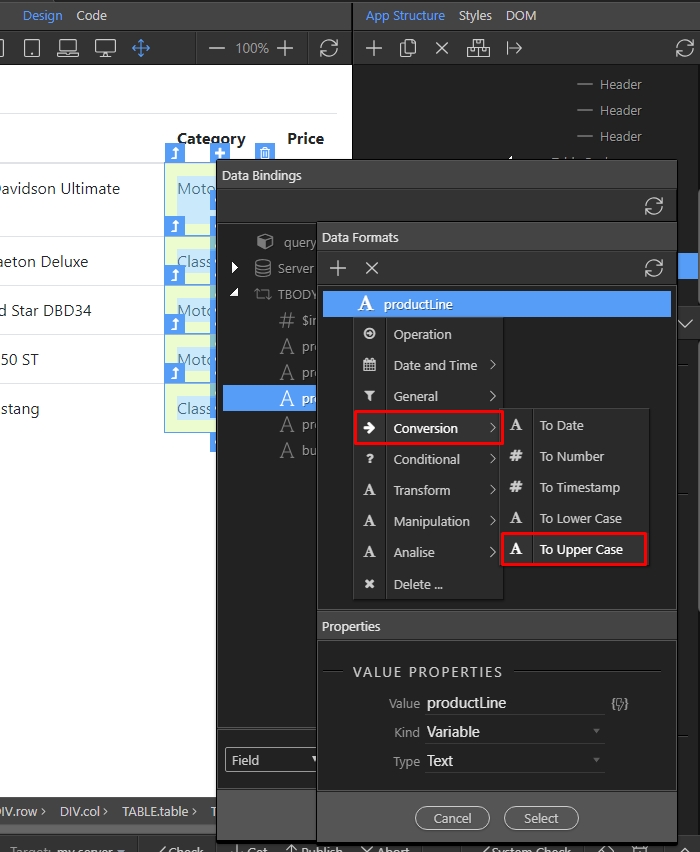
Step 6
Section titled “Step 6”You can see the formatting option applied, under the dynamic value. You can add more than one format options this way. Click select when you are done:
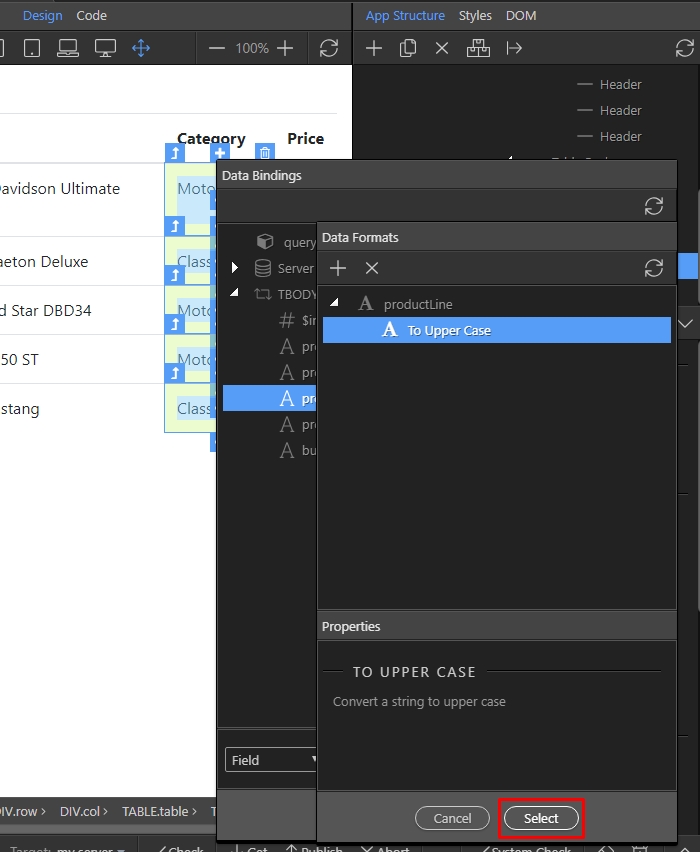
And then click select in order to apply the selected formatting options:
Section titled “And then click select in order to apply the selected formatting options:”
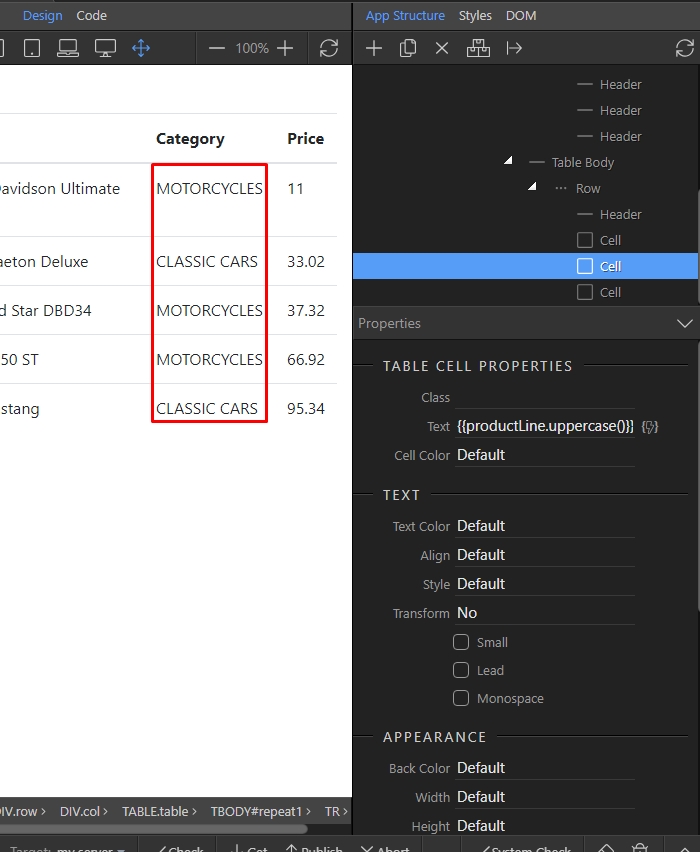
You can see the changes immediately in Design View:
Section titled “You can see the changes immediately in Design View:”