Working with Current Date and Time
In Wappler there is a component called Date and Time. As its name suggests, it returns the current date and time. In this tutorial we will show you how to access it, configure and use it on your pages
Step 1
Section titled “Step 1”In Wappler there is a component called Date and Time. As its name suggests, it returns the current date and time. In this tutorial we will show you how to access it, configure and use it on your pages.
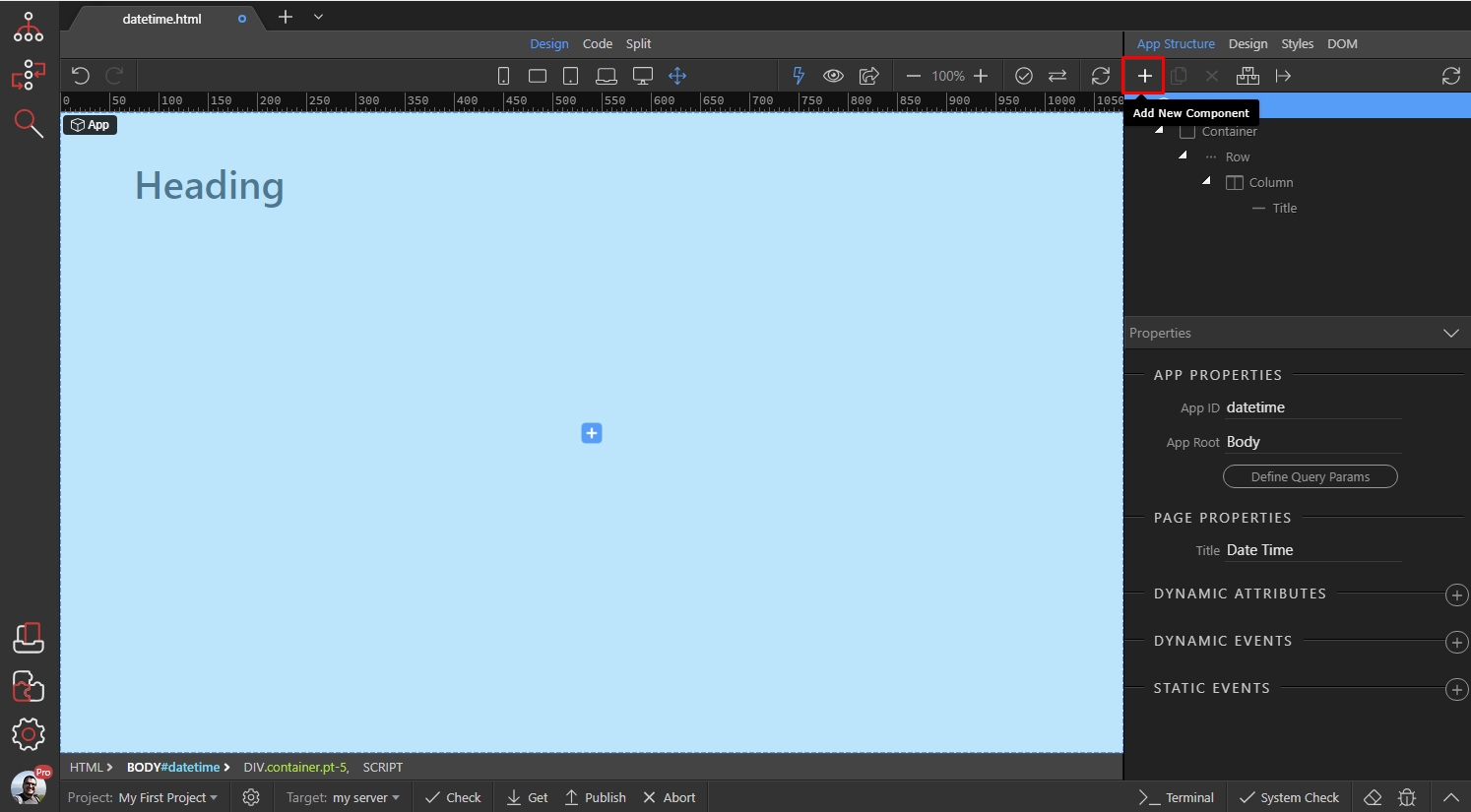
First, as any other component, in order to access the current date and time you need to include the component in app structure. Click the add new component button:
Open Data and select Date And Time:
Section titled “Open Data and select Date And Time:”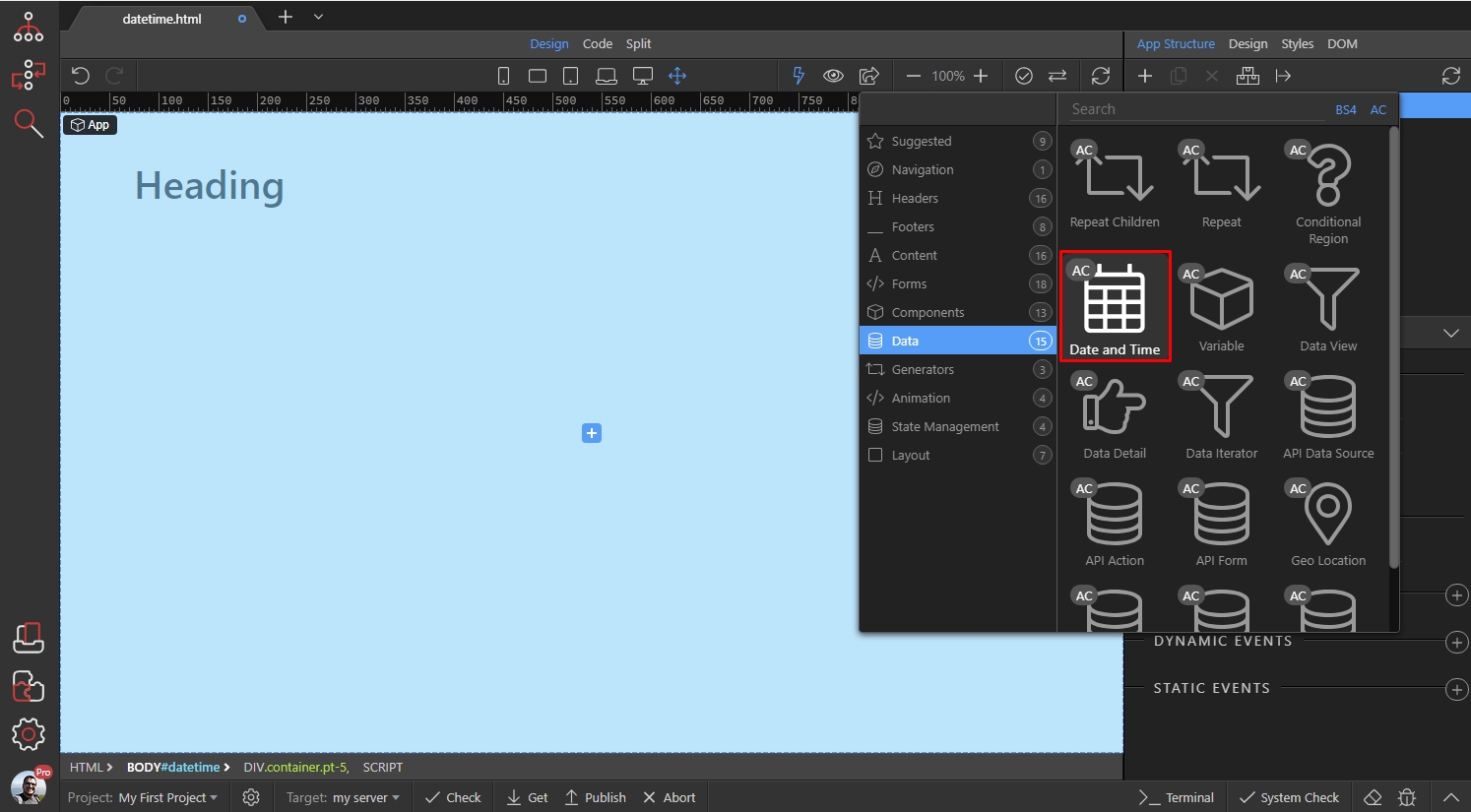
In the properties inspector you can select the refresh interval for the component:
Section titled “In the properties inspector you can select the refresh interval for the component:”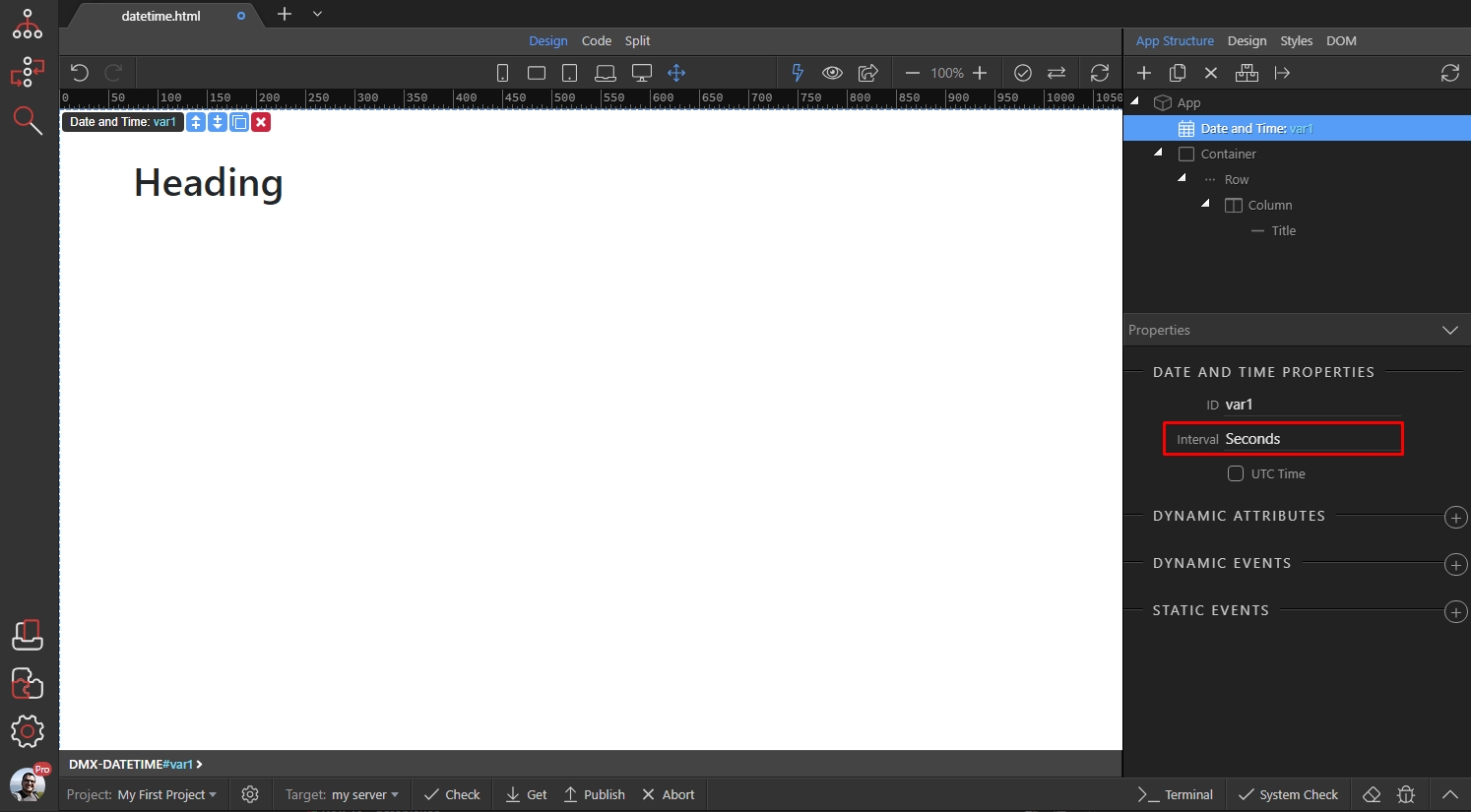
Select between: Seconds. Minutes, Hours and Days. The date/time will be update every selected interval value:
Section titled “Select between: Seconds. Minutes, Hours and Days. The date/time will be update every selected interval value:”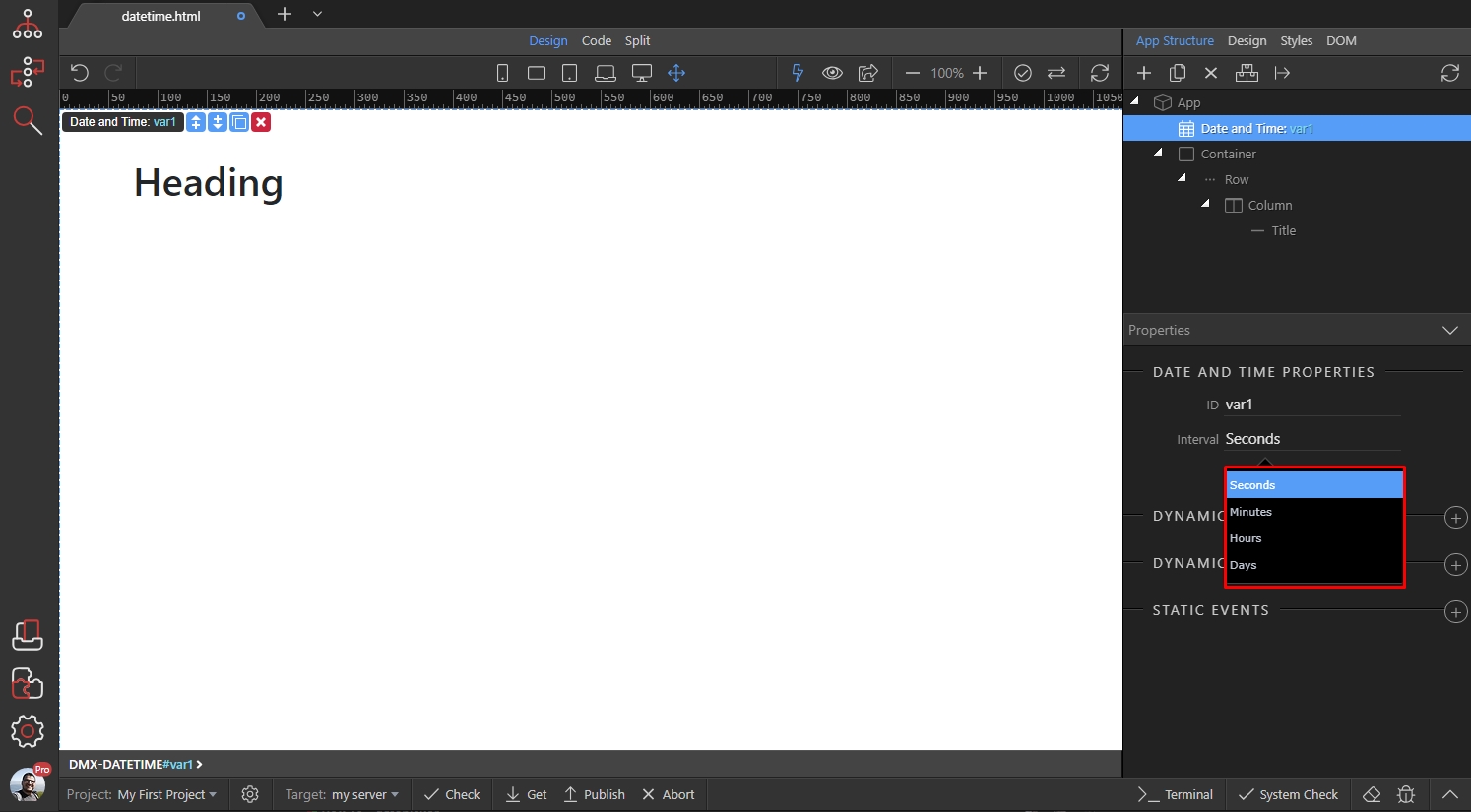
Step 5
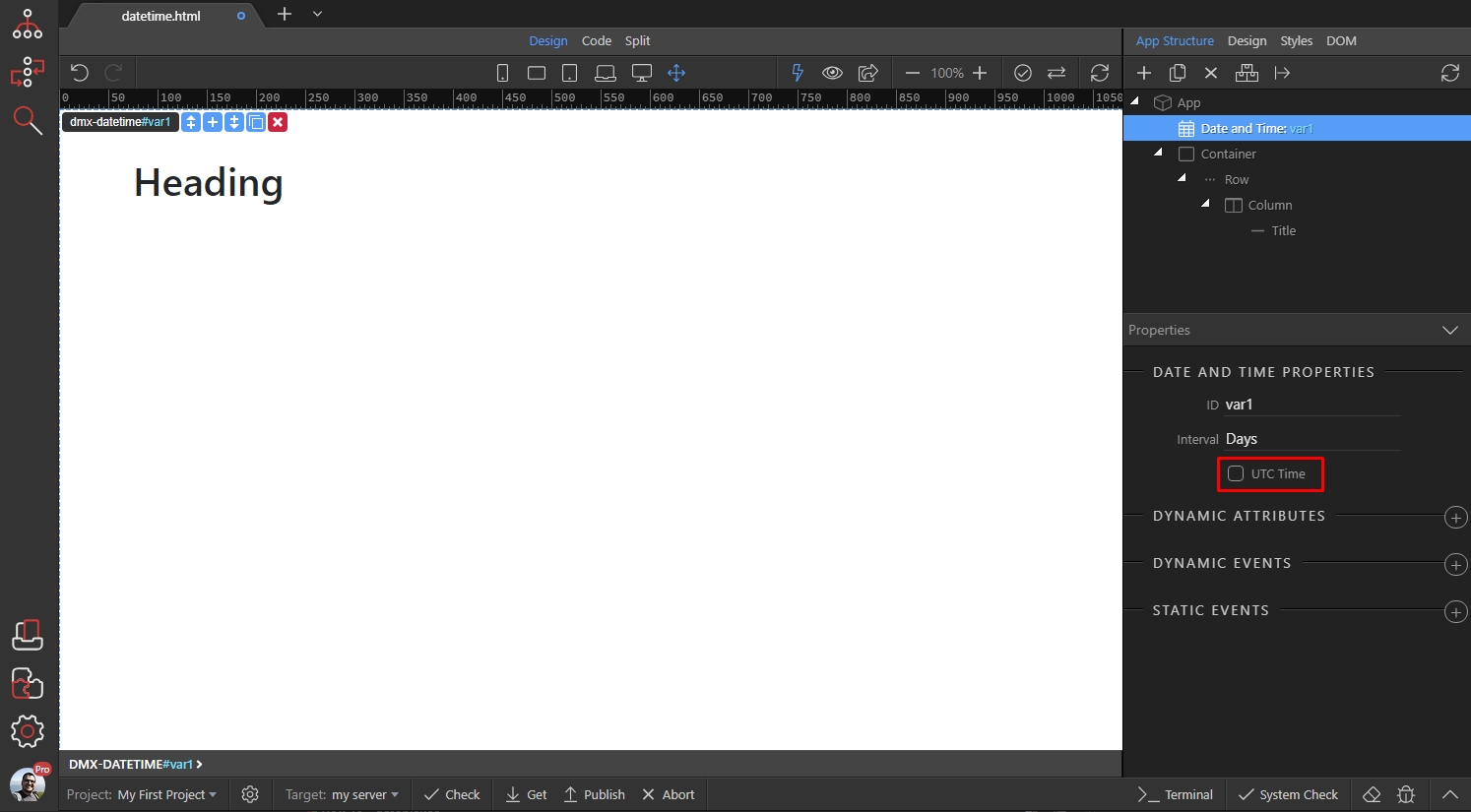
Section titled “Step 5”The component detects the users’s time zone. So for one user it might be 12:00 and for others 09:00. That’s why if you are using its value to filter database values you may wish to use UTC time instead. With UTC time you will always get the user’s time converted to UTC time, then you can convert it to your server time zone:
Step 6
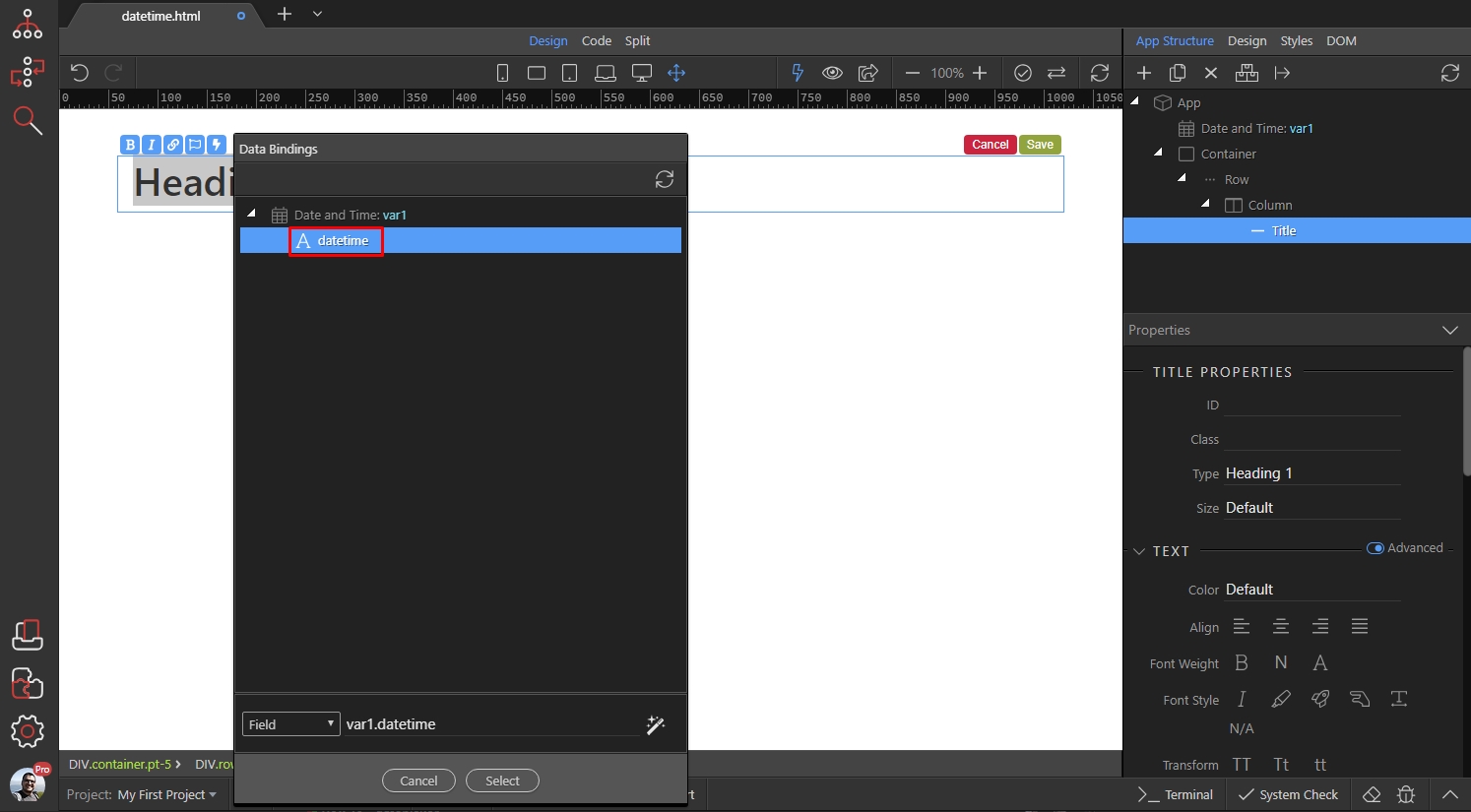
Section titled “Step 6”Then you can use this value as any other dynamic binding - to filter database query, set it as initial date in datepicker, set it as a value in a text input or just bind it on the page: