Working with Elements on your pages
Learn how to add, delete or duplicate elements on your page Add Elements to the Page Adding elements to your pages is a matter of couple of clicks. Starting with a blank new page, just click the blue
Learn how to add, delete or duplicate elements on your page
Section titled “Learn how to add, delete or duplicate elements on your page”Learn how to add, delete or duplicate elements on your page
Add Elements to the Page
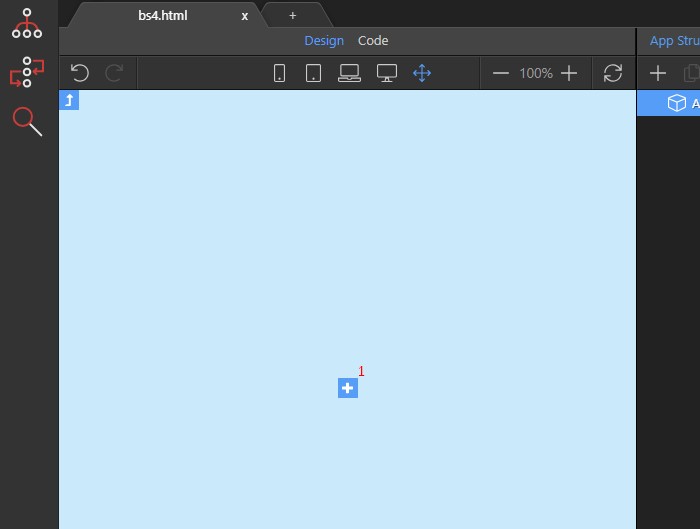
Section titled “Add Elements to the Page”Adding elements to your pages is a matter of couple of clicks. Starting with a blank new page, just click the blue plus add inside button (1) in Design View:
Step 3
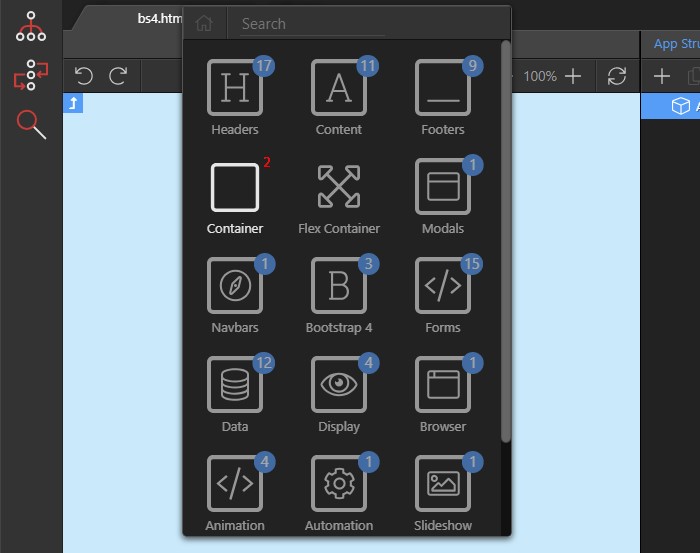
Section titled “Step 3”Then select the element, which you want to add (2) or explore the different element categories offered and add an element from there. Depending on which framework is added and what element is selected, the options displayed in the insert dialog will be different:
Then you can see your element added on the page and also in the App Tree (3):
Section titled “Then you can see your element added on the page and also in the App Tree (3):”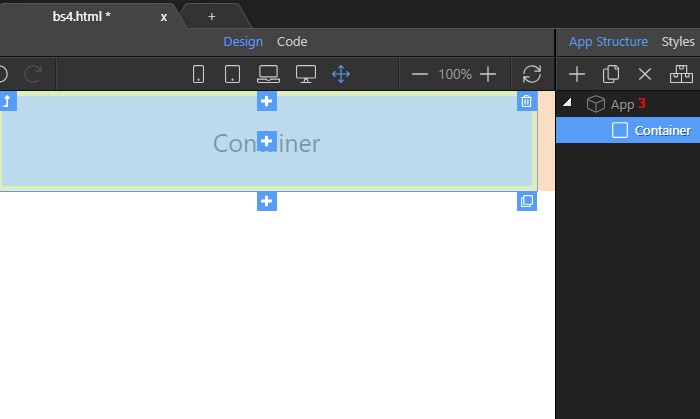
Step 5
Section titled “Step 5”You can continue adding elements the same way, selecting whether to add before, after or inside the element you just inserted.
Deleting Elements
Section titled “Deleting Elements”Deleting an element is really easy. Select the element in Design View and click the delete icon (1):
Duplicating Elements
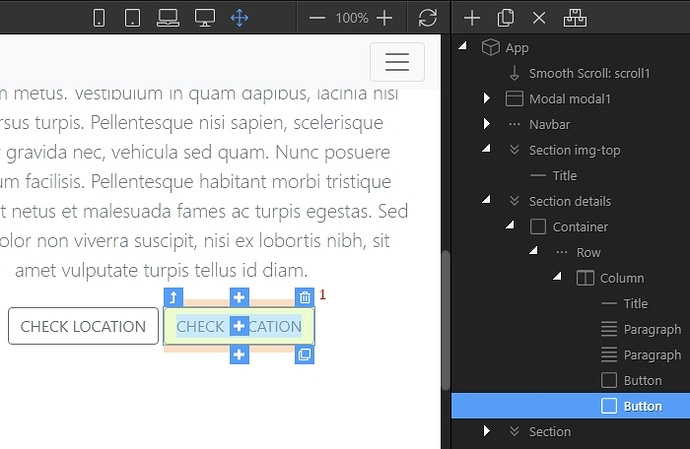
Section titled “Duplicating Elements”In order to duplicate an existing element on the page, just select it and click the duplicate icon (1):
Step 8
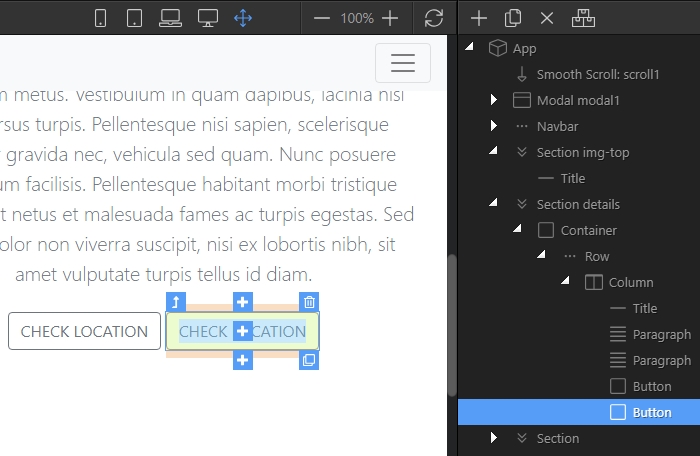
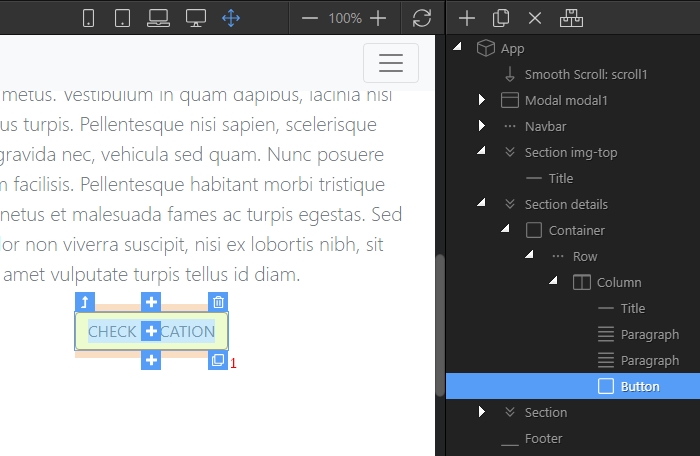
Section titled “Step 8”This duplicates the element immediately and you customize it as needed. You can see the duplicated element in Design view and in App Structure: