Using the New Visual Expression Builder
The new Expression Builder in Wappler offers a great visual way to create complex expressions for filtering data, conditionals, class toggles and dynamic attributes.
The new Expression Builder in Wappler offers a great visual way to create complex expressions for filtering data, conditionals, class toggles and dynamic attributes.
Filtering Views
Section titled “Filtering Views”You can easily build complex expressions for filtering views such as Data View or PuchDB View components.
We have a page containing a Data View, that displays data in a dynamic table:
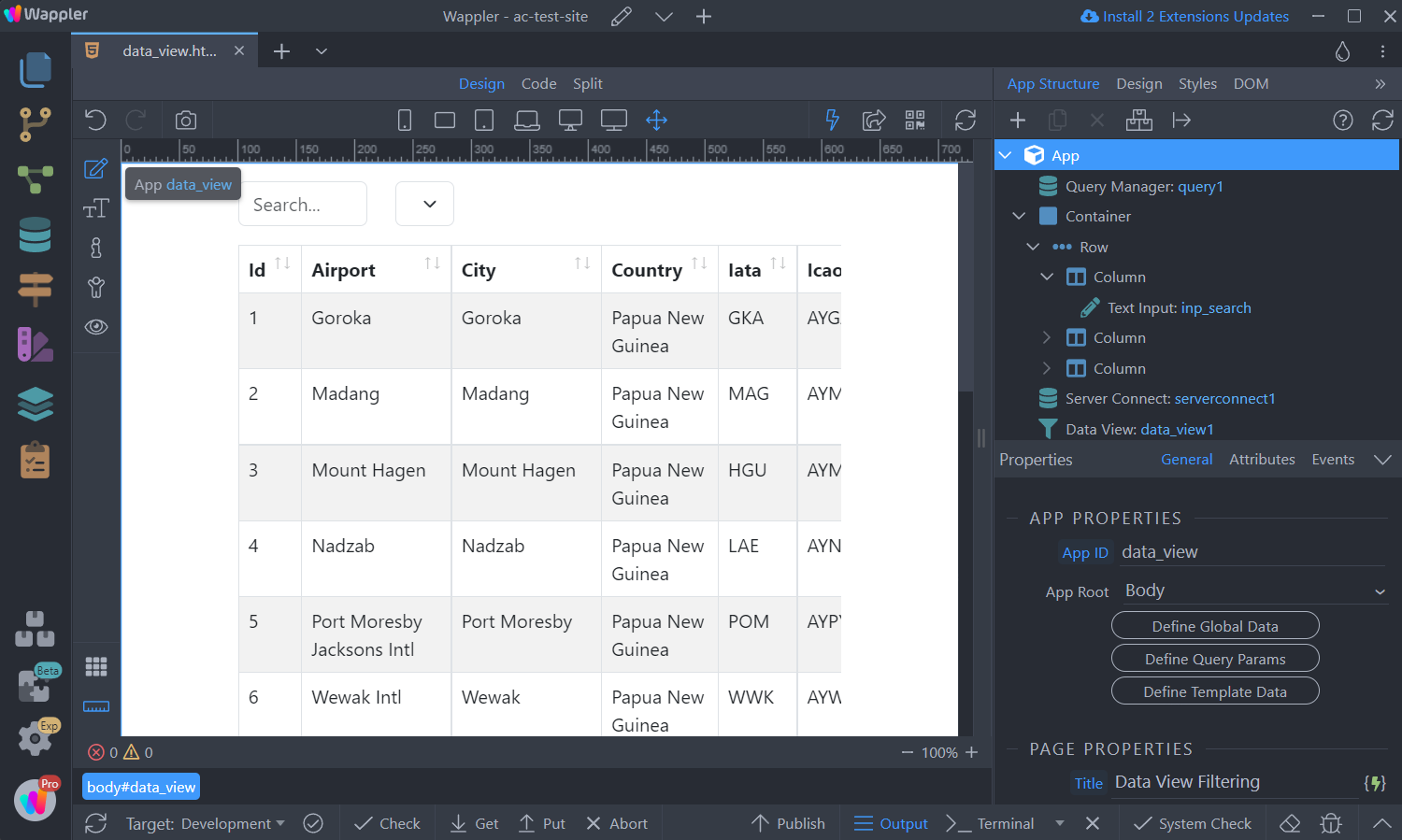
We’d like to be able to filter the data using a text input:
Section titled “We’d like to be able to filter the data using a text input:”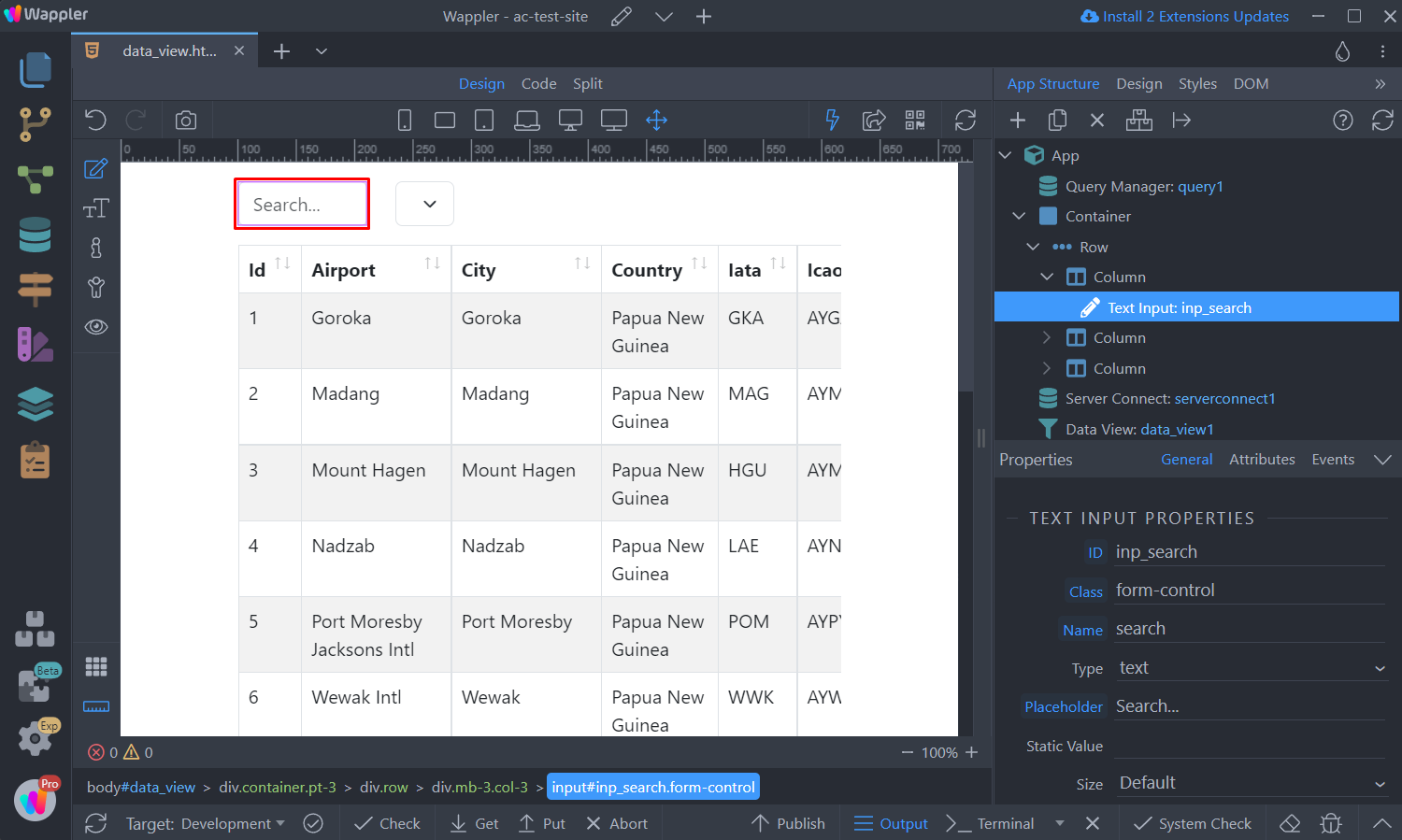
Click the Expressions Builder icon in the Filter option of the Data View component:
Section titled “Click the Expressions Builder icon in the Filter option of the Data View component:”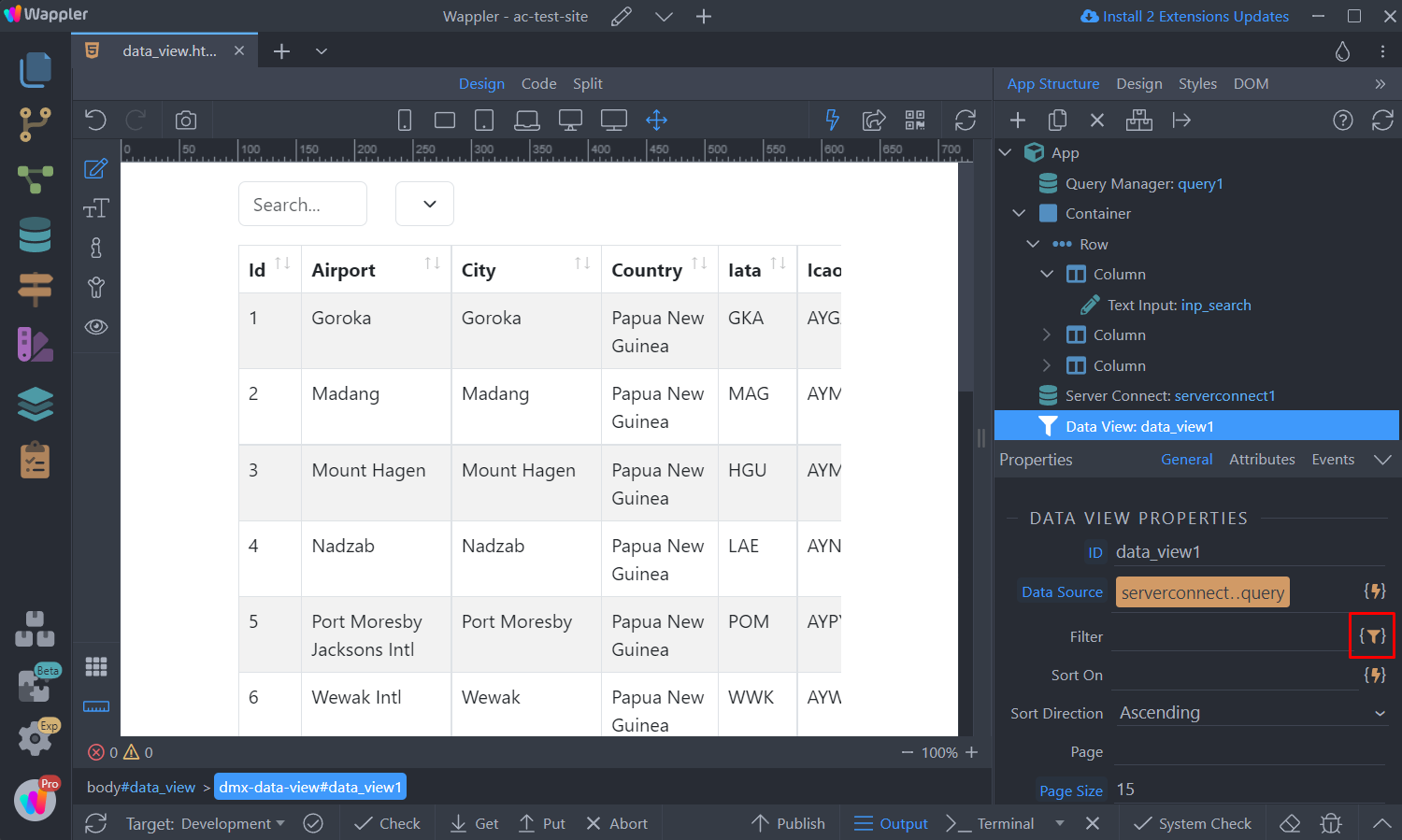
Step 6
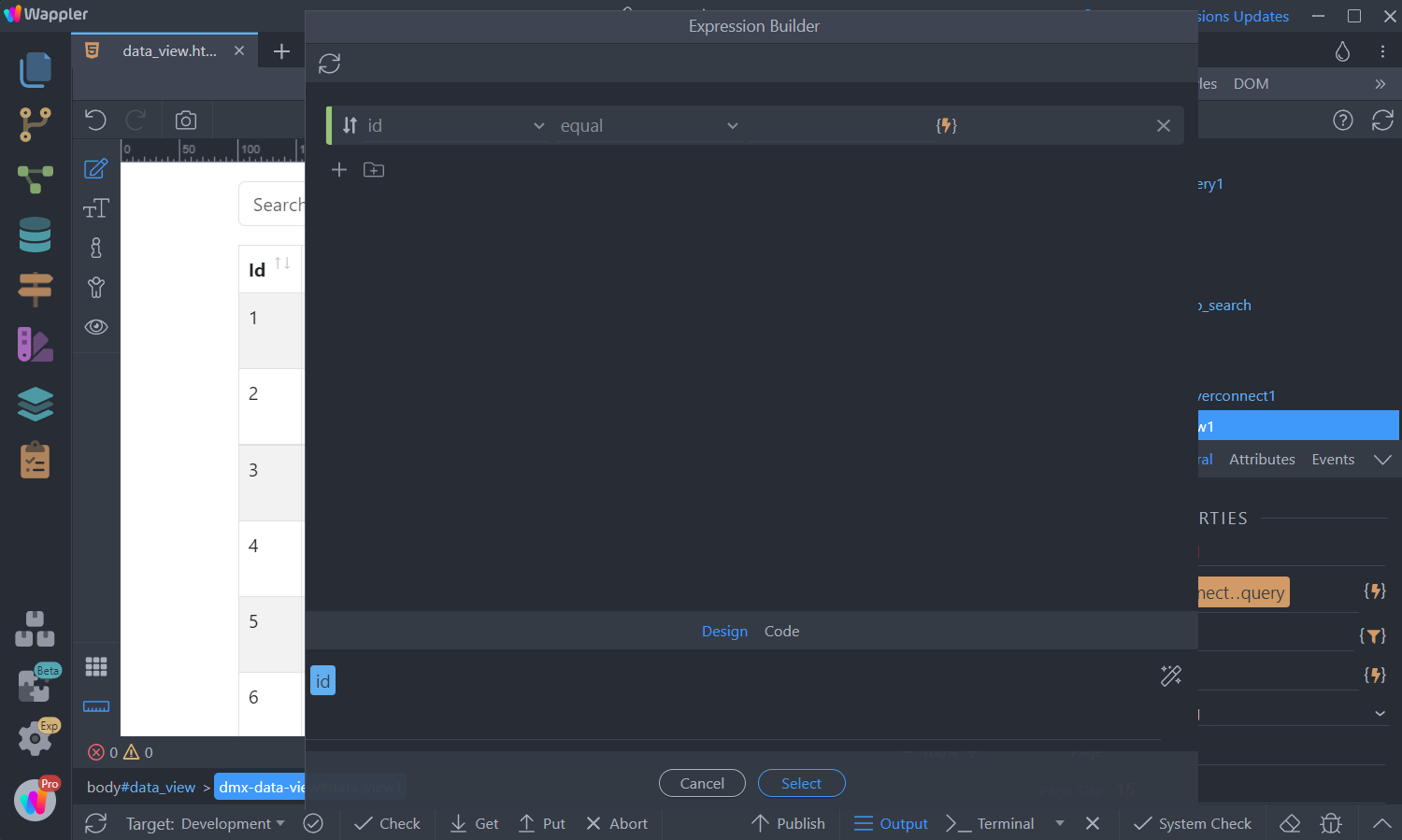
Section titled “Step 6”The Expression Builder UI looks very similar to the Database Query builder UI in Server Connect, here you can add different conditions and group them in separate groups:
Step 7
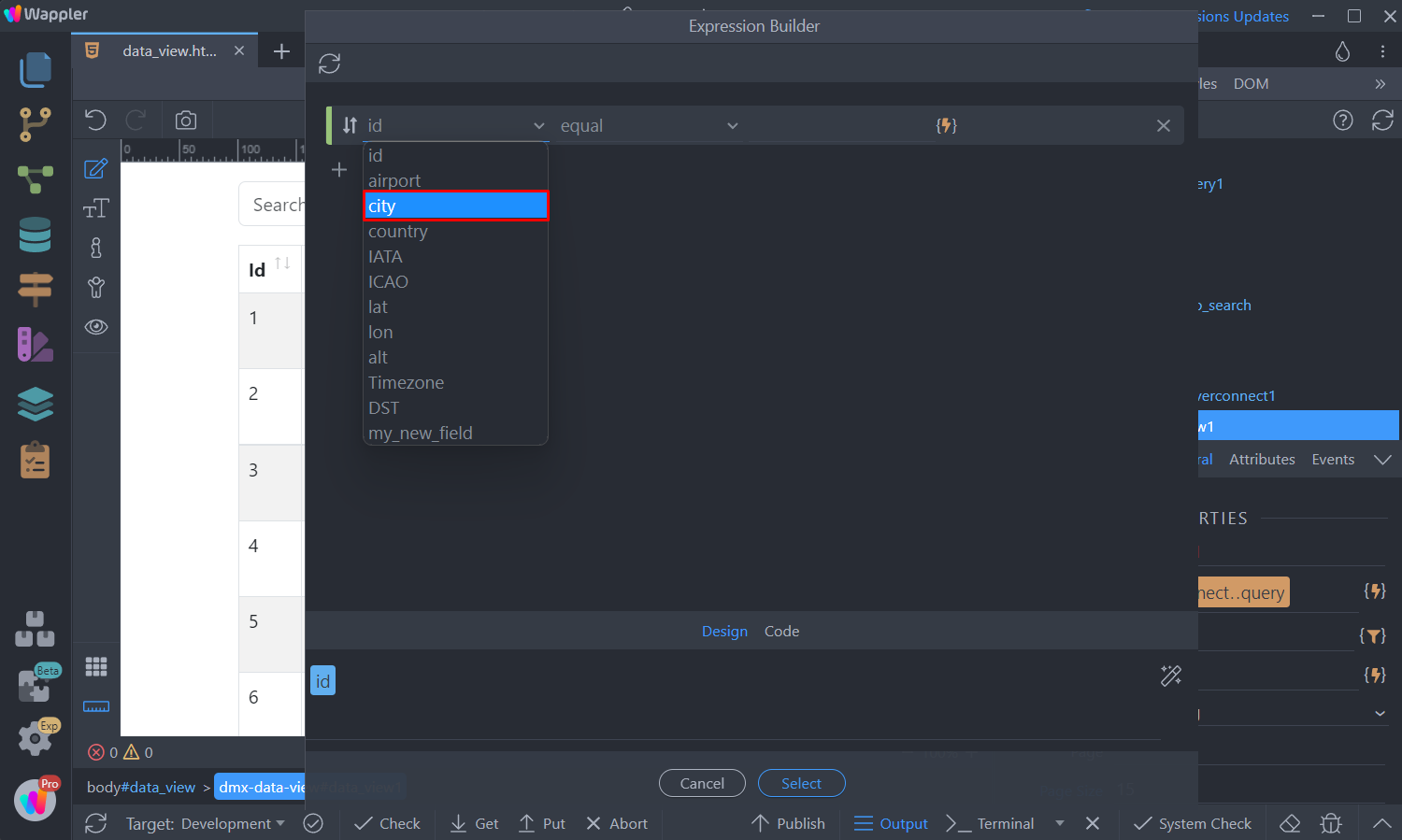
Section titled “Step 7”We’d like to filter the data by the city column of the Data View. You can see the Data View columns are automatically available in the dropdown. We select the city column:
Step 8
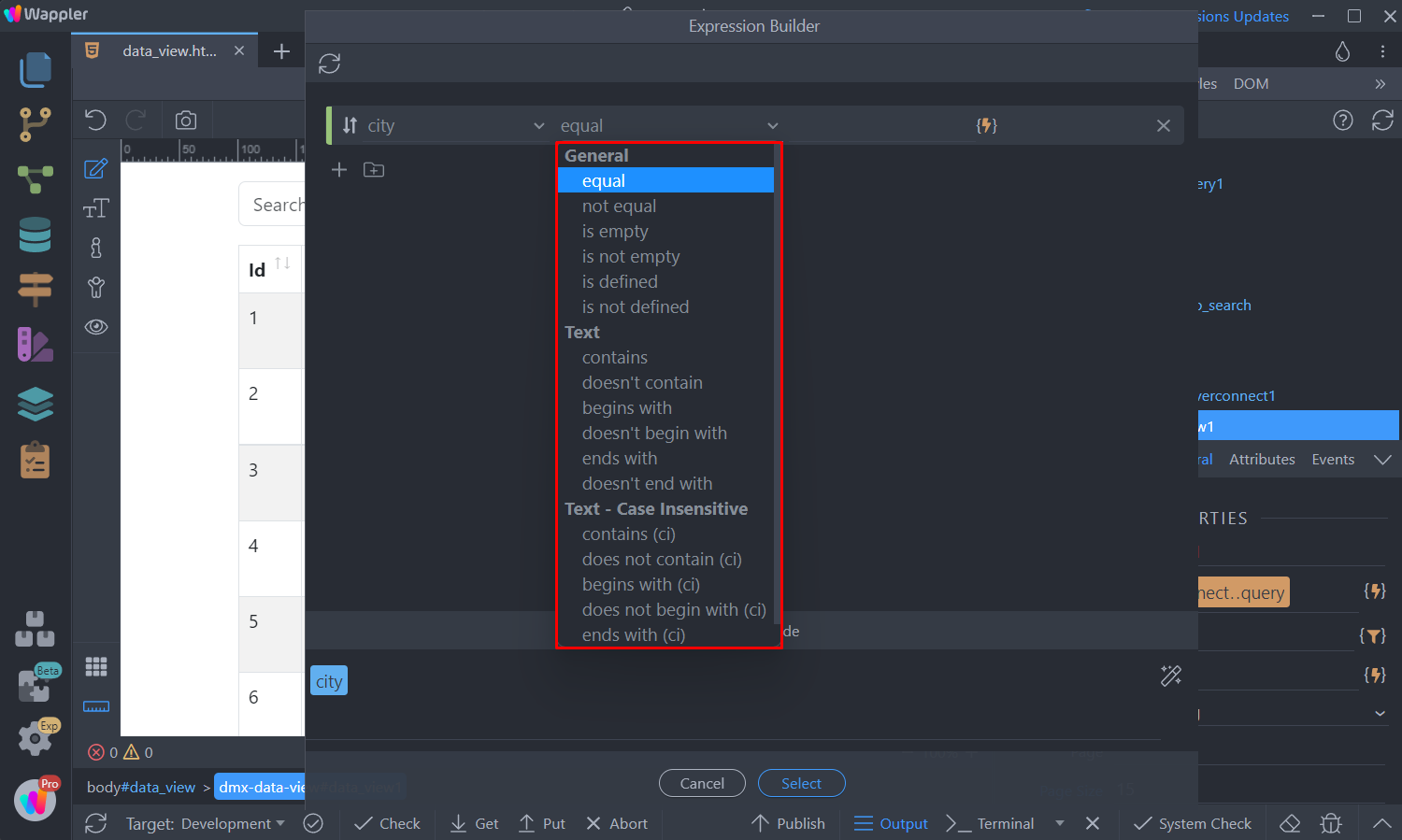
Section titled “Step 8”Then we select a condition. You can see that there are different condition types, depending on the data returned by the column. For text data you can select case sensitive or case insensitive filtering.
Step 9
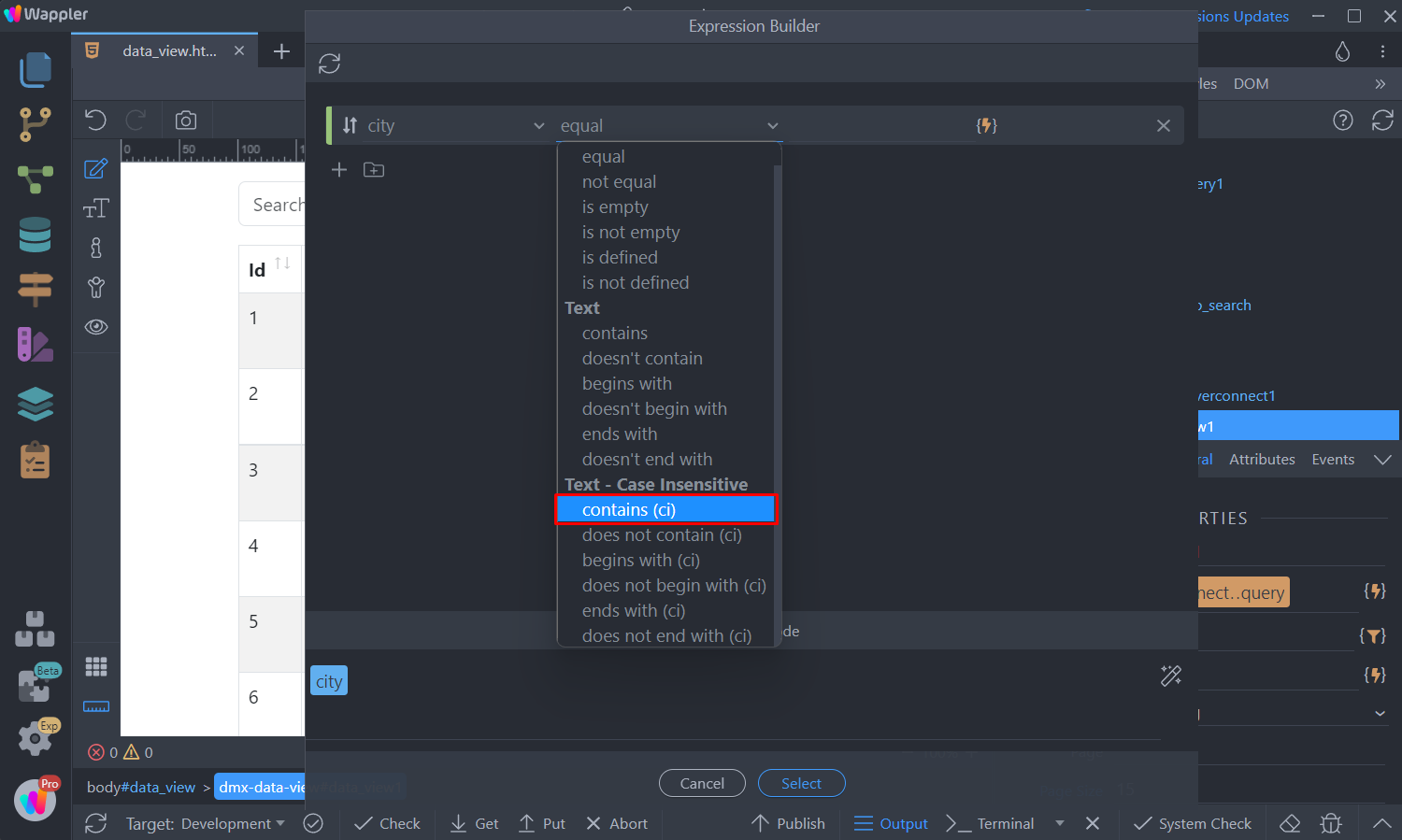
Section titled “Step 9”We’d like to use case insensitive search, so even if user enters lowercase text in the input, it will match the dynamic value in the Data View column, no matter the case:
Then select the dynamic data picker for the value:
Section titled “Then select the dynamic data picker for the value:”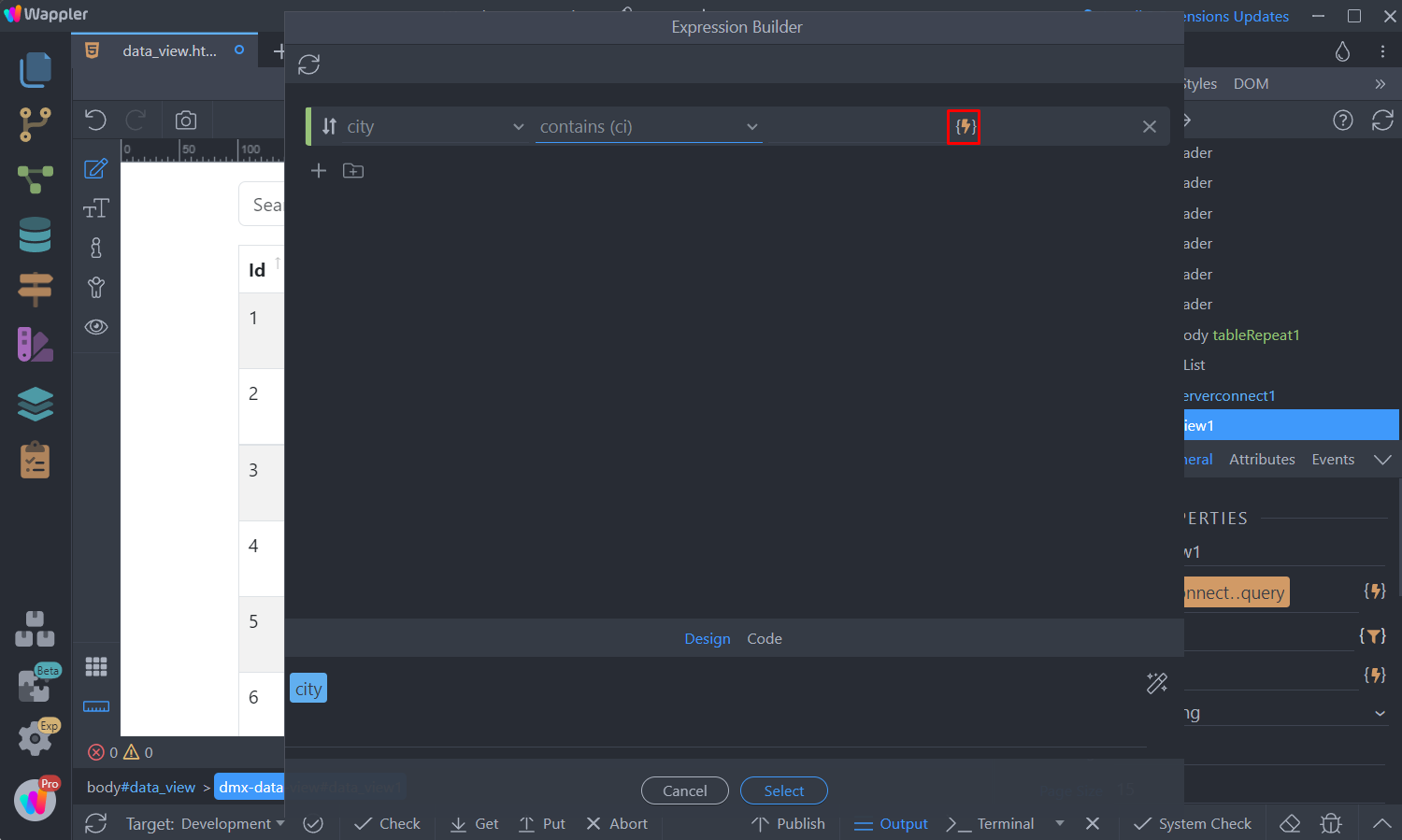
And select the text input value from the data picker:
Section titled “And select the text input value from the data picker:”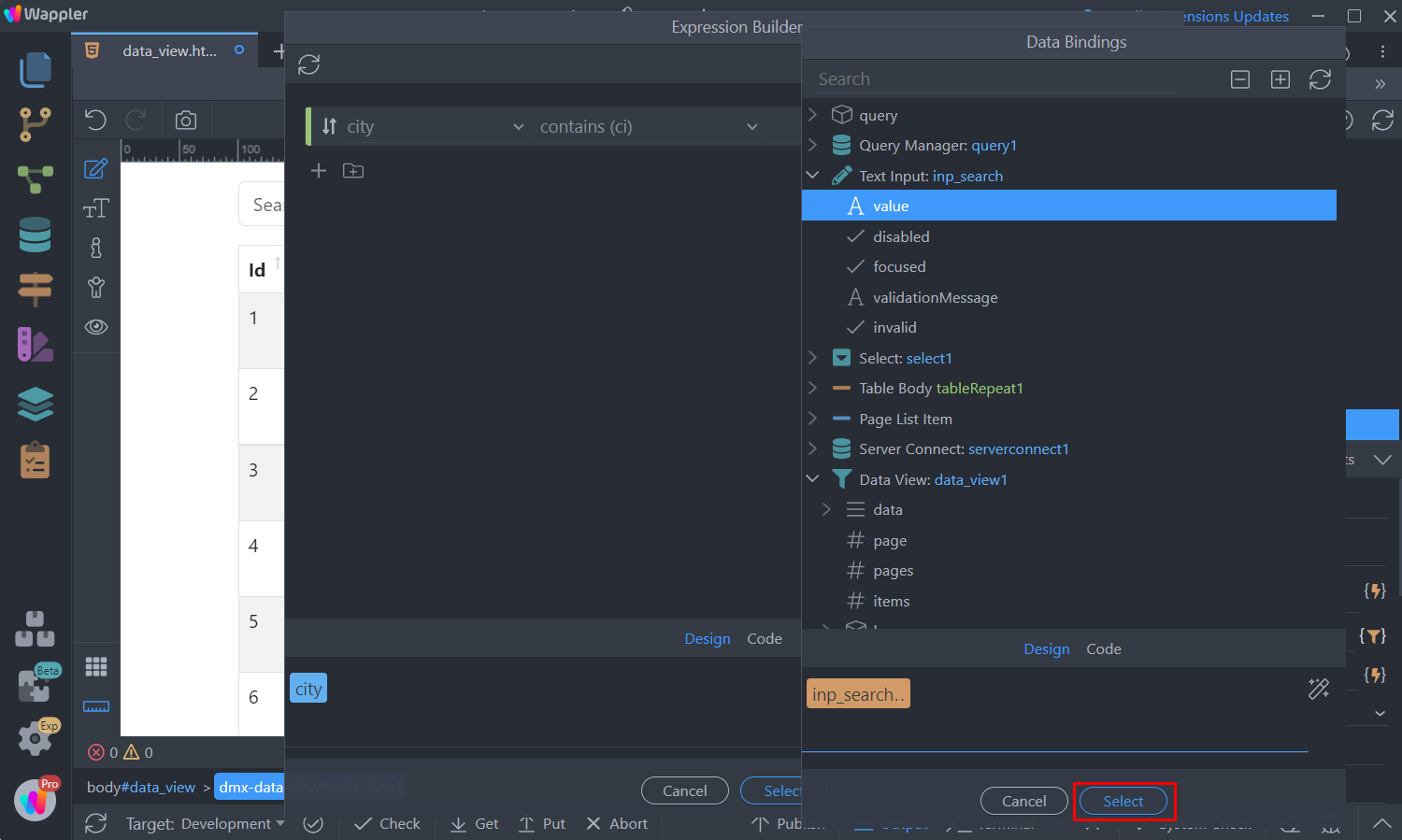
We also want to be able to filter by country, using the same text input. Click Add New Condition:
Section titled “We also want to be able to filter by country, using the same text input. Click Add New Condition:”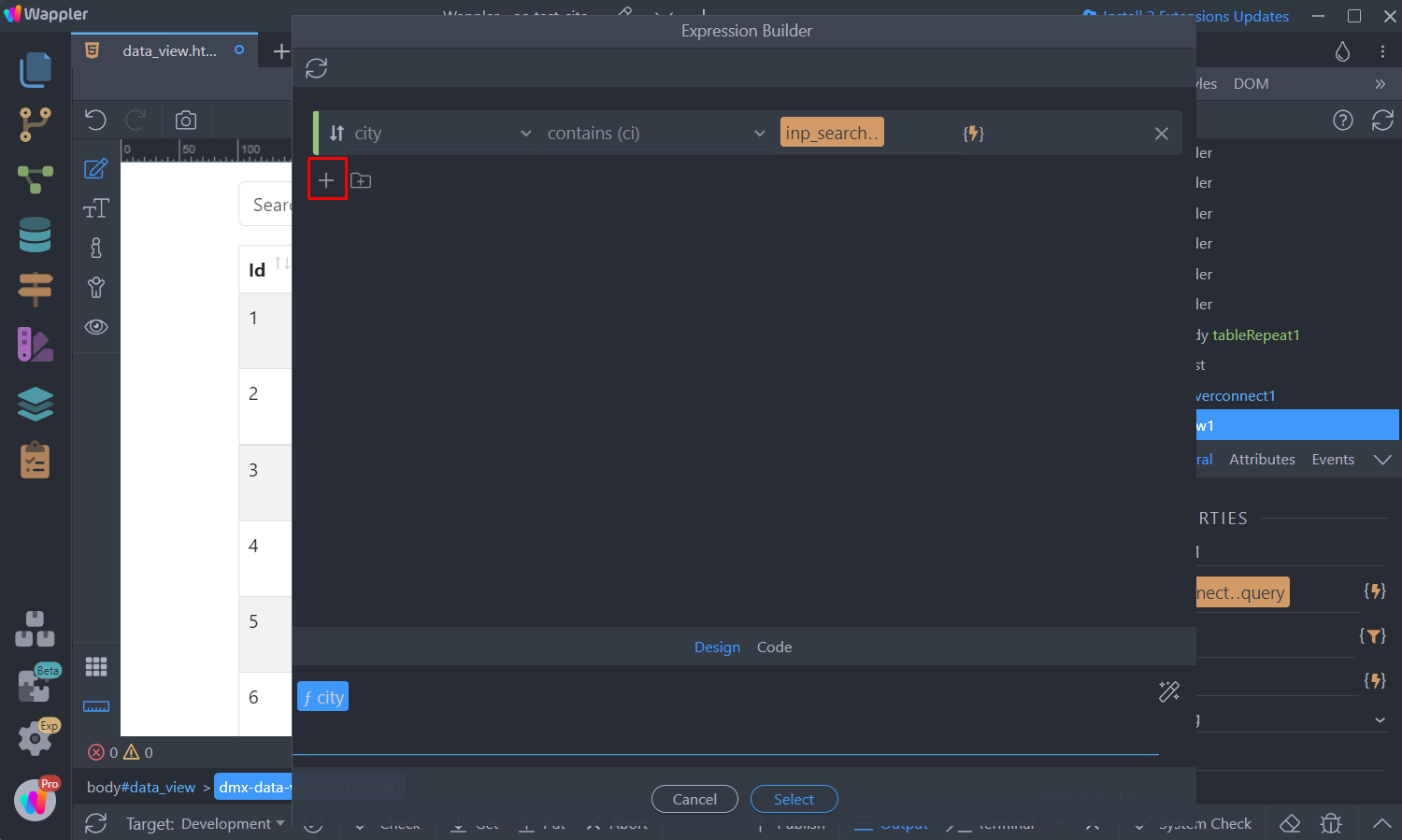
Select the country column from the dropdown:
Section titled “Select the country column from the dropdown:”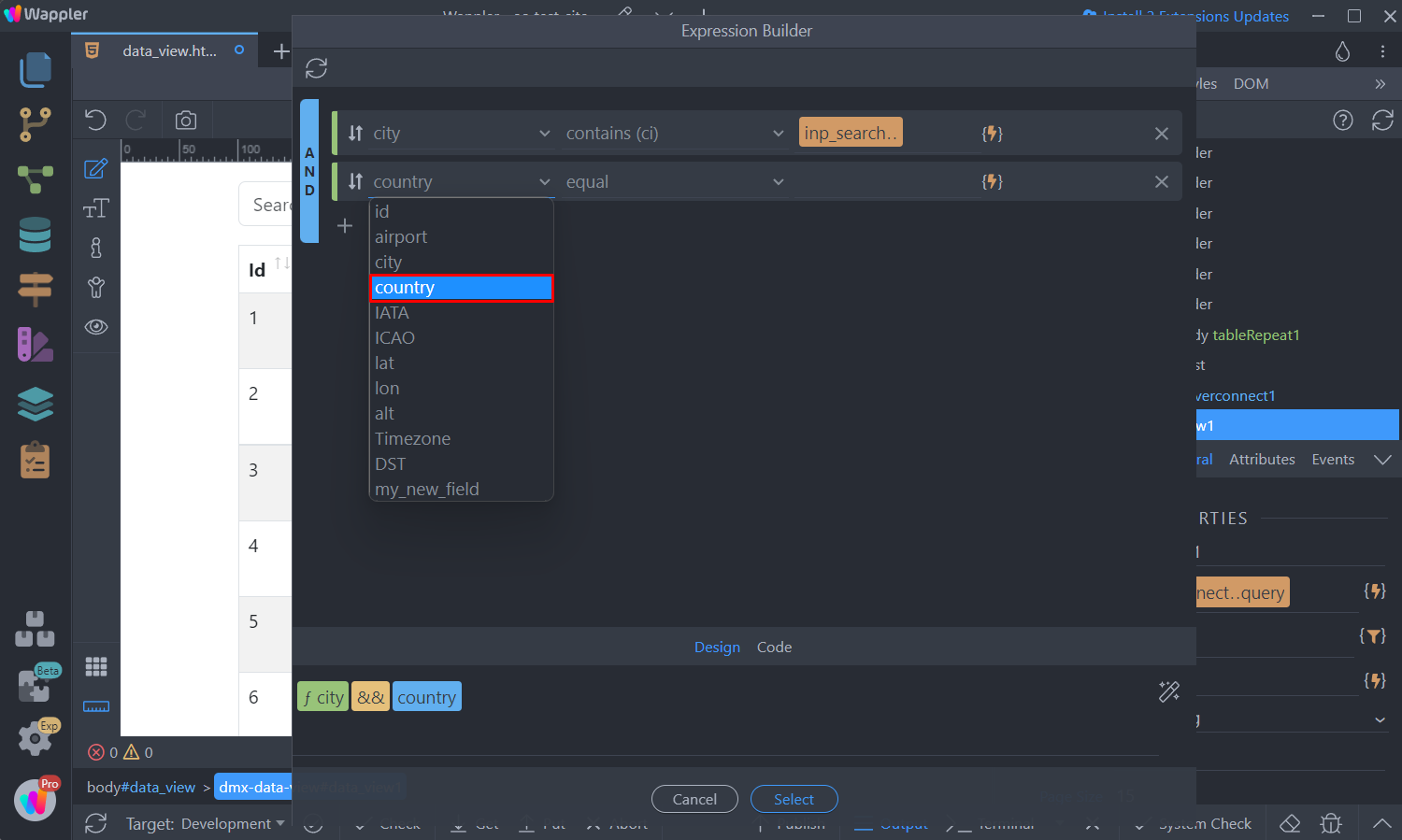
And for this filter again we select the case insensitive contains filter:
Section titled “And for this filter again we select the case insensitive contains filter:”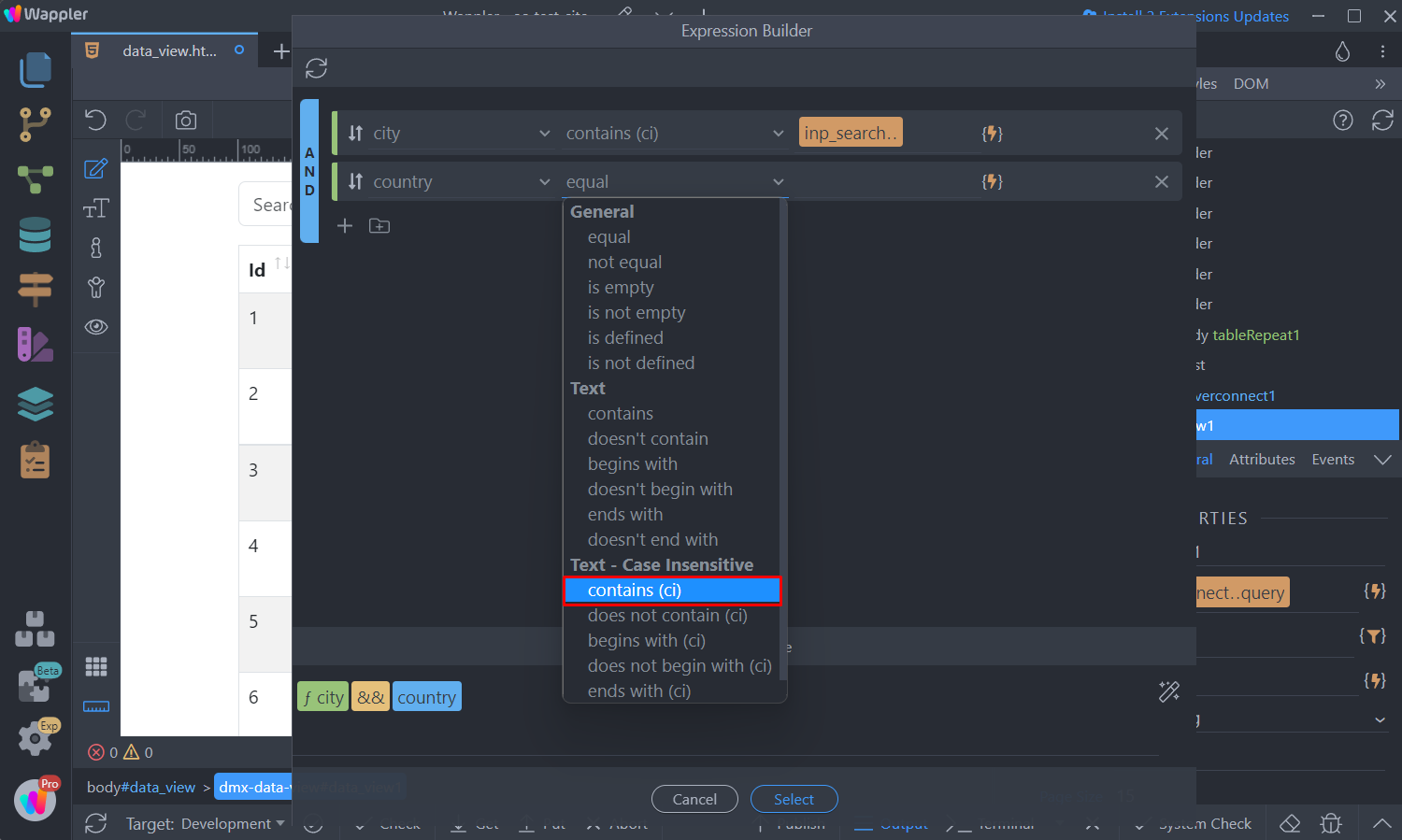
Click the dynamic data picker for the value:
Section titled “Click the dynamic data picker for the value:”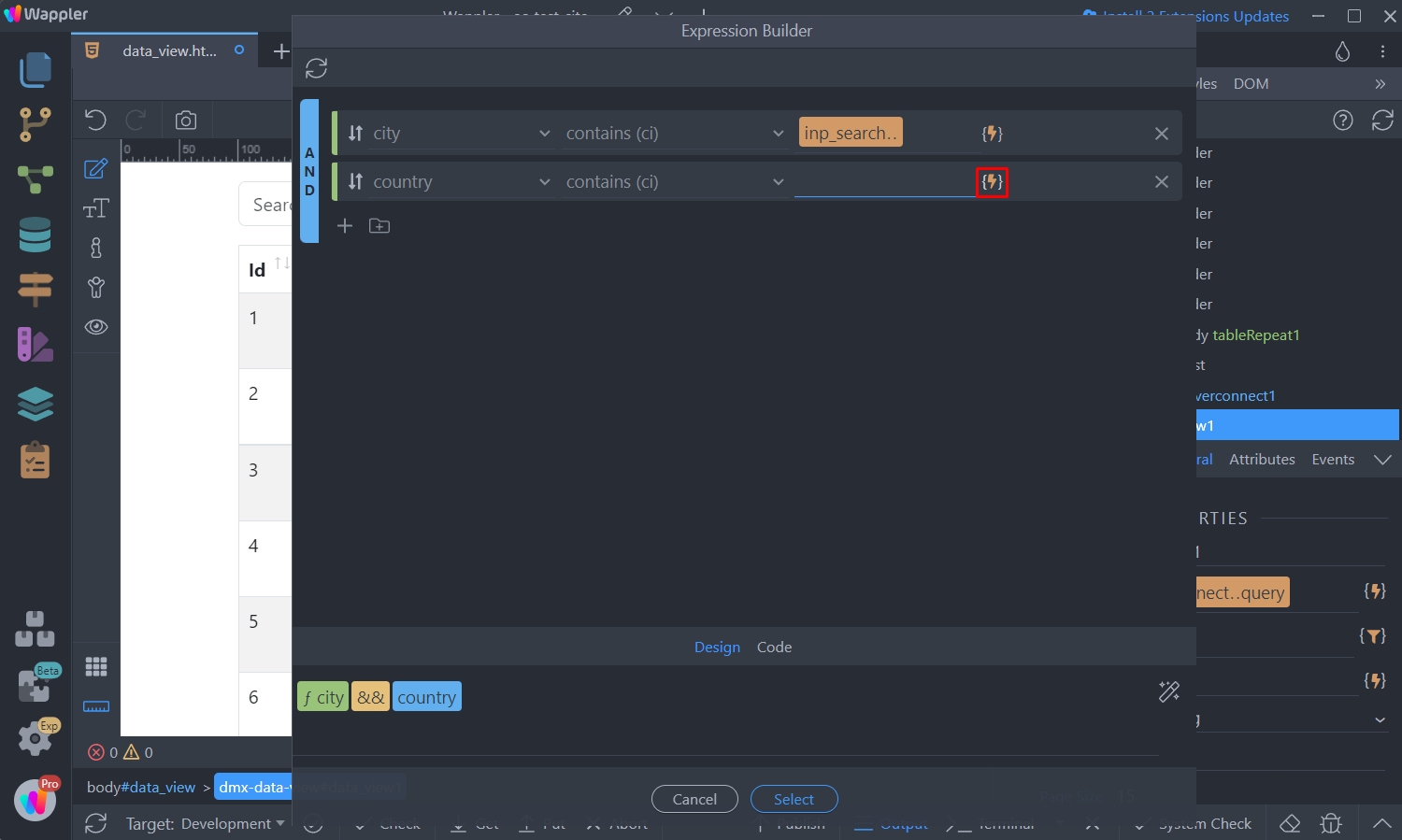
Select the text input value from the data picker:
Section titled “Select the text input value from the data picker:”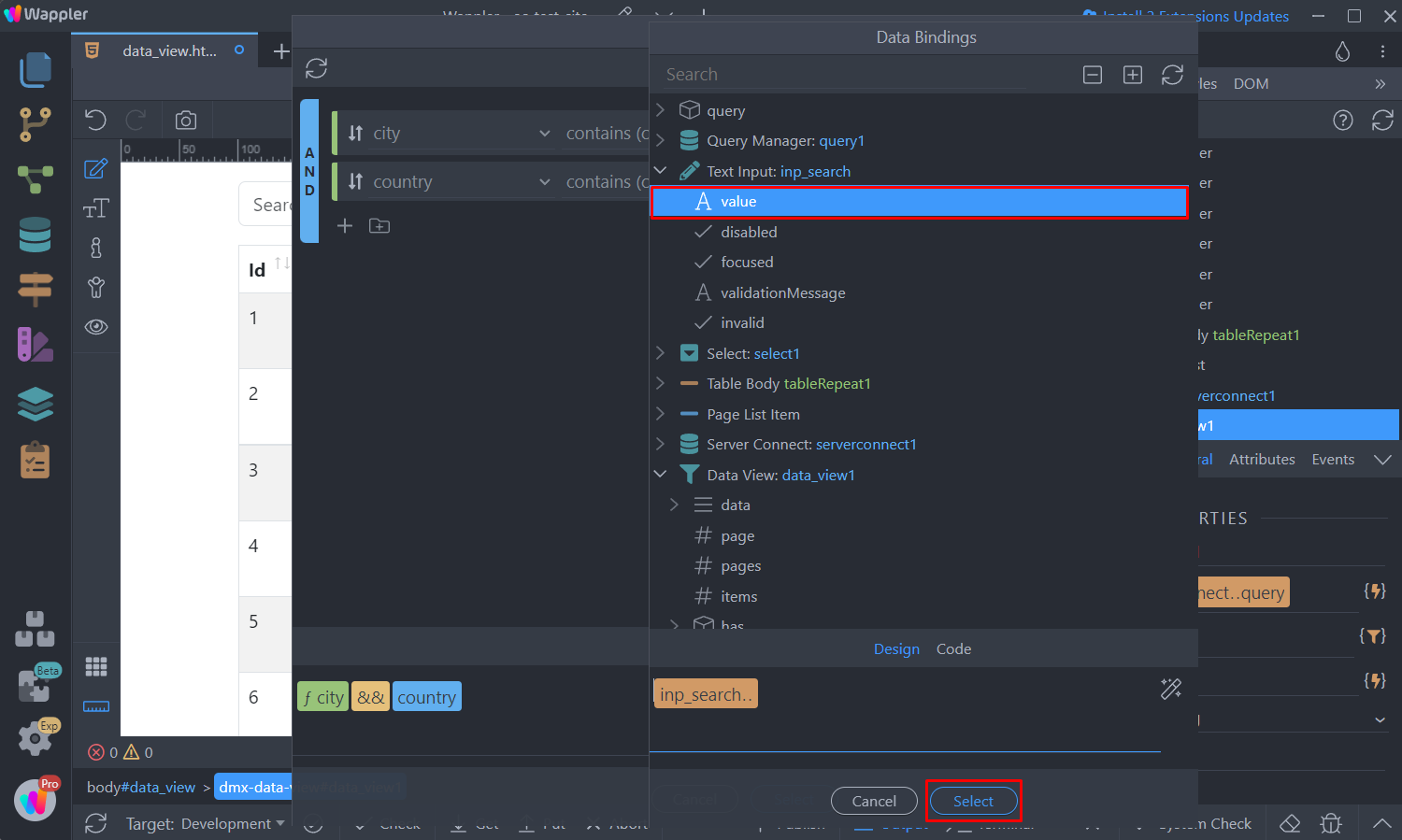
Step 17
Section titled “Step 17”And then let’s setup the logical operator. We need to filter the records by City OR Country, so let’s click the default AND logical operator:
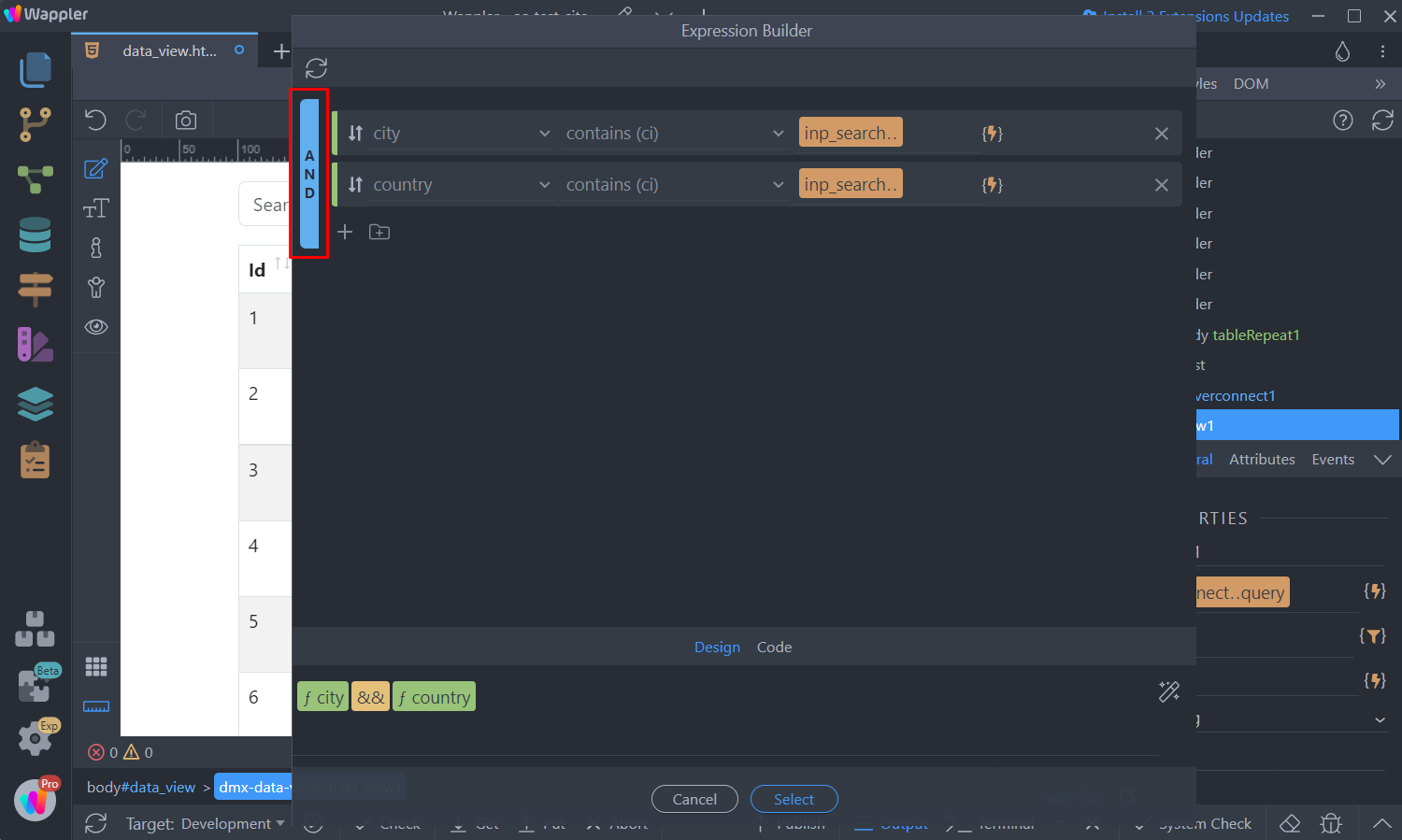
This changes it to OR:
Section titled “This changes it to OR:”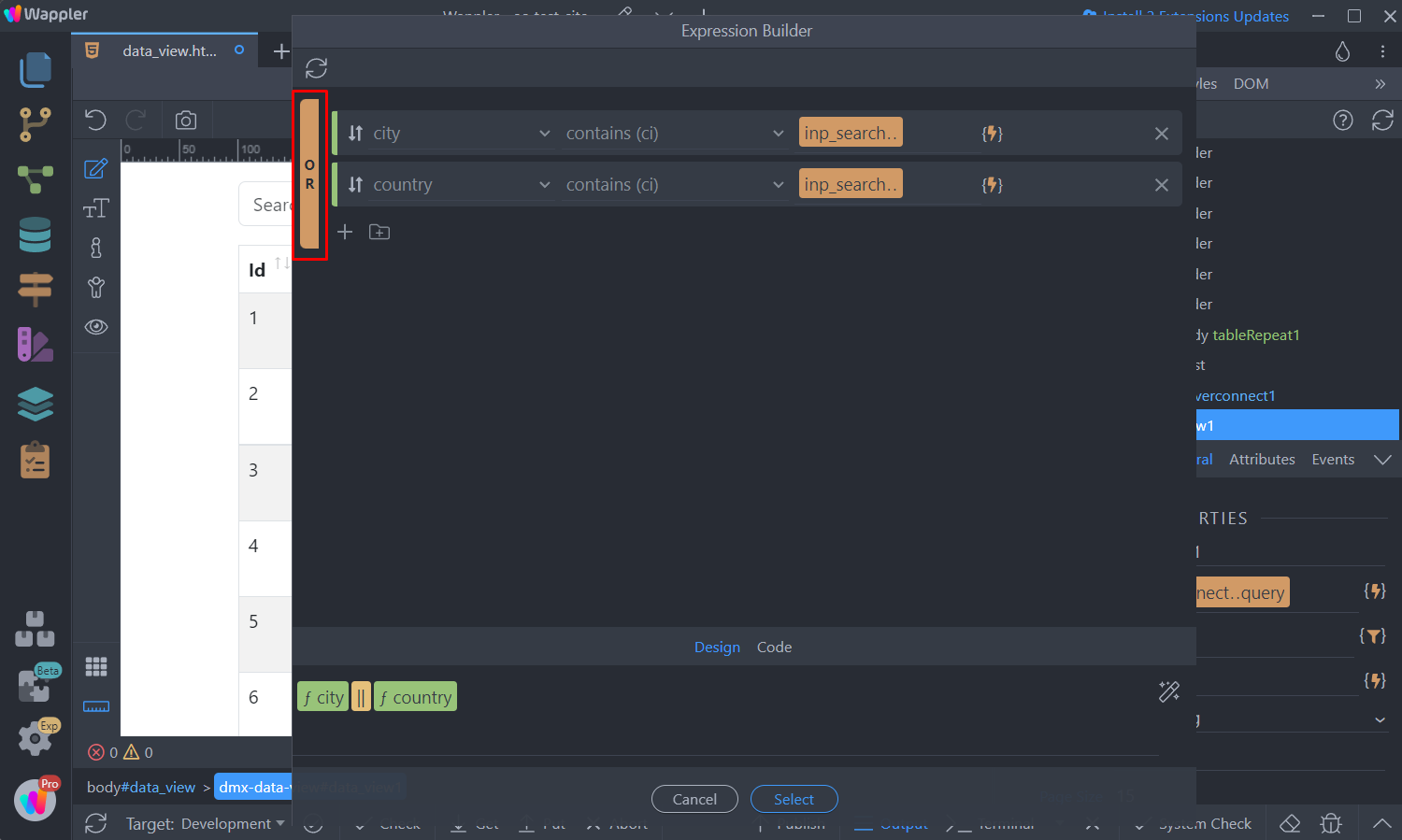
Click Select when you are done:
Section titled “Click Select when you are done:”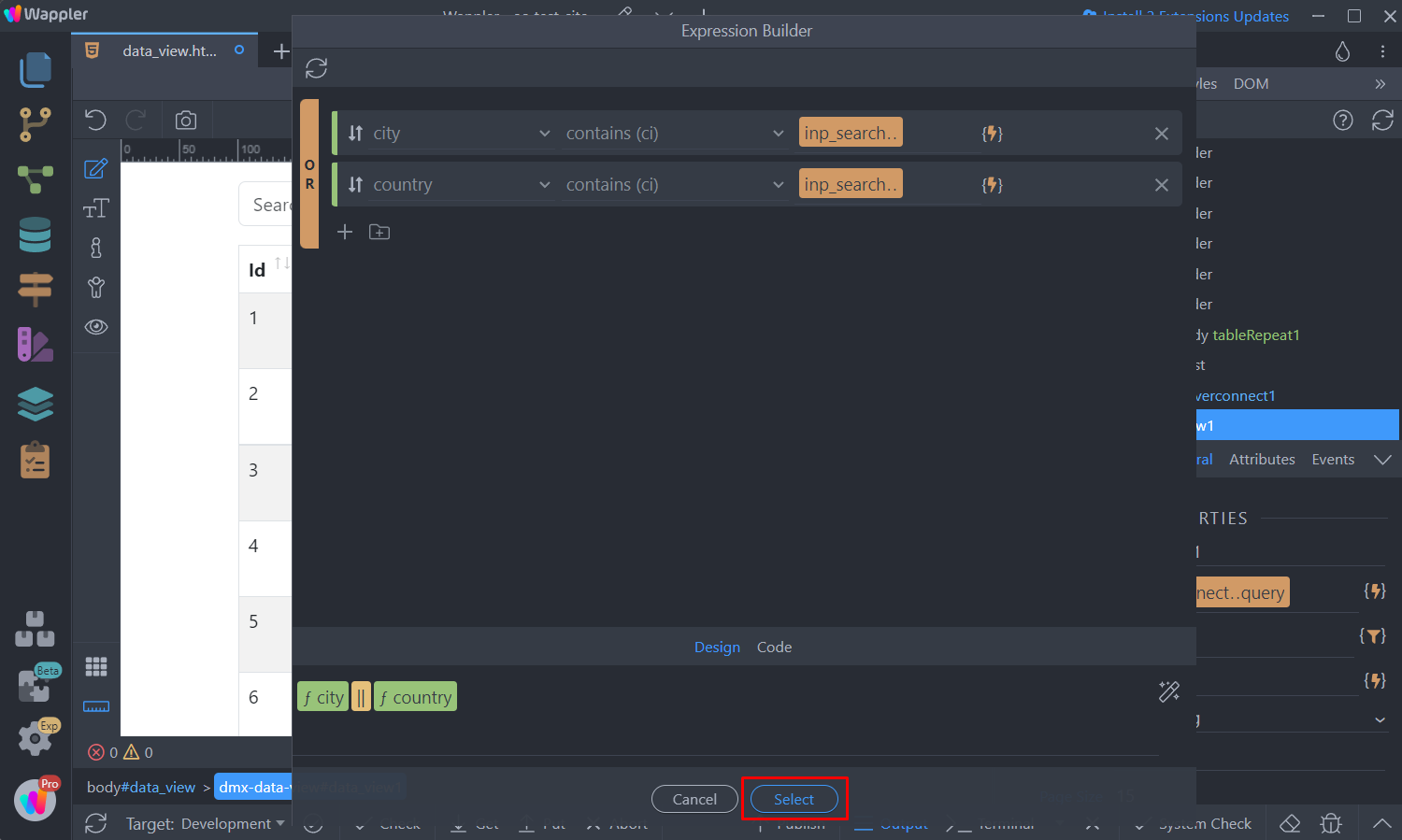
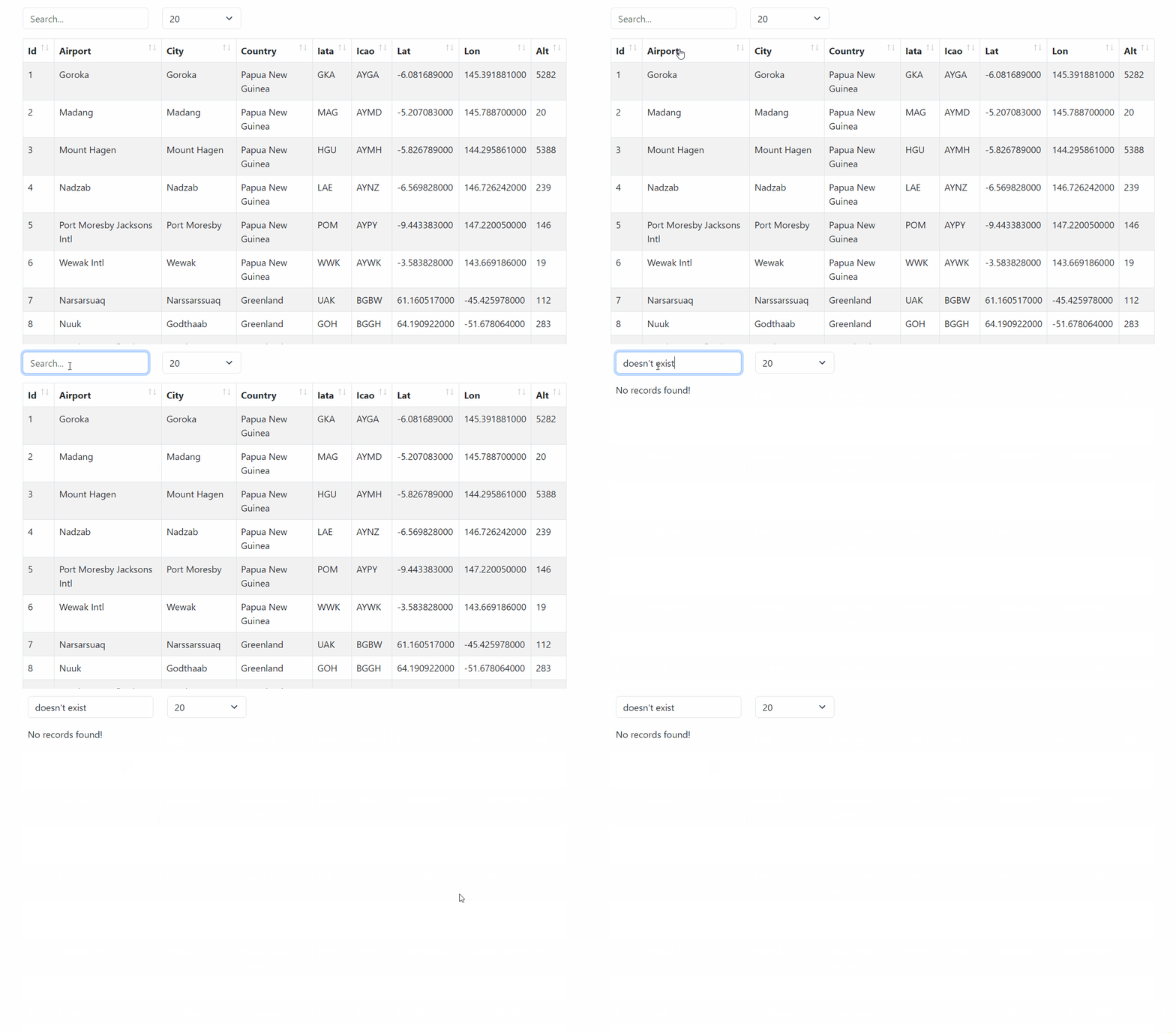
And now you can filter your data using the text input:
Section titled “And now you can filter your data using the text input:”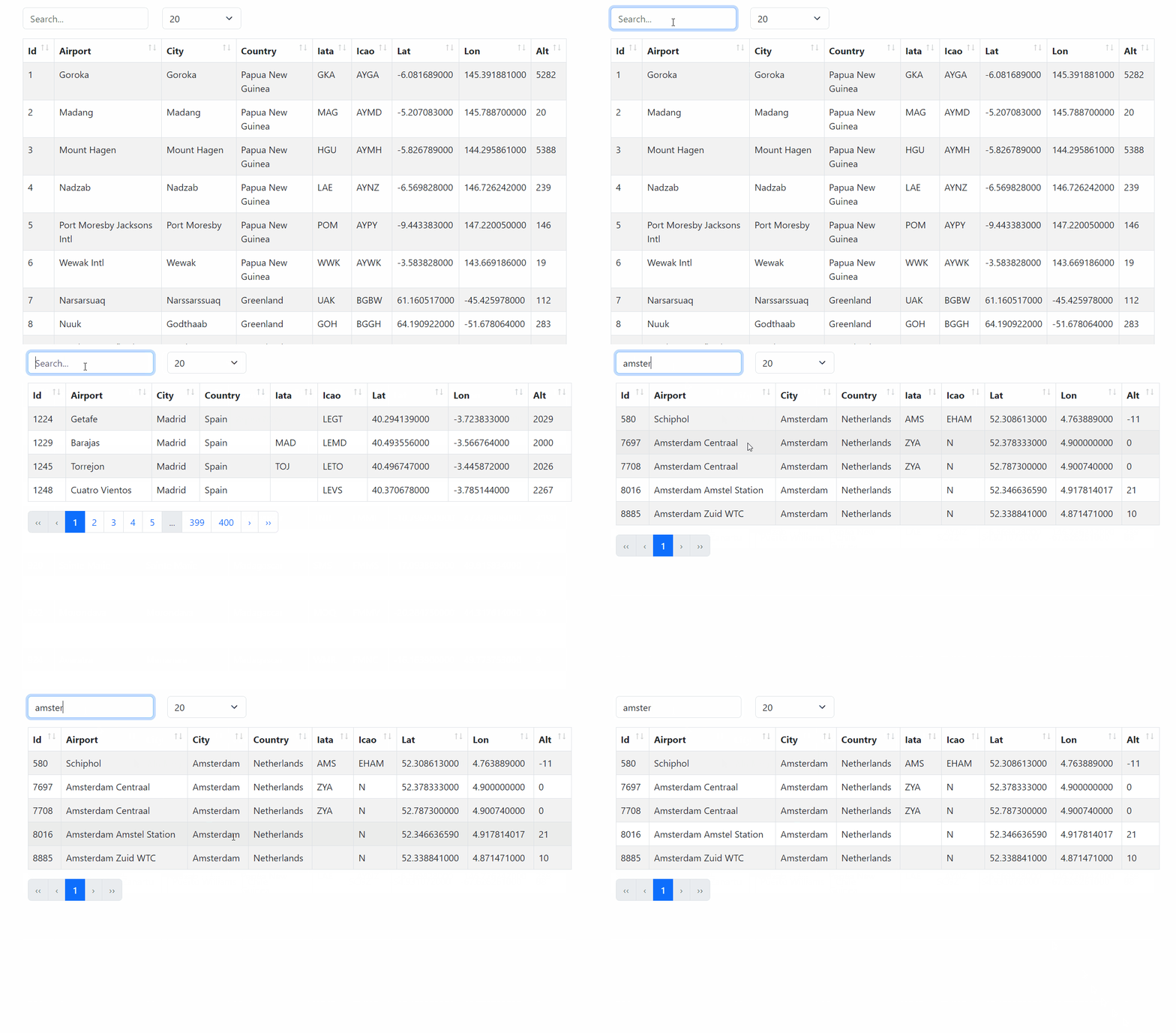
General Conditions
Section titled “General Conditions”The Expression Builder can also be used in other general cases such as toggling visibility, conditional regions, toggling dynamic classes etc.
In our case we will show you how to hide the empty table, when no records are returned by our data source and display some text instead.
First, we select the column wrapping the dynamic table and add new dynamic attribute:

Under Display select Hide:
Section titled “Under Display select Hide:”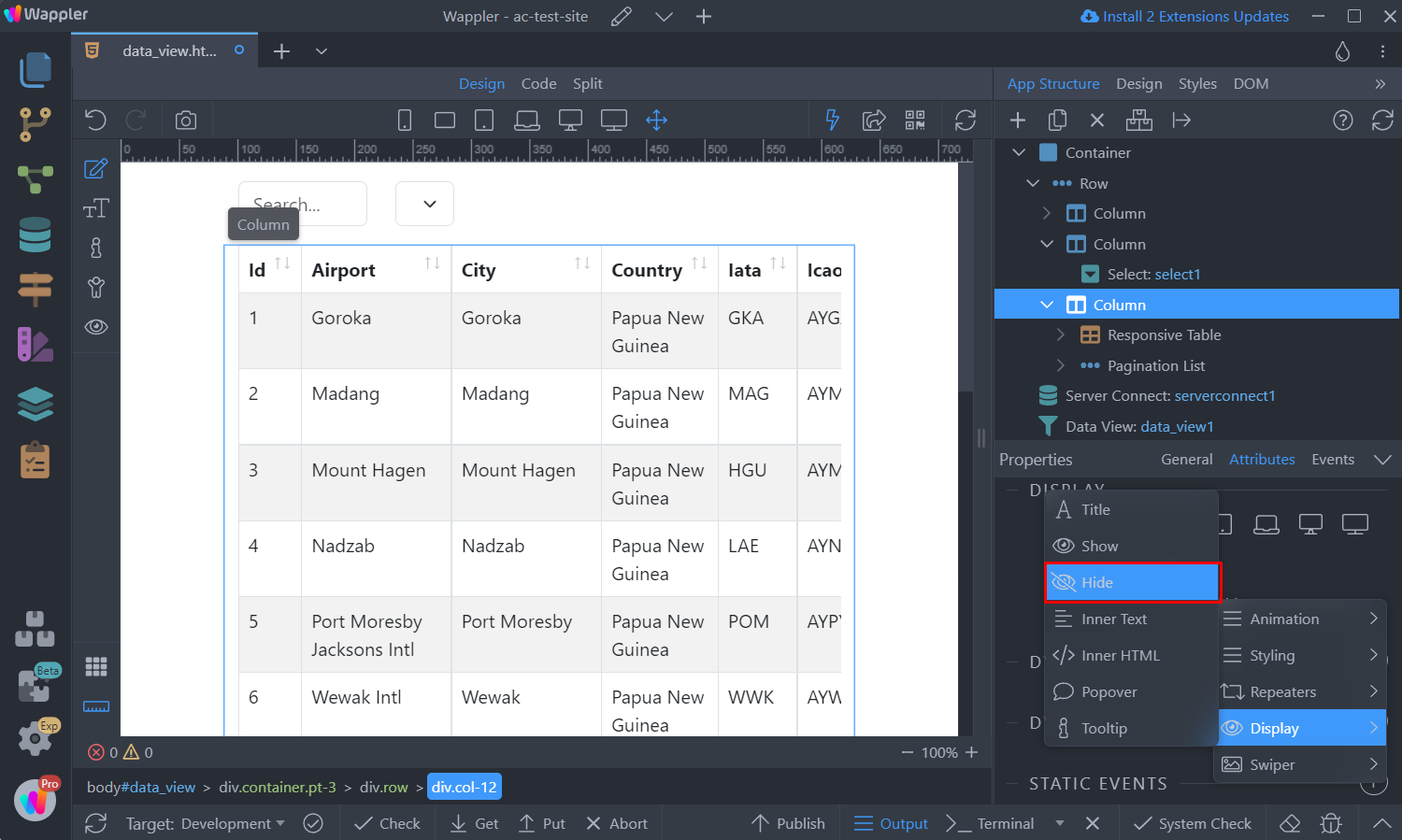
And click the Expression Builder icon:
Section titled “And click the Expression Builder icon:”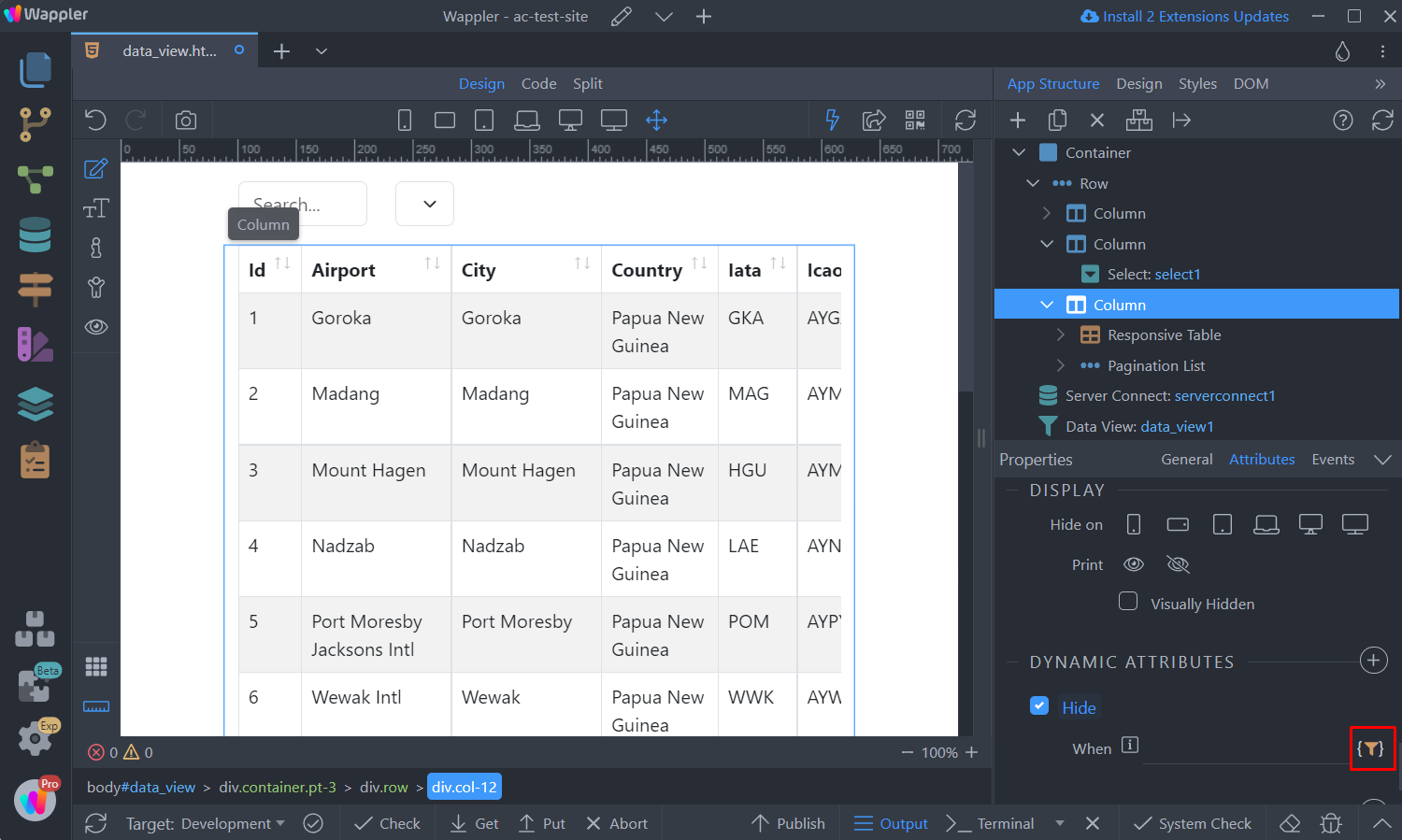
Here, click the dynamic data picker, to select an expression:
Section titled “Here, click the dynamic data picker, to select an expression:”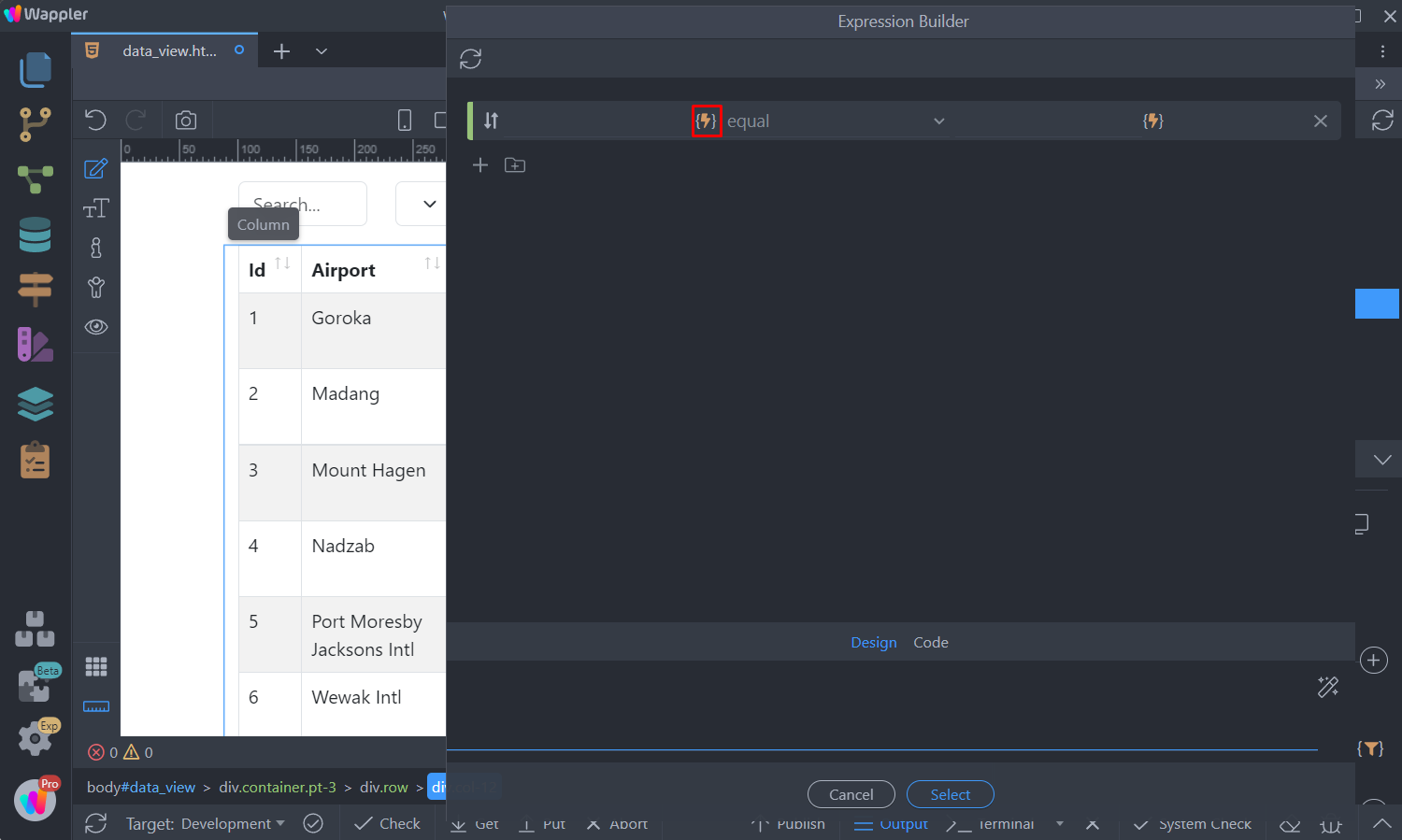
In our case, we want to check if the data source is empty or not, so we select Data View > data:
Section titled “In our case, we want to check if the data source is empty or not, so we select Data View > data:”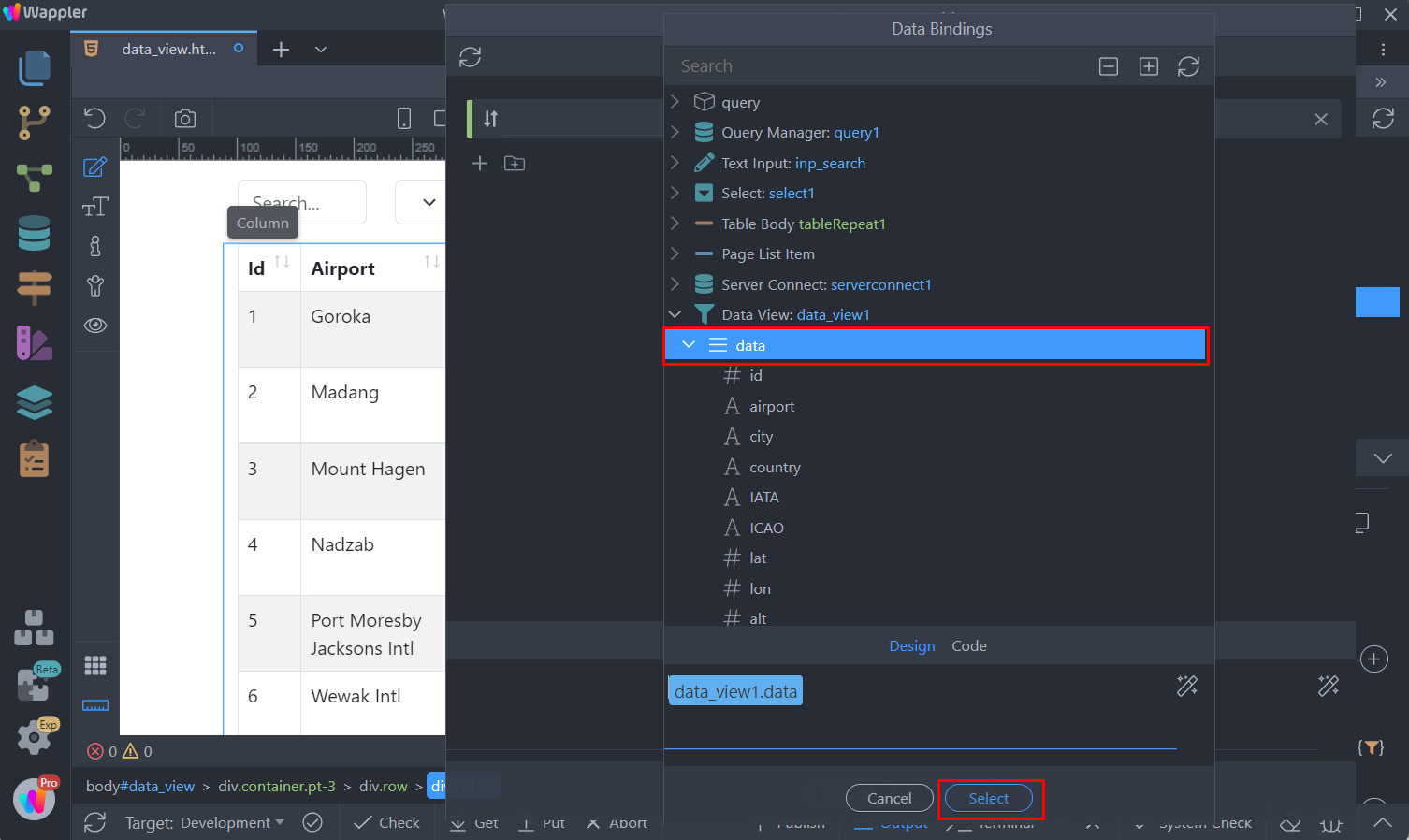
And for condition we select Is Empty:
Section titled “And for condition we select Is Empty:”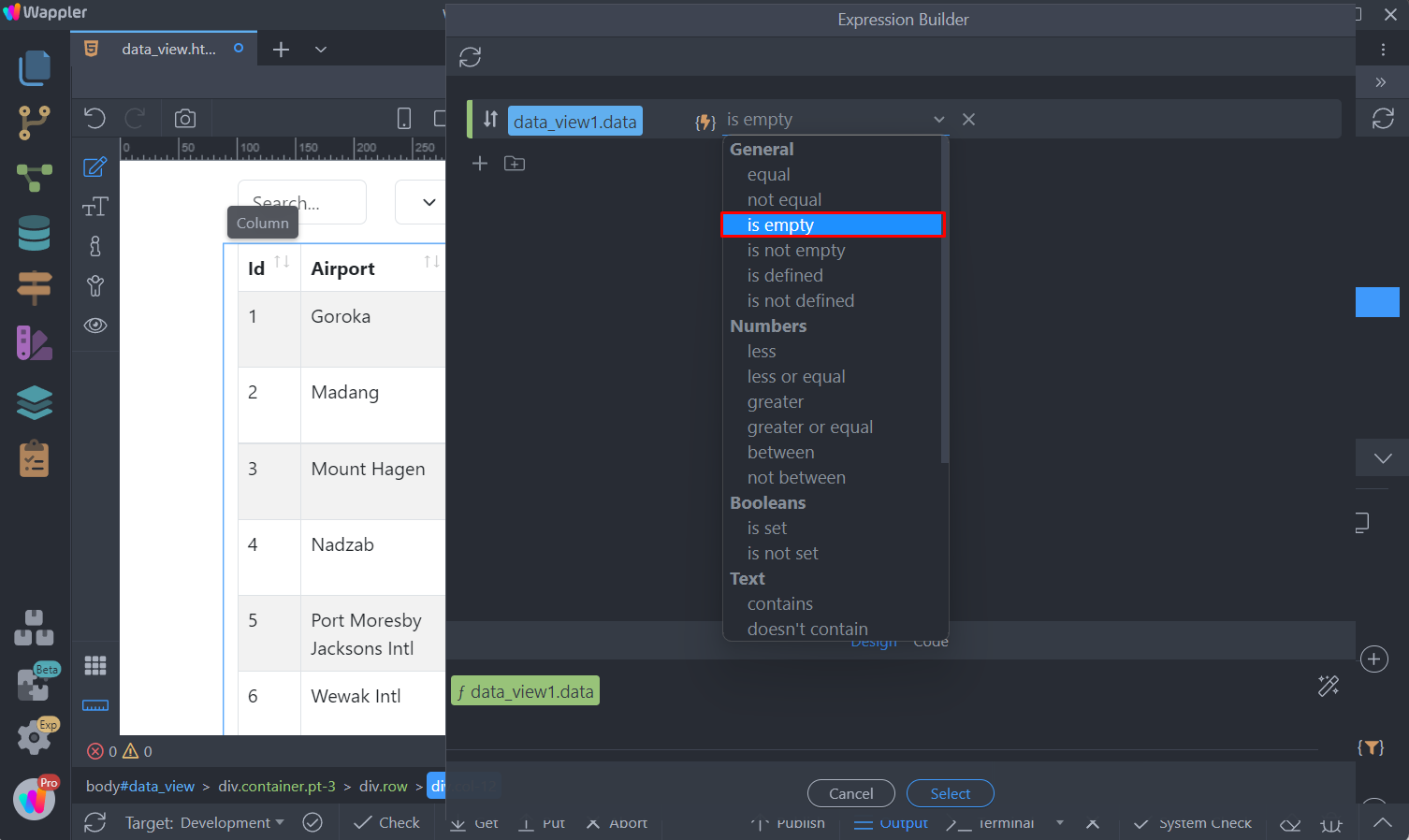
Click Select:
Section titled “Click Select:”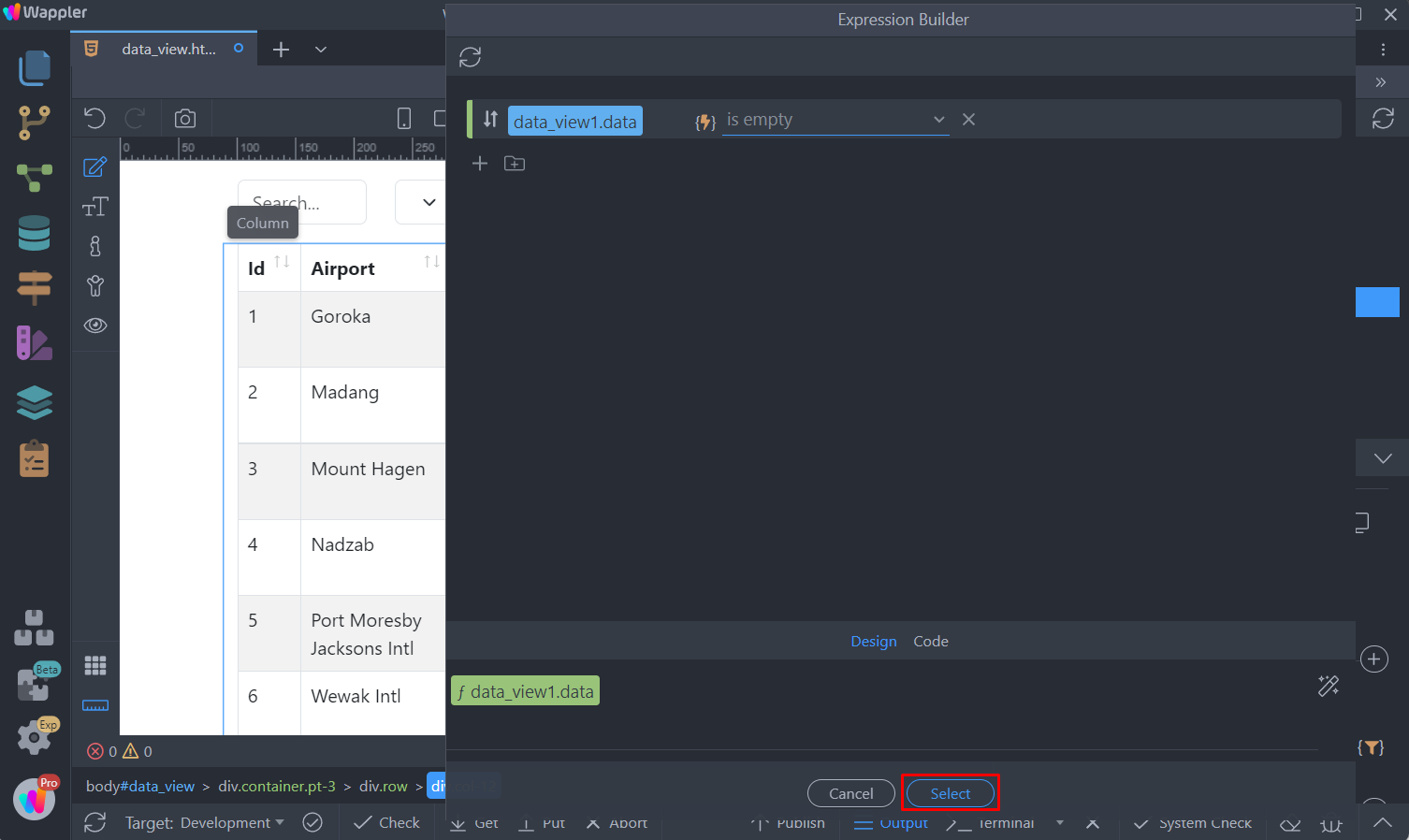
The dynamic table will be hidden when no data is returned by the data view.
Section titled “The dynamic table will be hidden when no data is returned by the data view.”The next step is to display some text, notifying the users that no records are found. Add new element on the page, after the table:
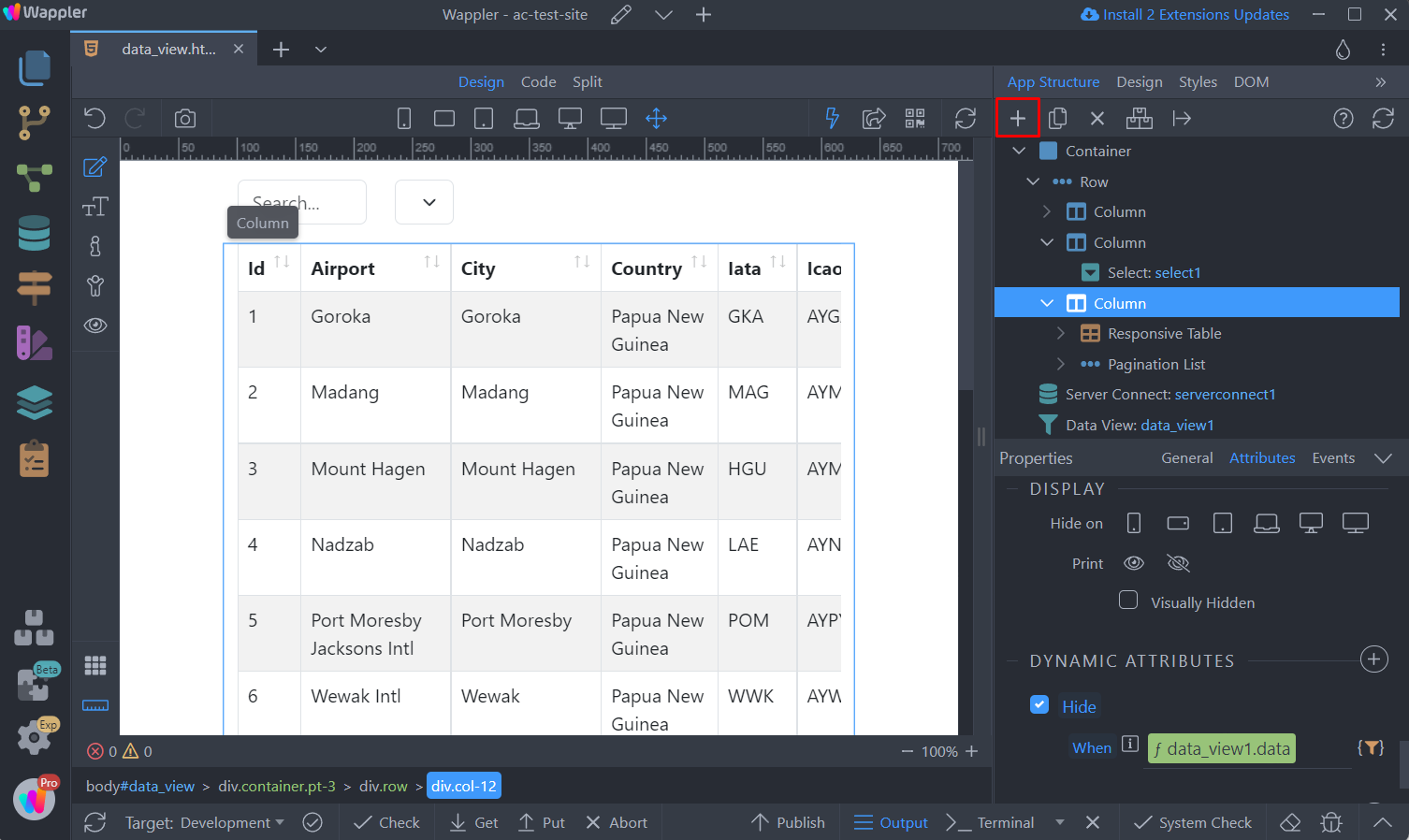
We add a column:
Section titled “We add a column:”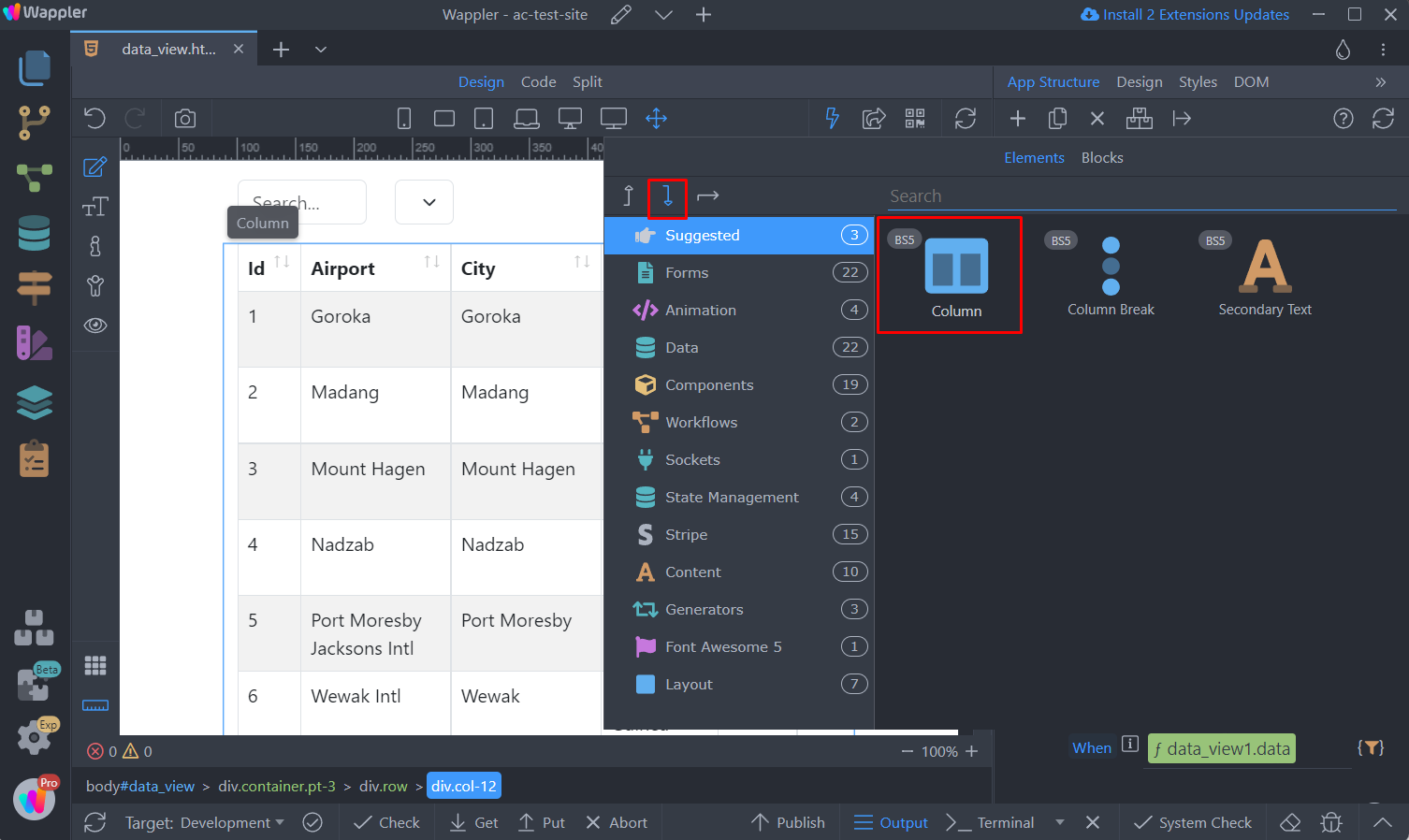
And inside the column we add a paragraph:
Section titled “And inside the column we add a paragraph:”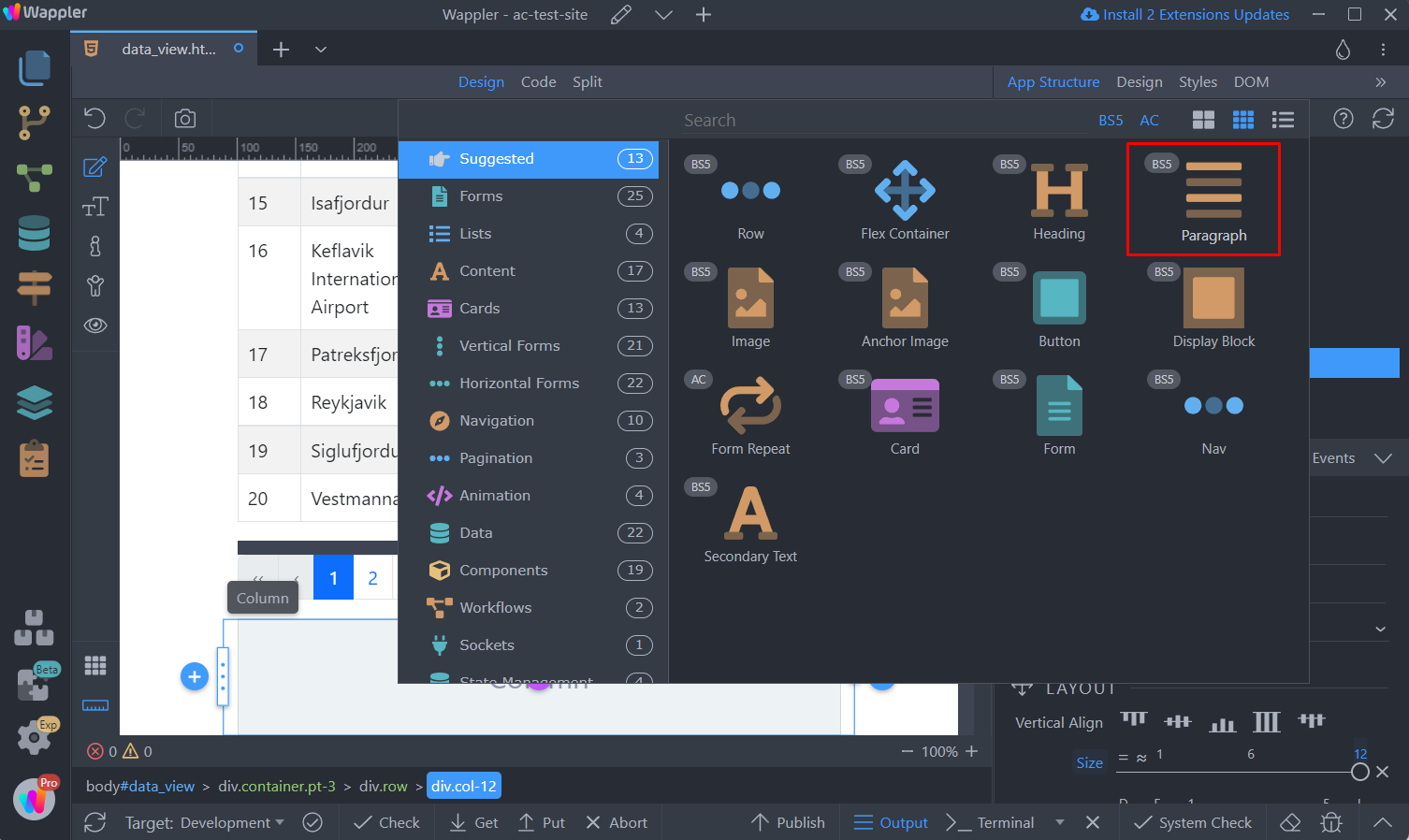
Change the default text of the paragraph to something like “No records found!”:
Section titled “Change the default text of the paragraph to something like “No records found!”:”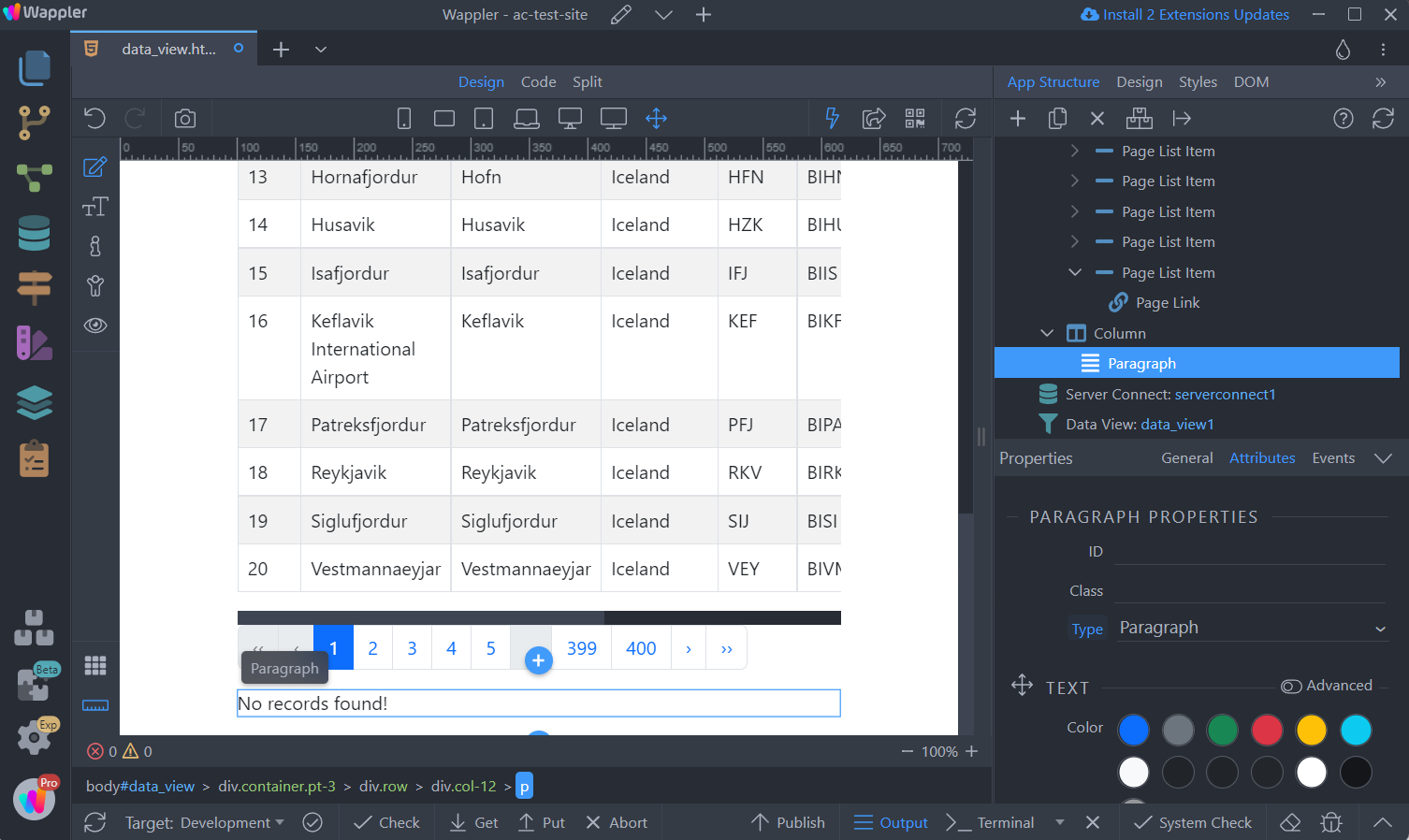
Then select the column we just added and add a new dynamic attribute:
Section titled “Then select the column we just added and add a new dynamic attribute:”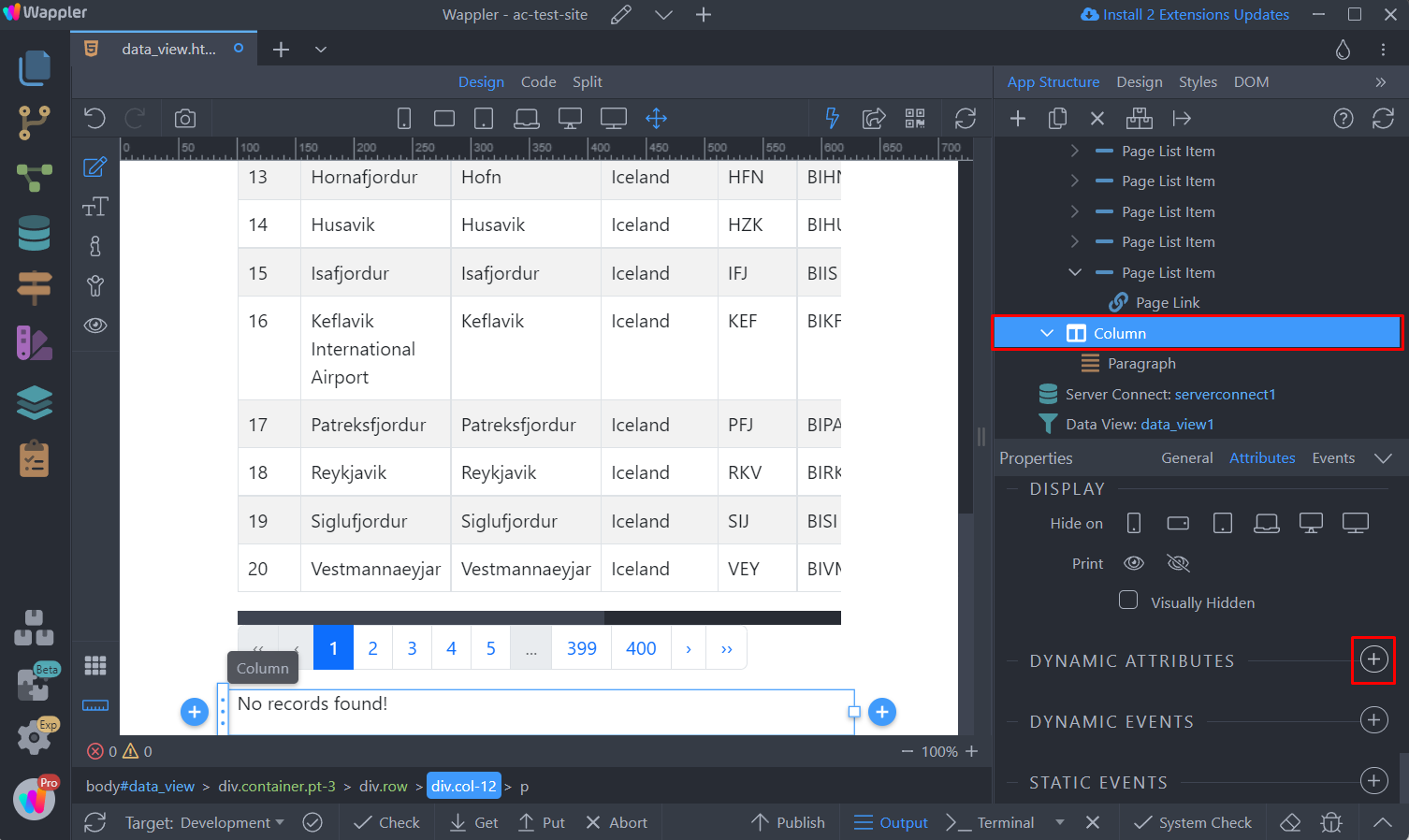
Select Display > Show:
Section titled “Select Display > Show:”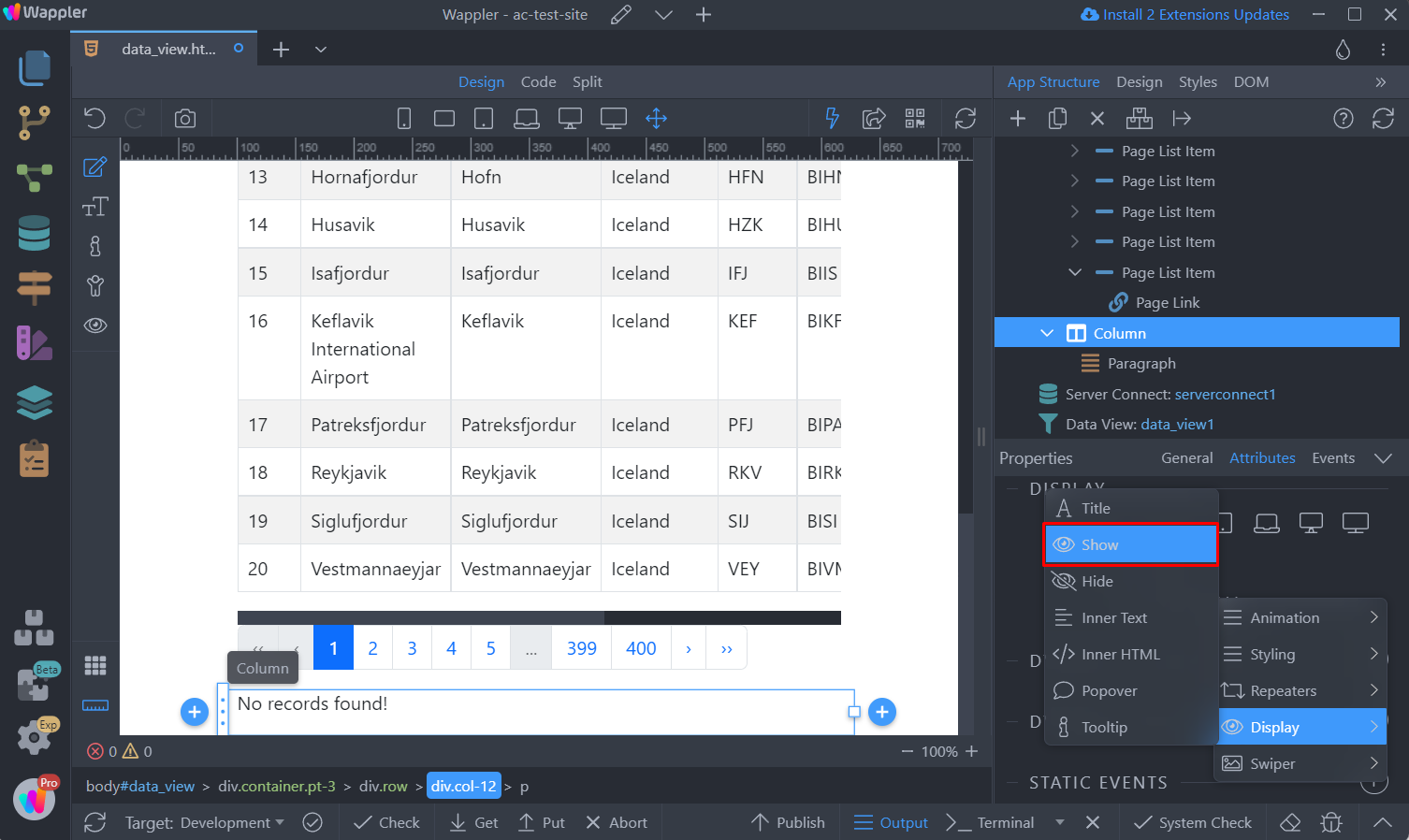
And click the Expression Picker icon:
Section titled “And click the Expression Picker icon:”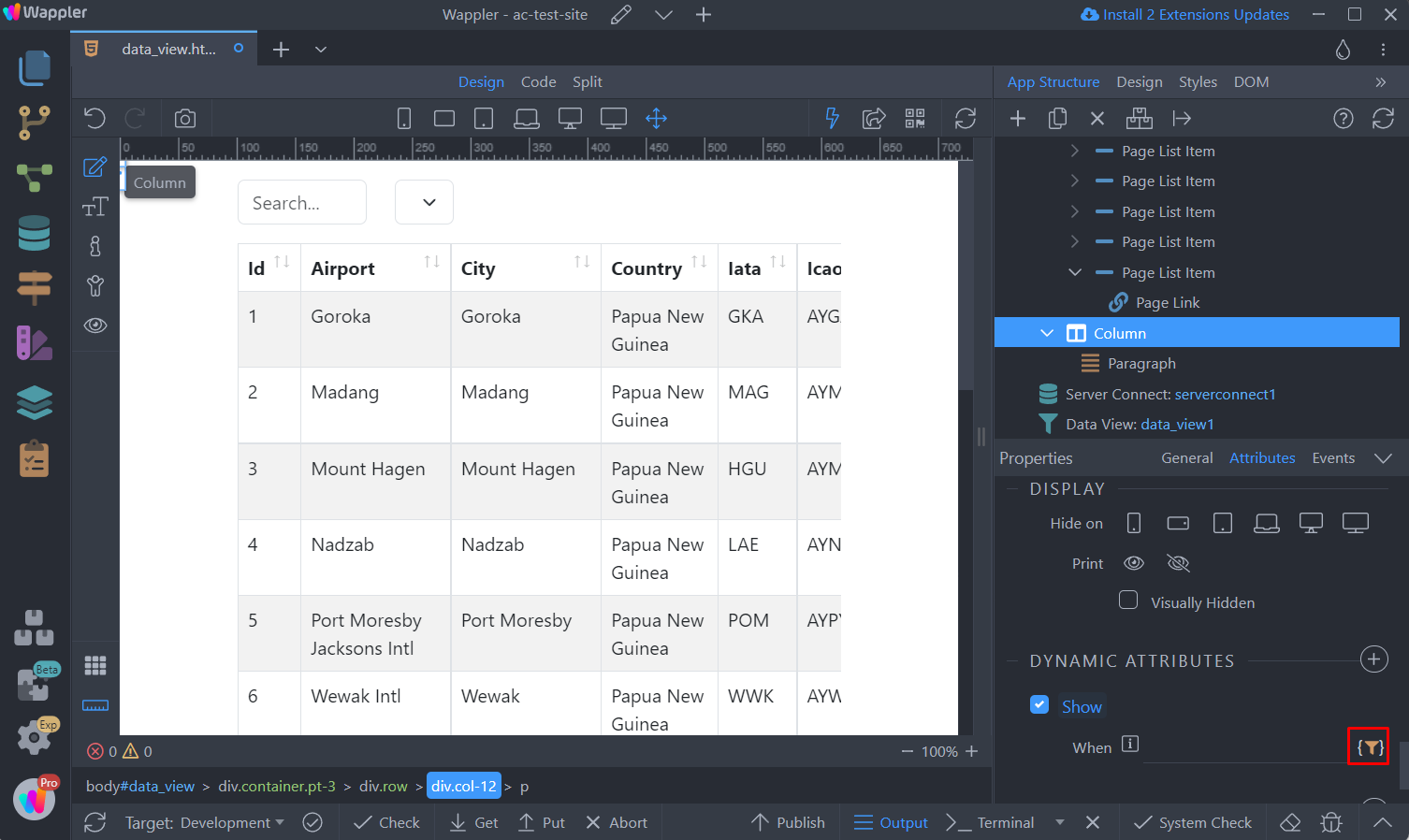
Here, click the dynamic data picker, to select an expression:
Section titled “Here, click the dynamic data picker, to select an expression:”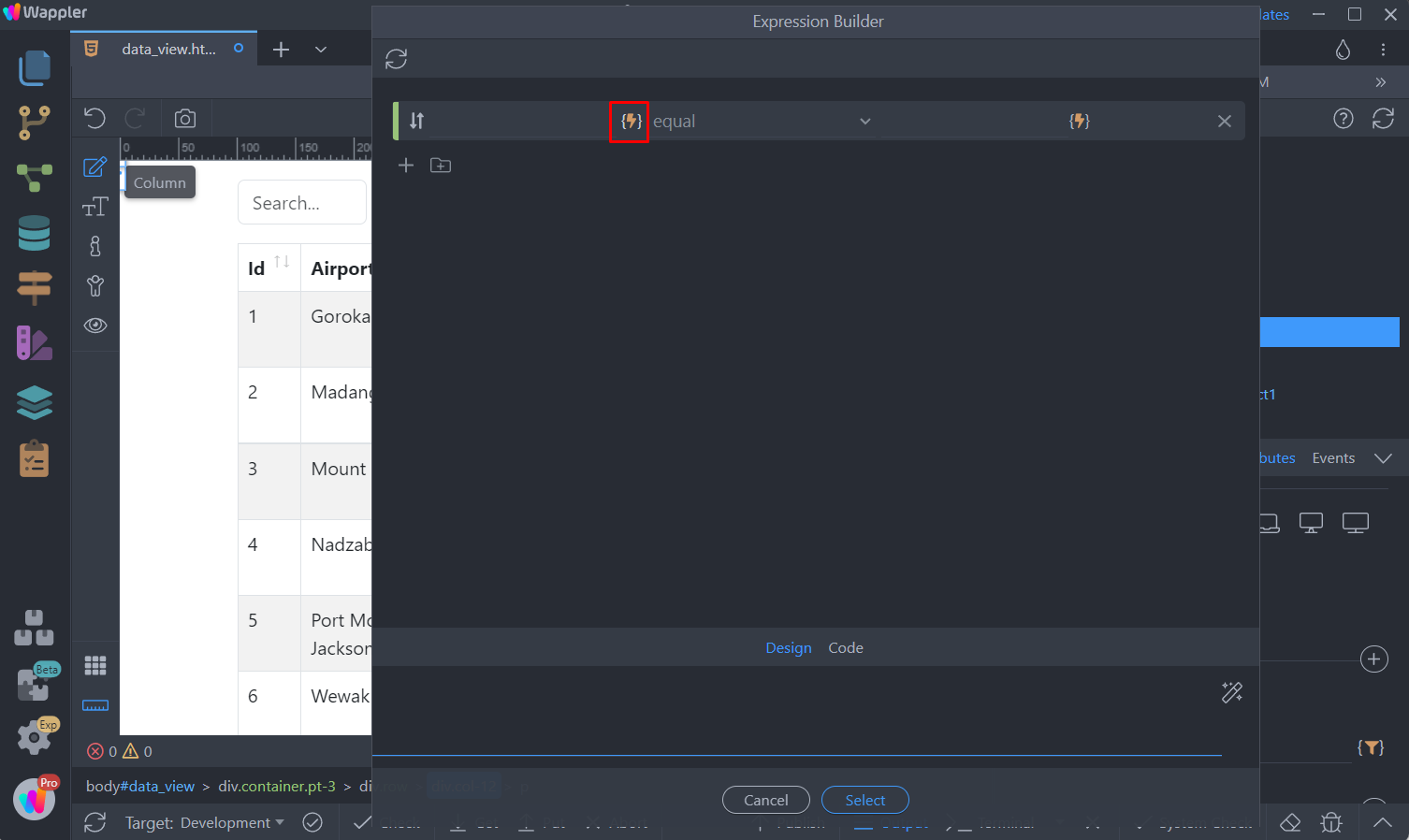
Again we select Data View > data
Section titled “Again we select Data View > data”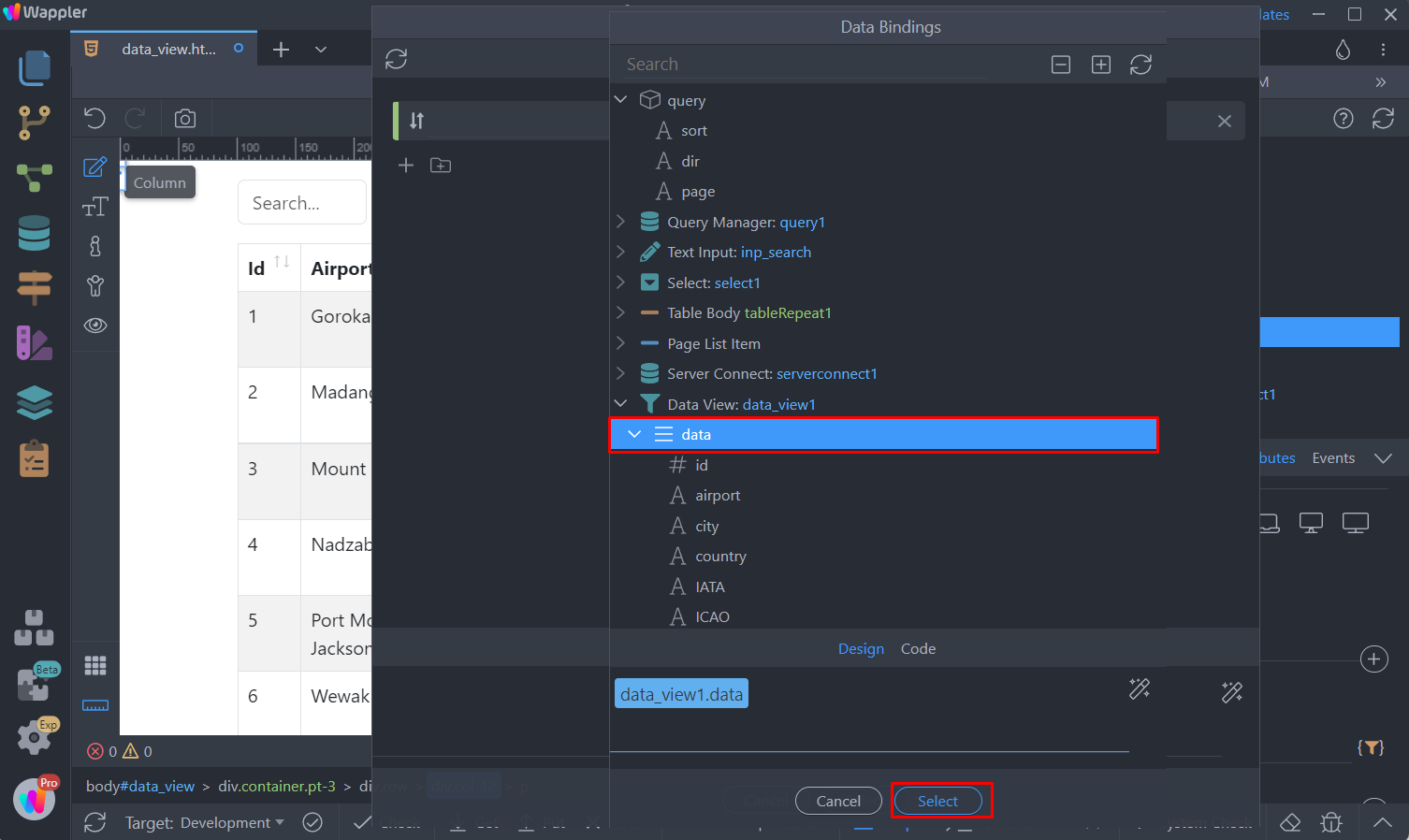
And then we select Is empty:
Section titled “And then we select Is empty:”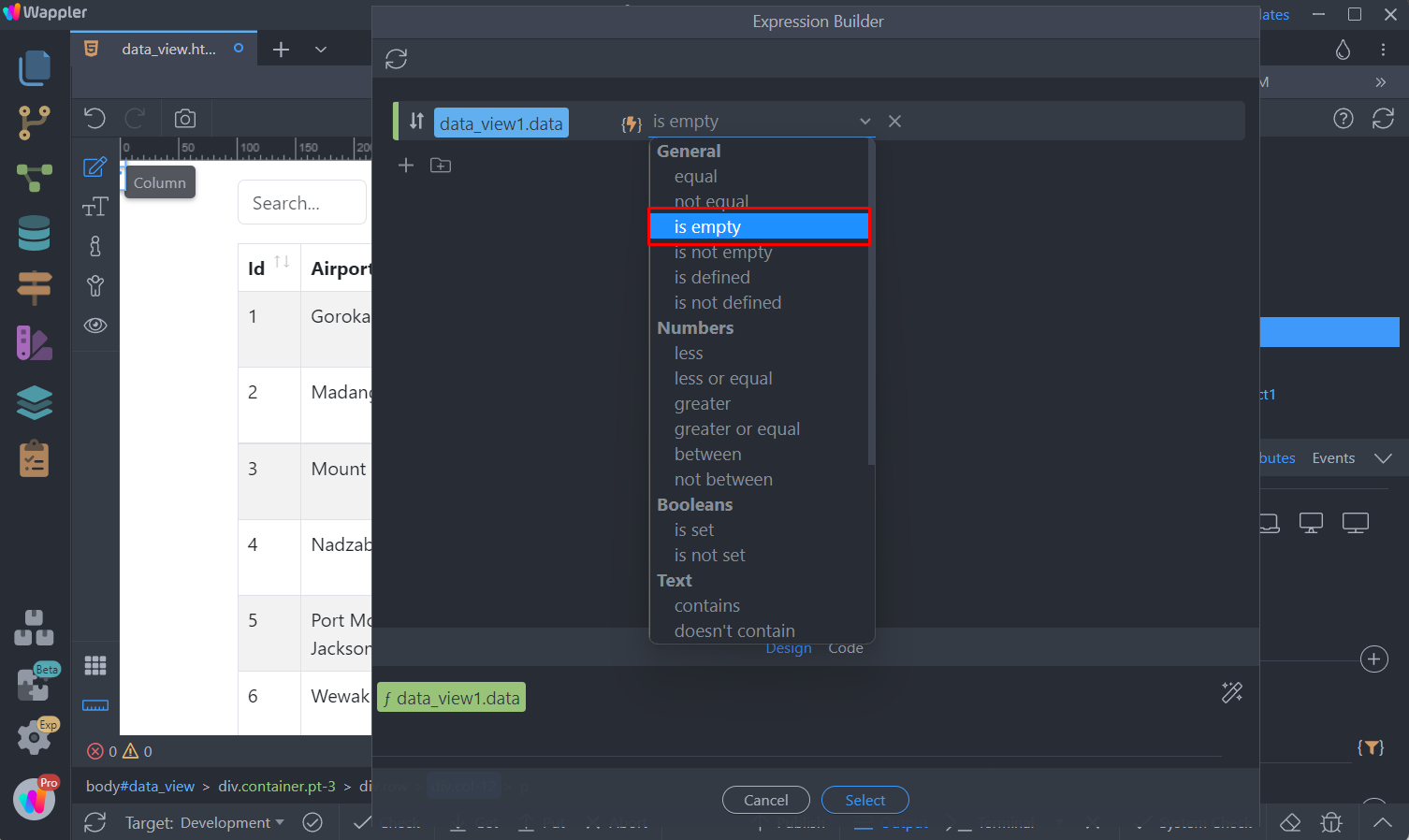
Click Select:
Section titled “Click Select:”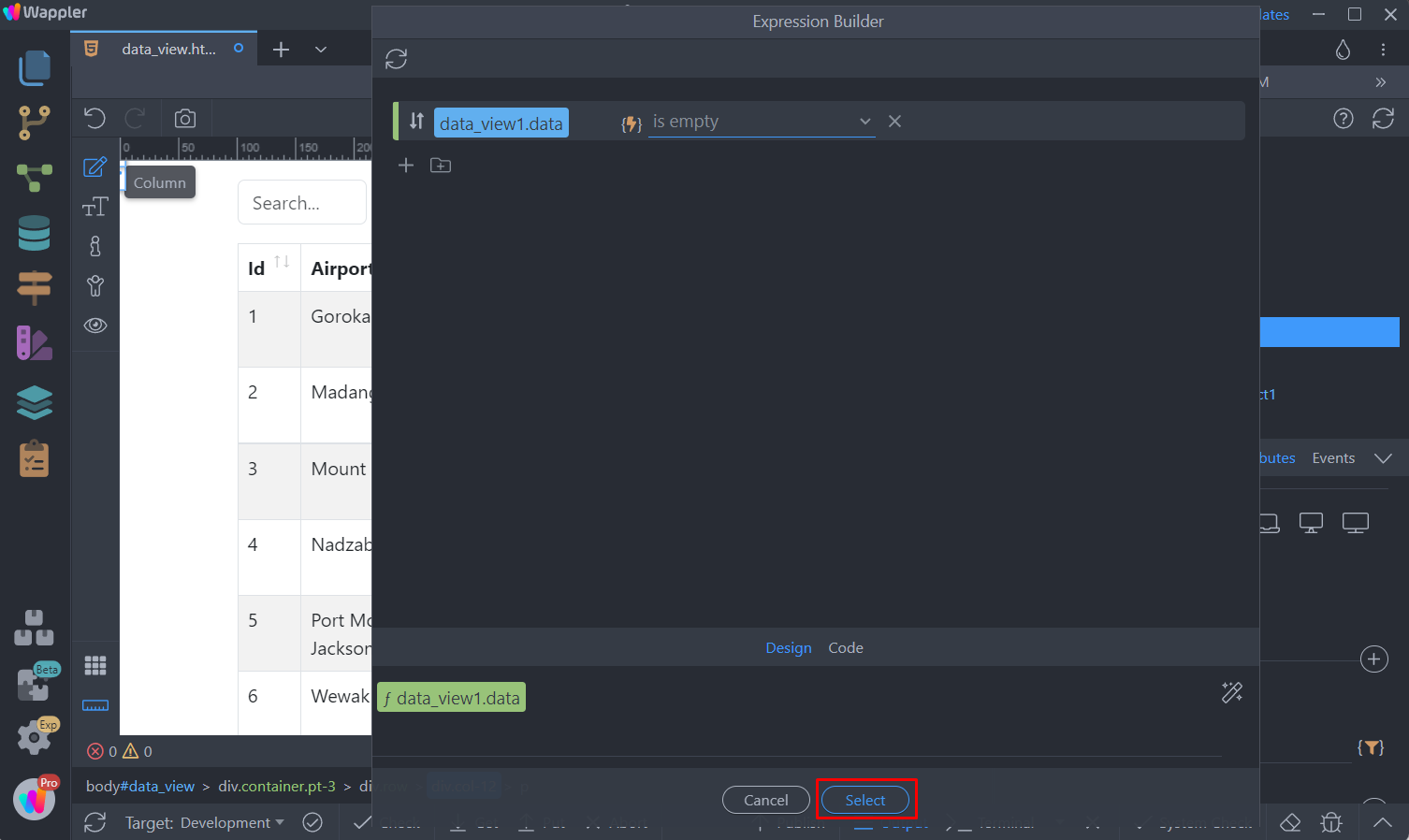
Step 40
Section titled “Step 40”And you are done. When no records are found, the dynamic table will be hidden and the text will be displayed to the users: