
Delete Database Records
You can delete database records using the built in Delete Database step in server connect. We will add a delete button to an existing repeat region, which shows the records on our page - so when click
First, create a new server action in server connect panel:
Section titled “First, create a new server action in server connect panel:”You can delete database records using the built in Delete Database step in server connect. We will add a delete button to an existing repeat region, which shows the records on our page - so when clicked it will delete the record and refresh the data.
First, create a new server action in server connect panel:
We call it “delete”:
Section titled “We call it “delete”:”
Select the server action we just created and right click $_POST under Globals:
Section titled “Select the server action we just created and right click $_POST under Globals:”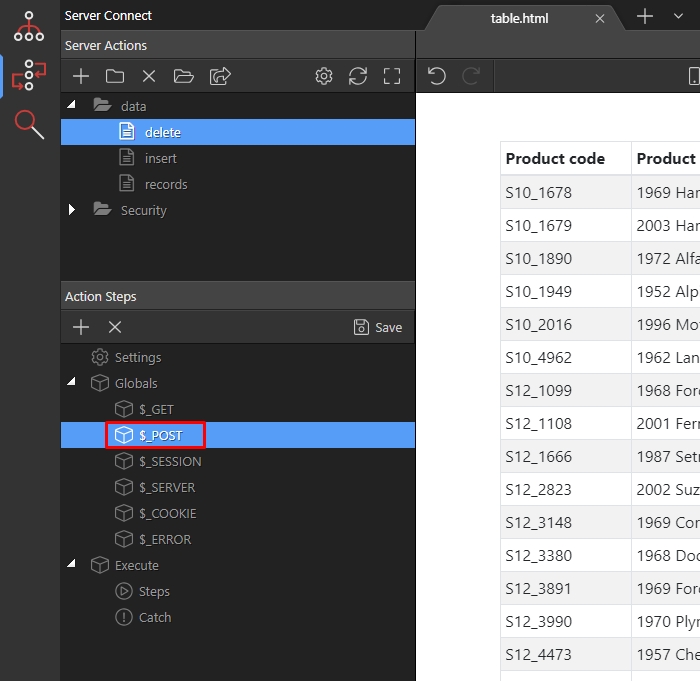
Add a variable:
Section titled “Add a variable:”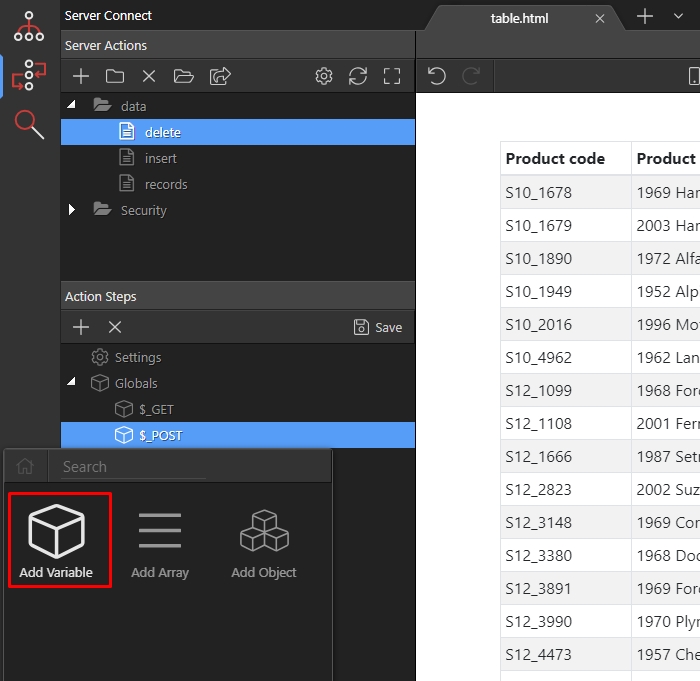
We will use this variable to pass the selected record ID to the delete step. Let’s call it “deleteid”:
Section titled “We will use this variable to pass the selected record ID to the delete step. Let’s call it “deleteid”:”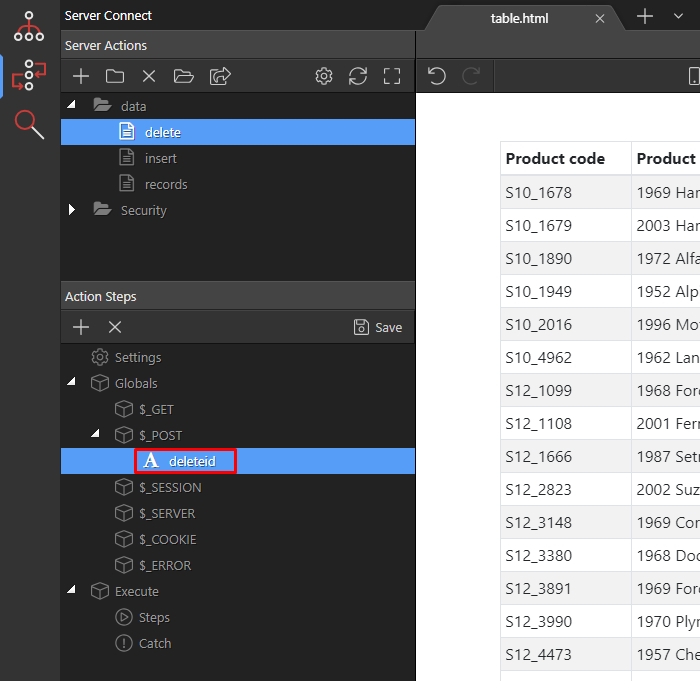
Right click steps:
Section titled “Right click steps:”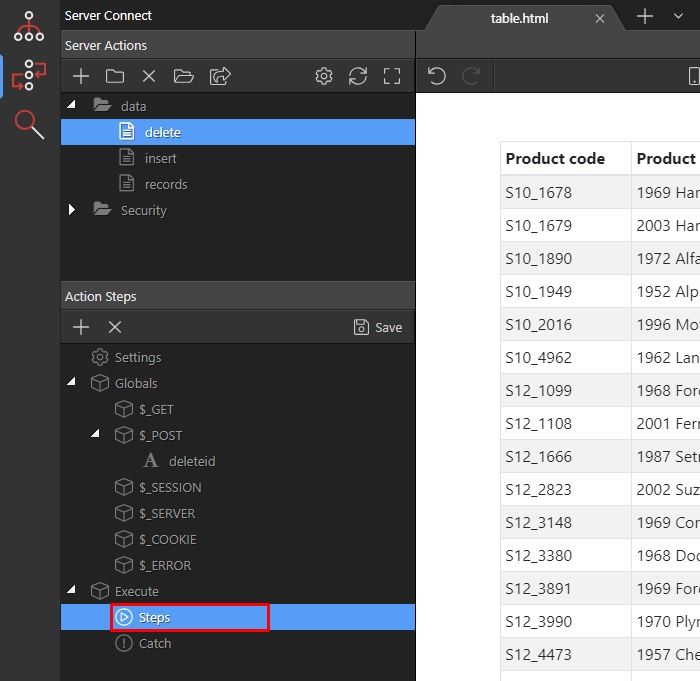
Open the database actions menu:
Section titled “Open the database actions menu:”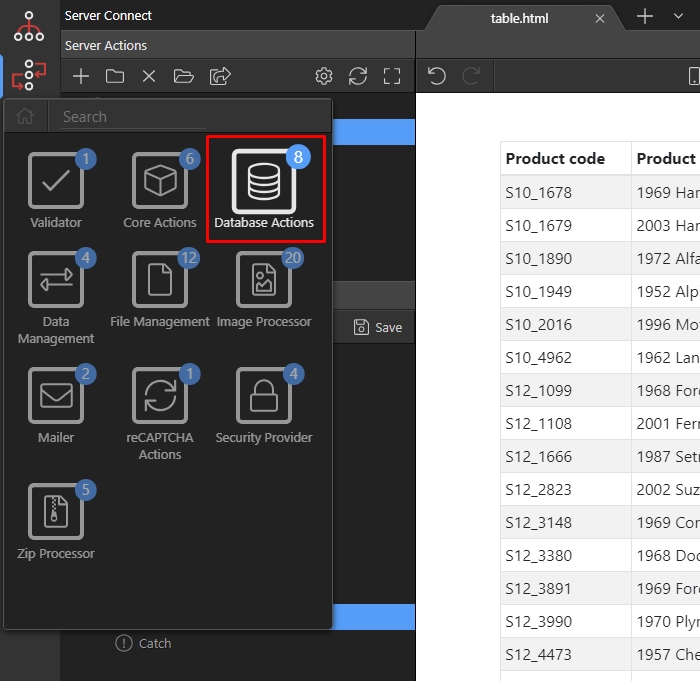
And add a database connection:
Section titled “And add a database connection:”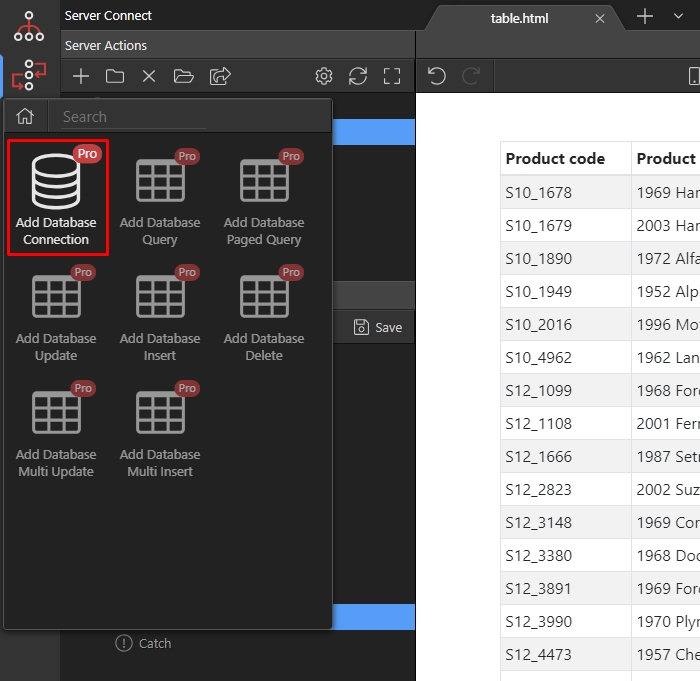
Select the same connection which you are using for your repeat region on the page:
Section titled “Select the same connection which you are using for your repeat region on the page:”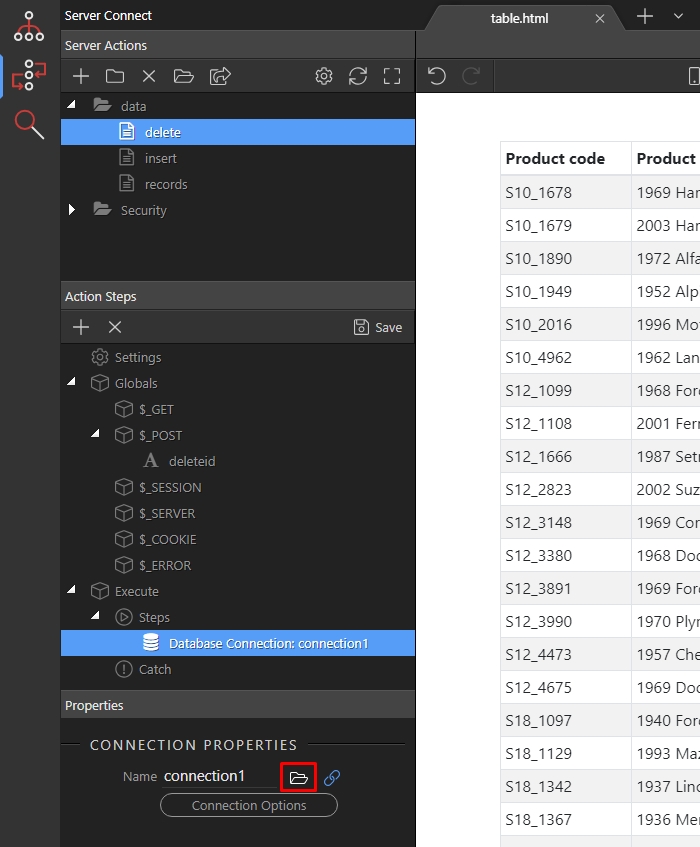
Then, right click the database connection step:
Section titled “Then, right click the database connection step:”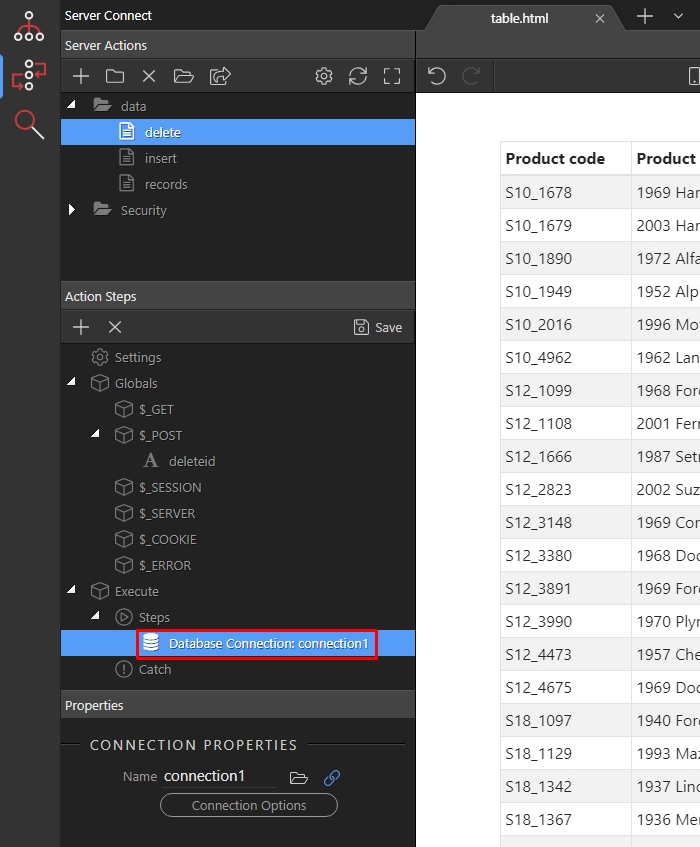
Open database actions:
Section titled “Open database actions:”
And add Database Delete:
Section titled “And add Database Delete:”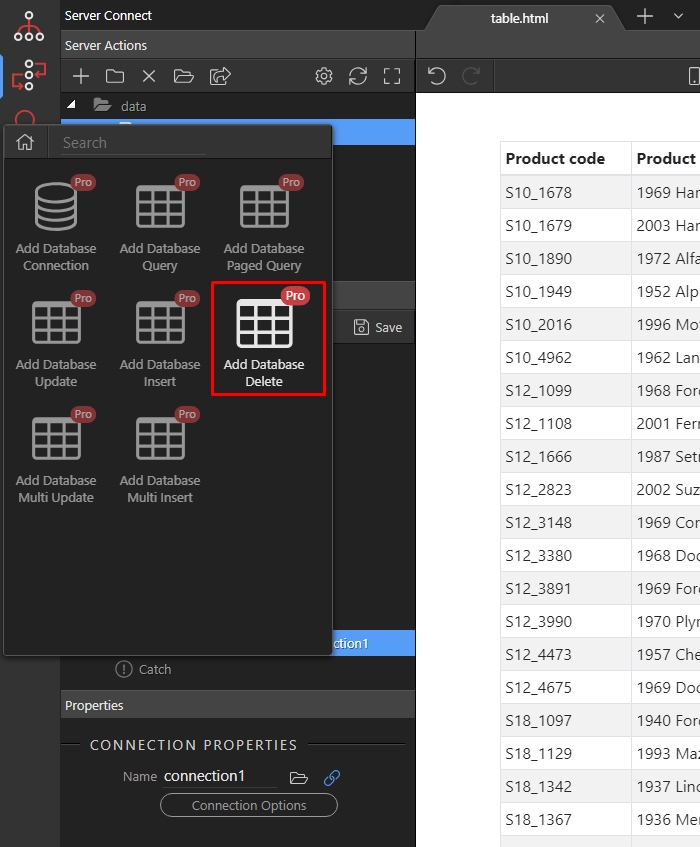
Click the Delete Options button:
Section titled “Click the Delete Options button:”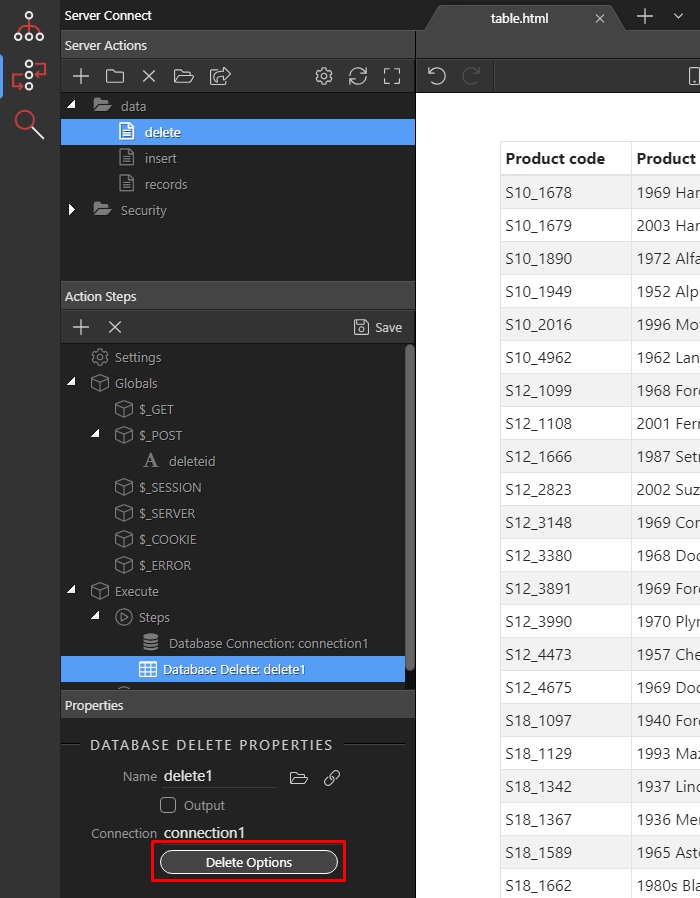
Step 14
Section titled “Step 14”Select the table, you want to delete records from. Usually it is the same as the one, which you are using for the repeat region on your page:
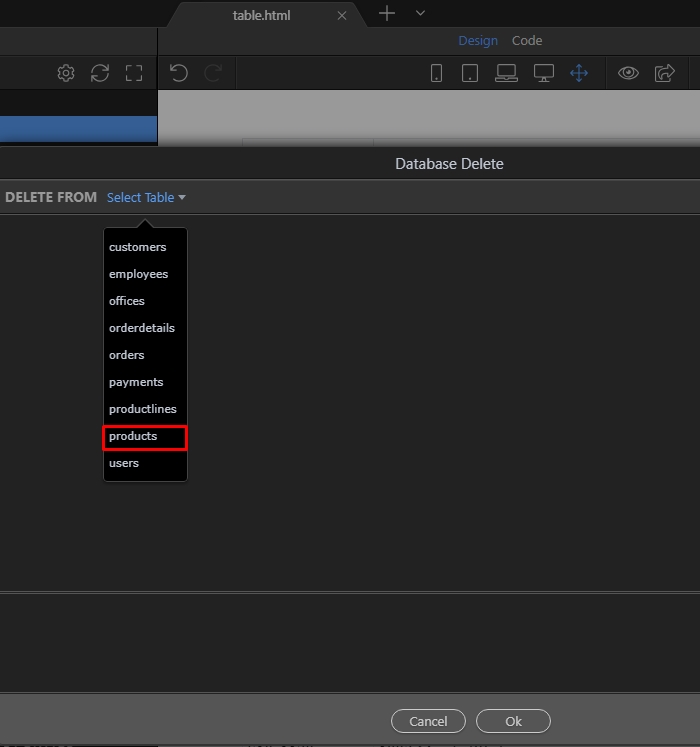
Select the ID column of your database table:
Section titled “Select the ID column of your database table:”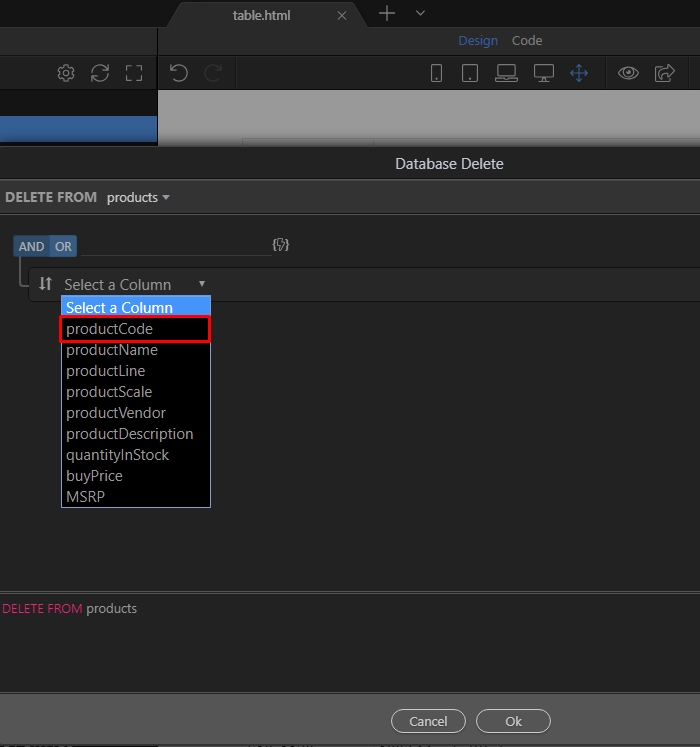
Set the operator to “equal”:
Section titled “Set the operator to “equal”:”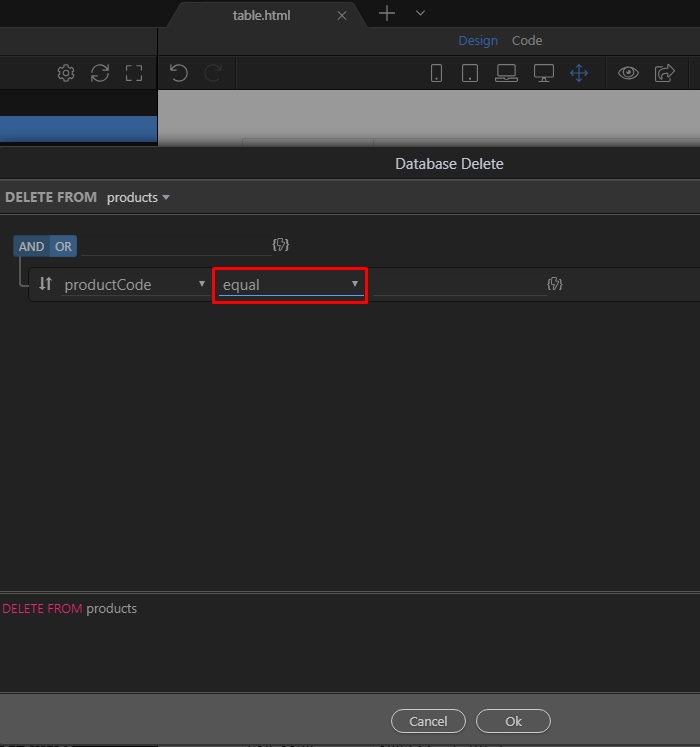
And click the dynamic data picker for its value:
Section titled “And click the dynamic data picker for its value:”
Select the “deleteid” POST Variable(1) which we created and click the select button(2):
Section titled “Select the “deleteid” POST Variable(1) which we created and click the select button(2):”
Click OK:
Section titled “Click OK:”
Save your server action:
Section titled “Save your server action:”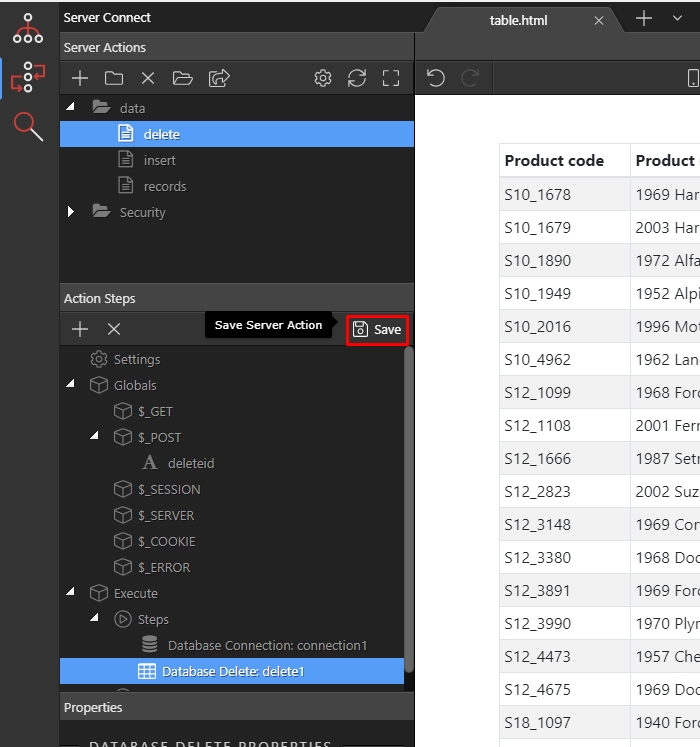
We select the table in app structure(1) and click the run button(2):
Section titled “We select the table in app structure(1) and click the run button(2):”On our page we are using a dynamic table, so we will add another column to it where we will place the delete button. If you are not using dynamic table but just a regular repeat region you can skip the following steps related to adding a new column.
We select the table in app structure(1) and click the run button(2):

Click the add new column button:
Section titled “Click the add new column button:”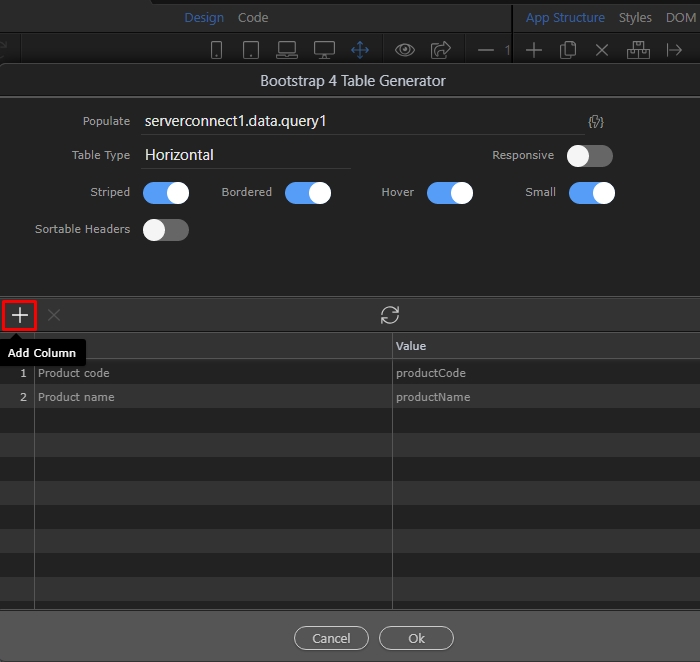
Add a name to it, it will be displayed in the table header:
Section titled “Add a name to it, it will be displayed in the table header:”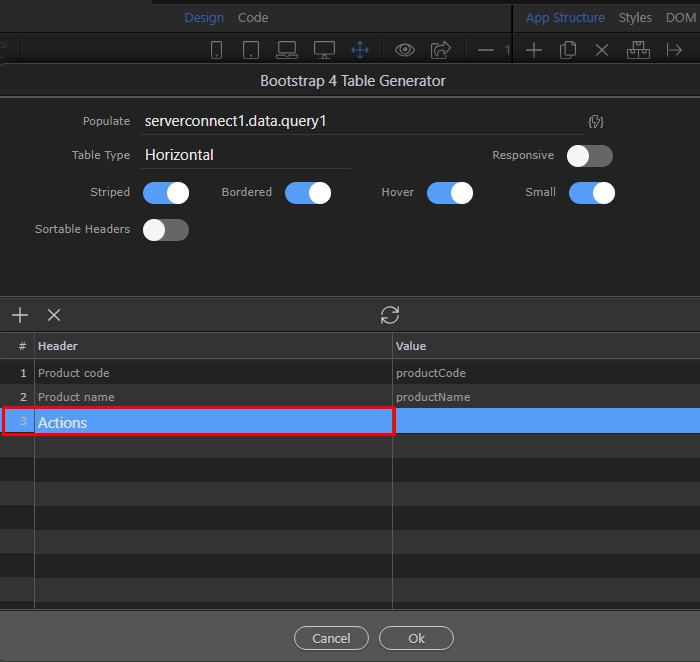
Click OK:
Section titled “Click OK:”
Here’s our new column:
Section titled “Here’s our new column:”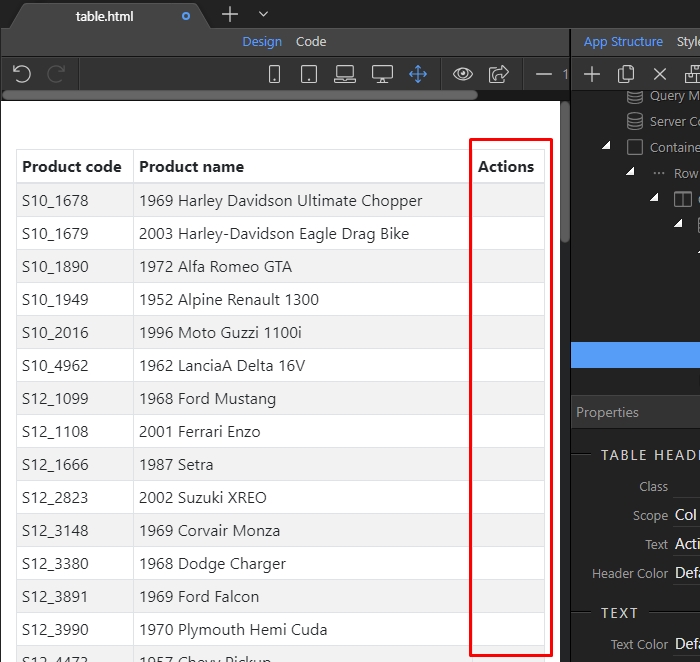
Right click the cell of our new column:
Section titled “Right click the cell of our new column:”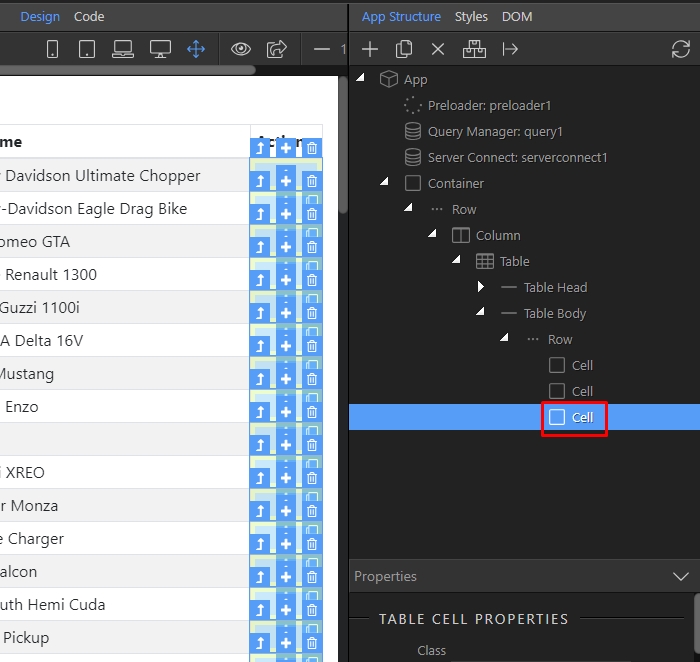
And open the Forms menu:
Section titled “And open the Forms menu:”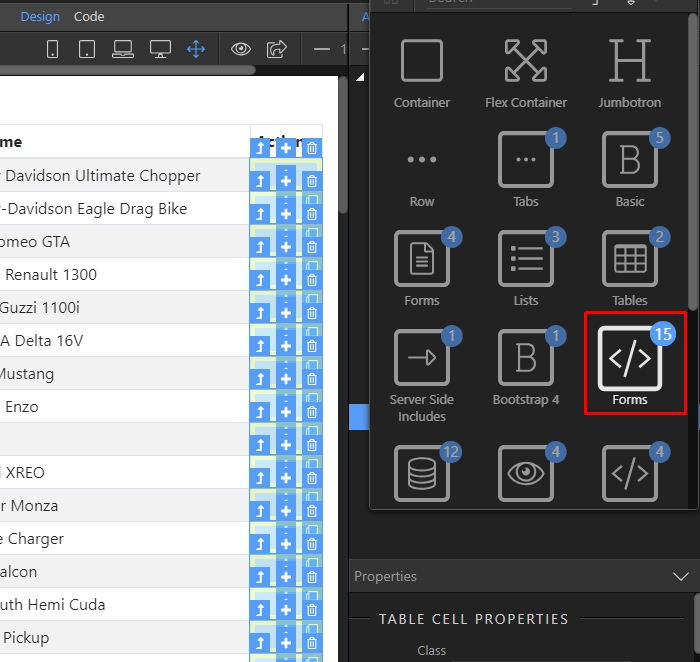
Add a form:
Section titled “Add a form:”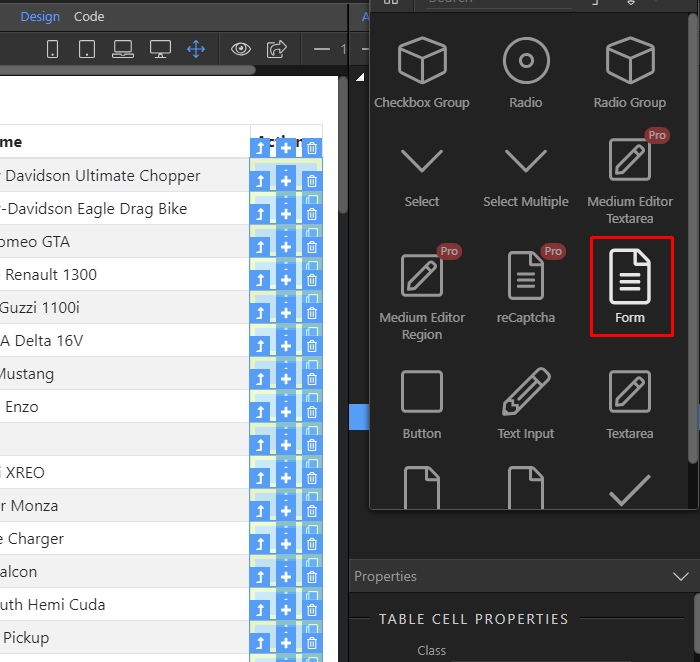
Set the form method to POST in the properties panel:
Section titled “Set the form method to POST in the properties panel:”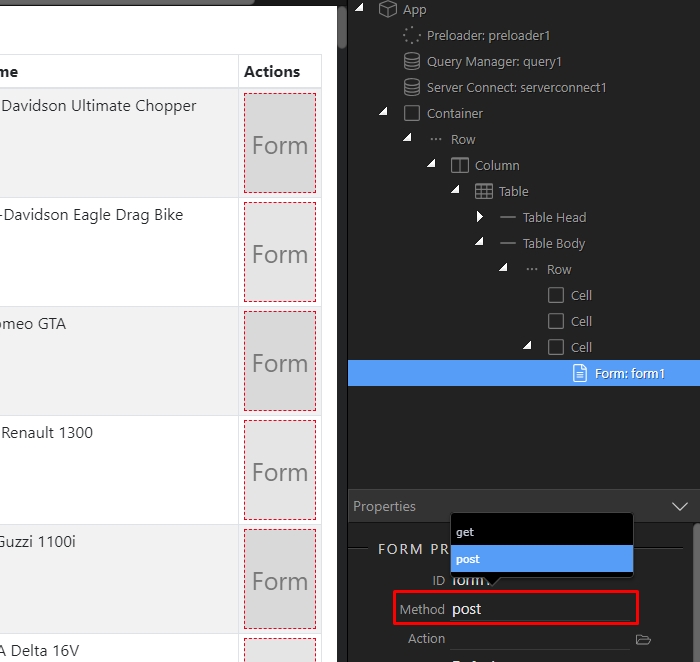
Then set the form handler to Server Connect:
Section titled “Then set the form handler to Server Connect:”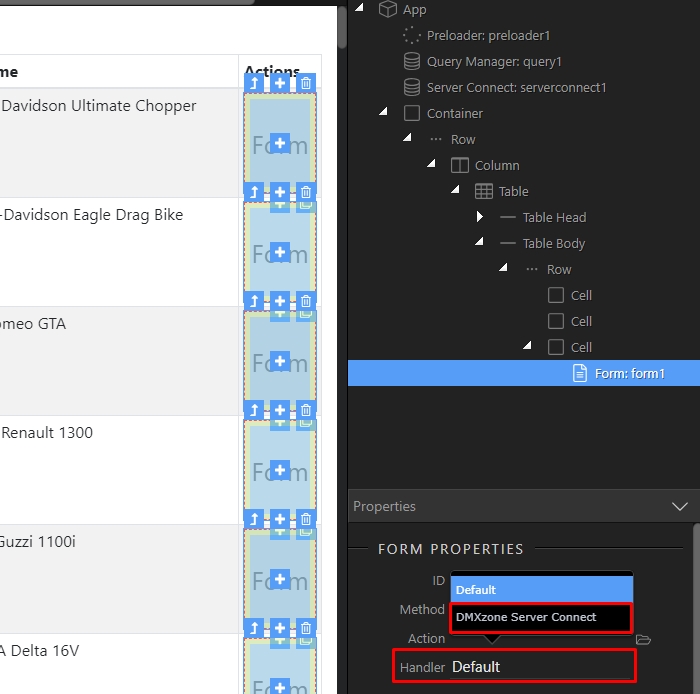
Click the Select Server Action Button:
Section titled “Click the Select Server Action Button:”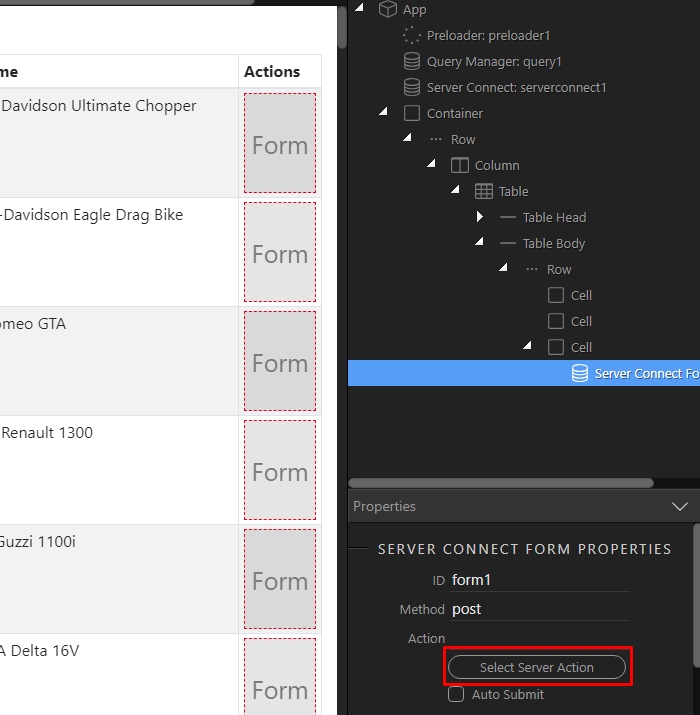
And select the Delete Server Action, which we created:
Section titled “And select the Delete Server Action, which we created:”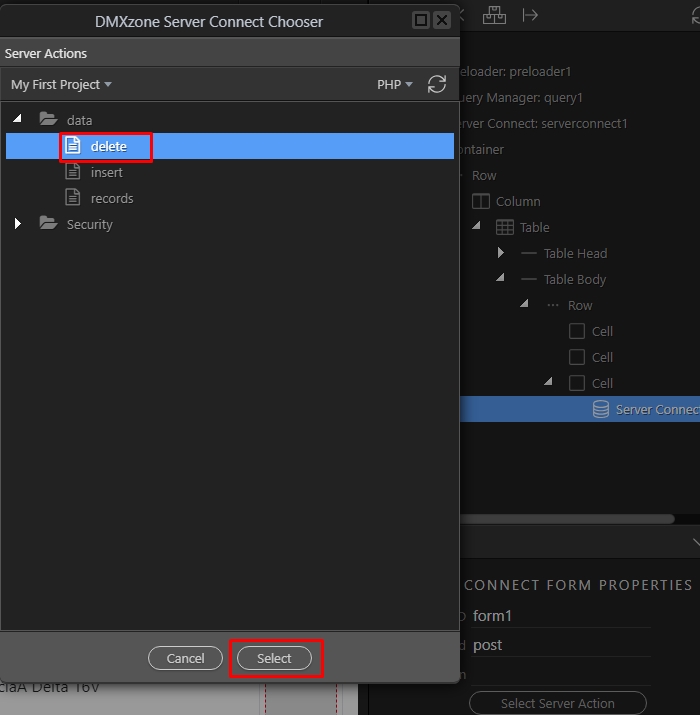
Right click the form:
Section titled “Right click the form:”Now, as our form is ready we need to add a hidden field inside it, which will pass the ID to the server action. Its name/id should be the same as the POST variable which we created in the Delete Server Action - “deleteid”.
Right click the form:
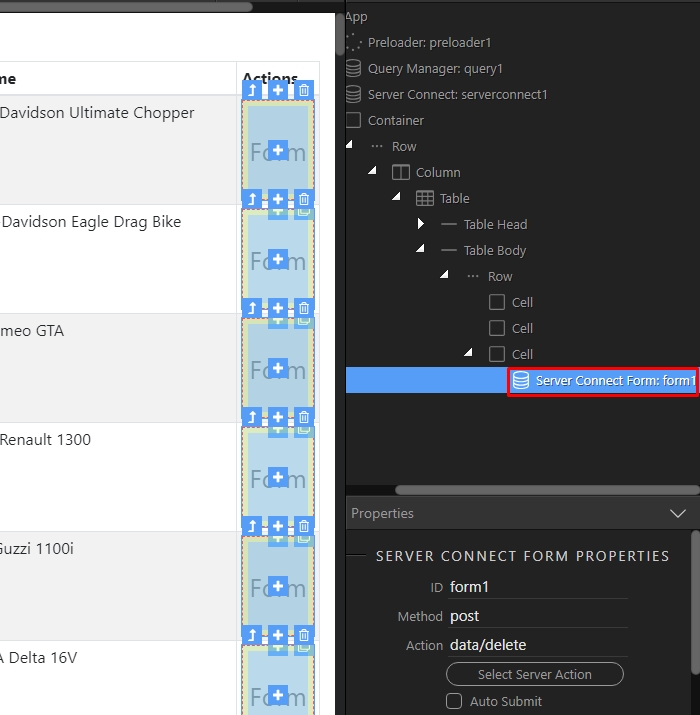
Open the Forms menu:
Section titled “Open the Forms menu:”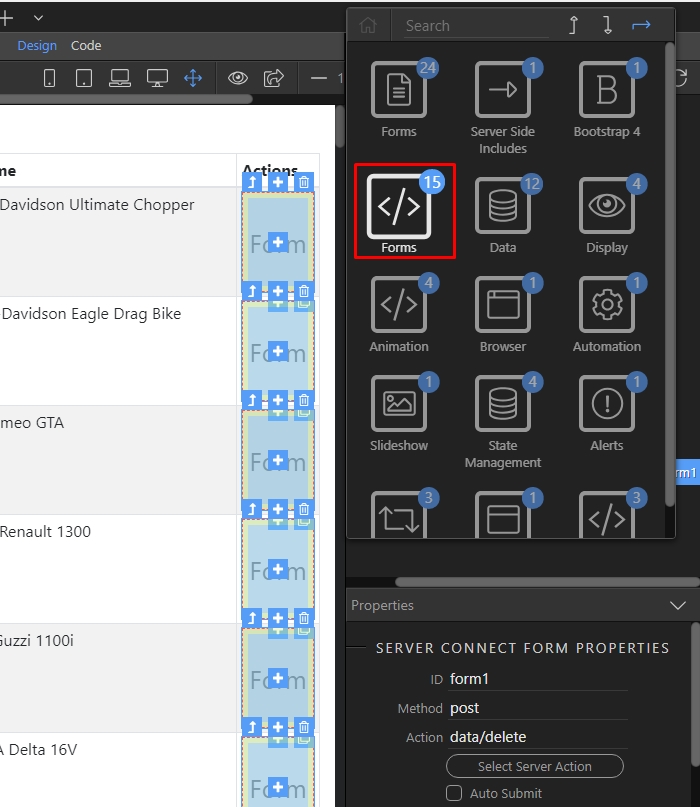
And add text input:
Section titled “And add text input:”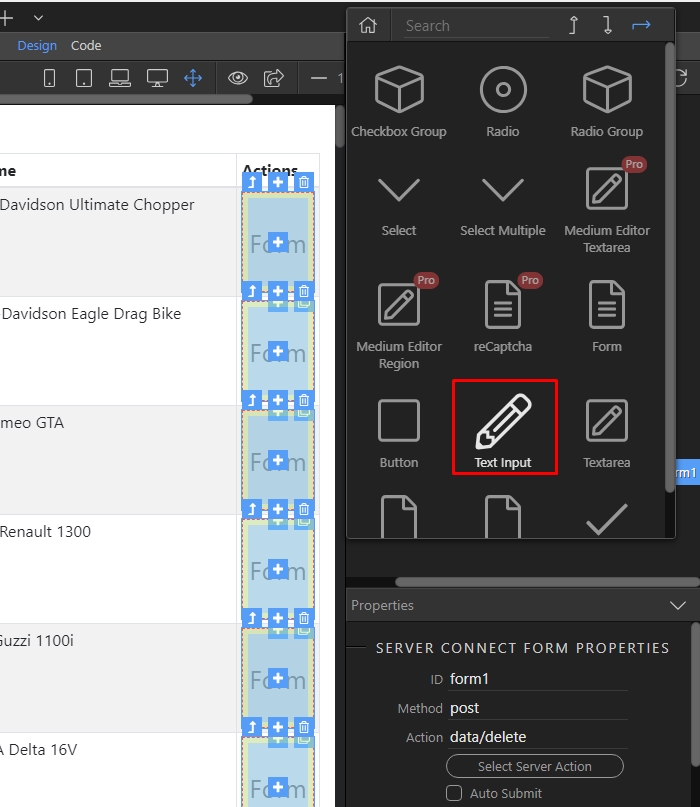
Set its name and ID to “deleteid” (the same as the name of POST variable in the delete server action):
Section titled “Set its name and ID to “deleteid” (the same as the name of POST variable in the delete server action):”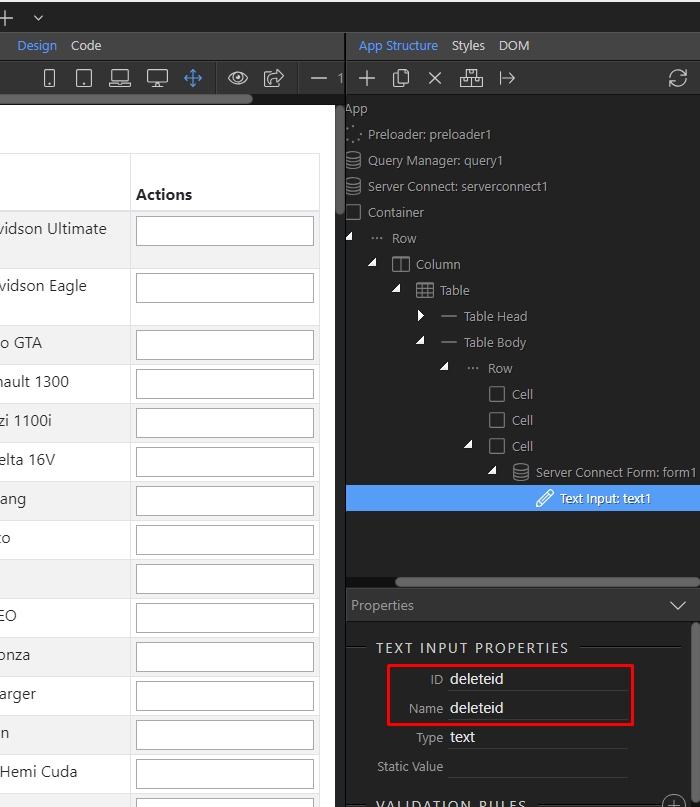
Then, change its type to hidden:
Section titled “Then, change its type to hidden:”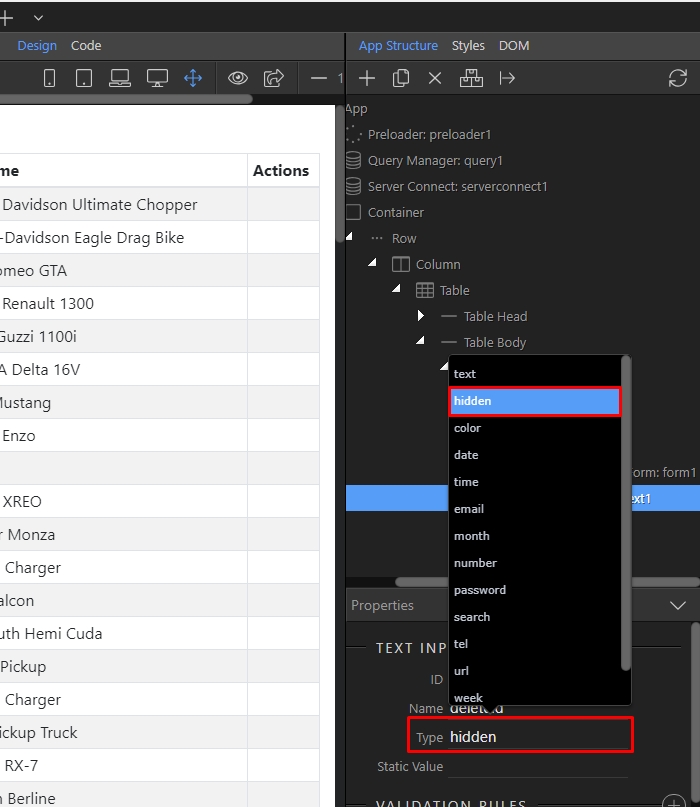
With the hidden field selected, add new dynamic attribute:
Section titled “With the hidden field selected, add new dynamic attribute:”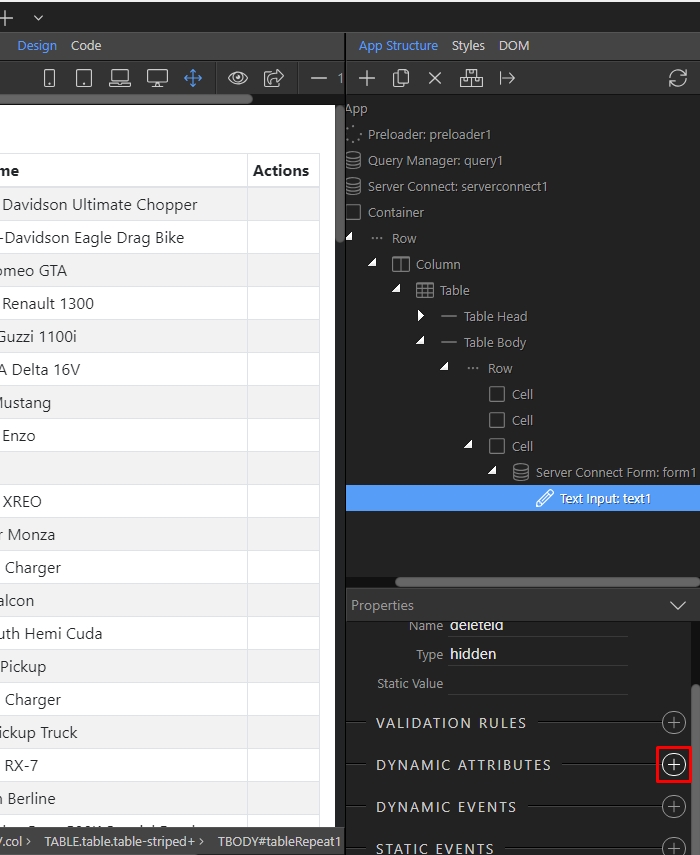
Open the input menu:
Section titled “Open the input menu:”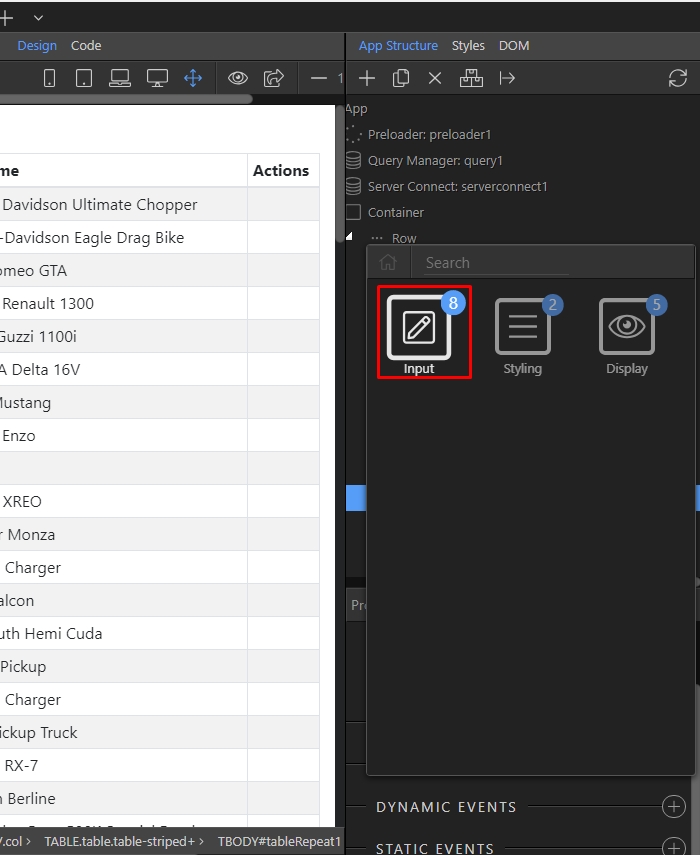
And select Value:
Section titled “And select Value:”
Click the dynamic data picker for the value:
Section titled “Click the dynamic data picker for the value:”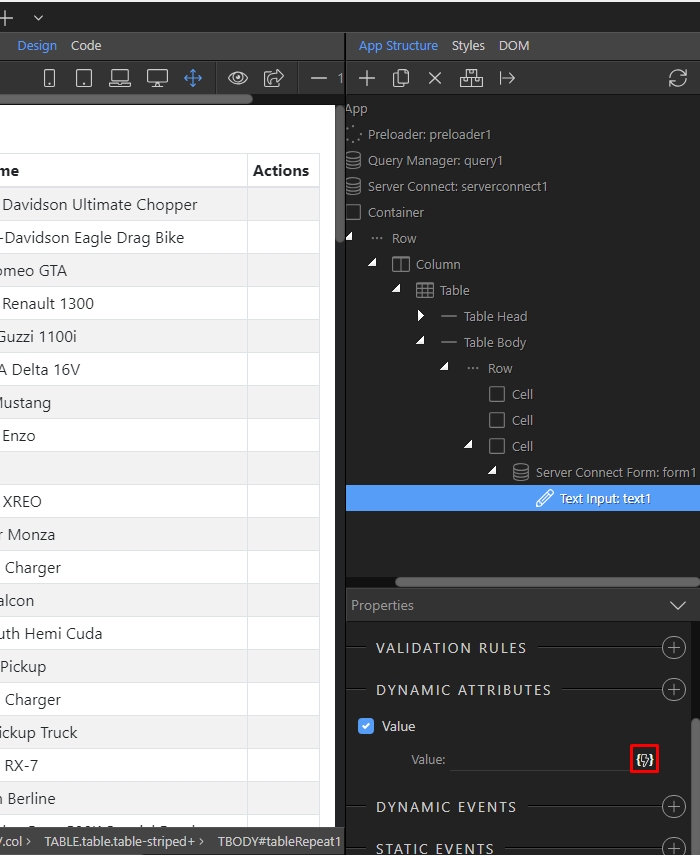
And select the table ID column:
Section titled “And select the table ID column:”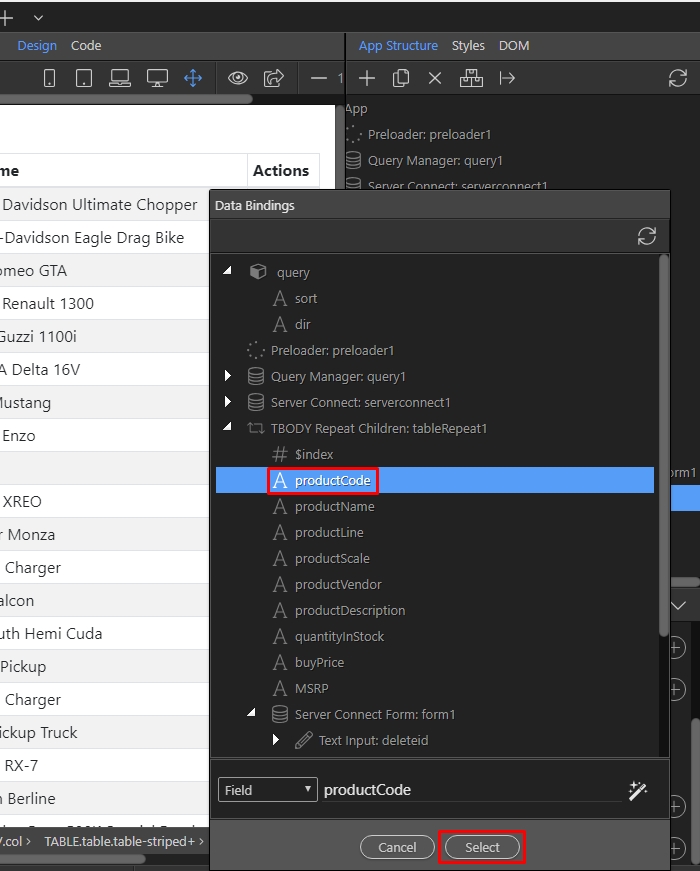
Our hidden field is properly setup, now let’s add a submit button inside the form. Right click the form:
Section titled “Our hidden field is properly setup, now let’s add a submit button inside the form. Right click the form:”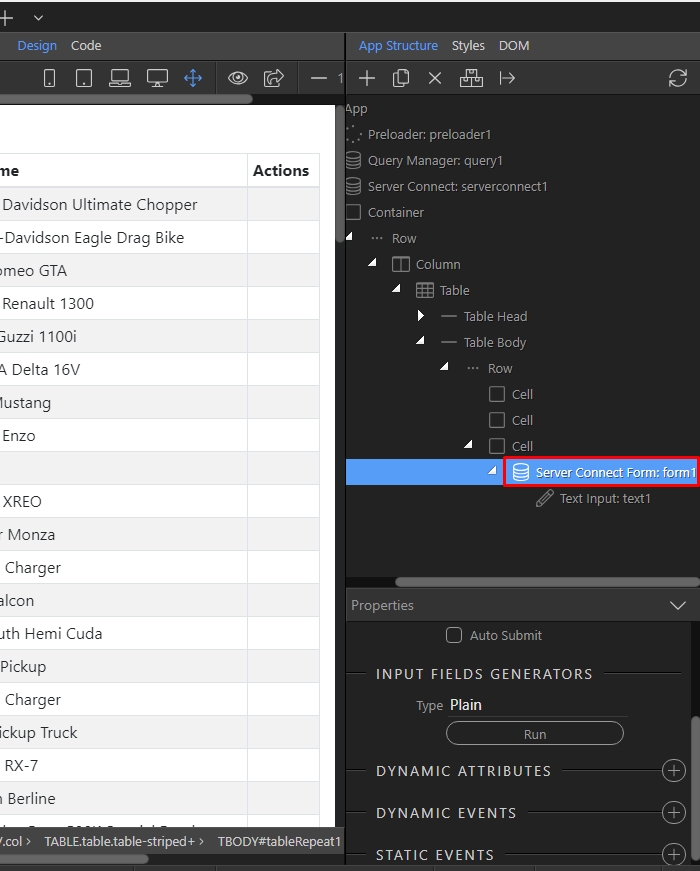
Open the Forms menu:
Section titled “Open the Forms menu:”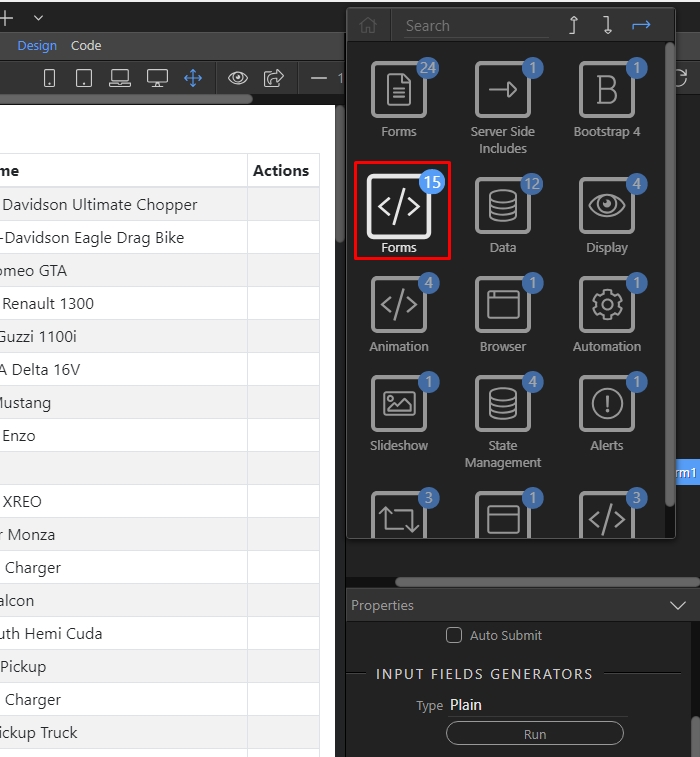
And add Button:
Section titled “And add Button:”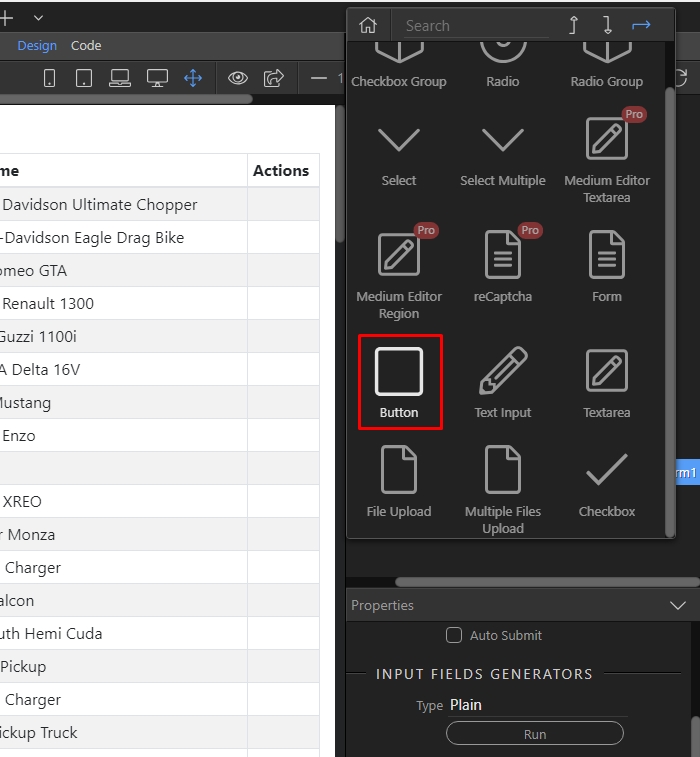
Change the button type to Submit:
Section titled “Change the button type to Submit:”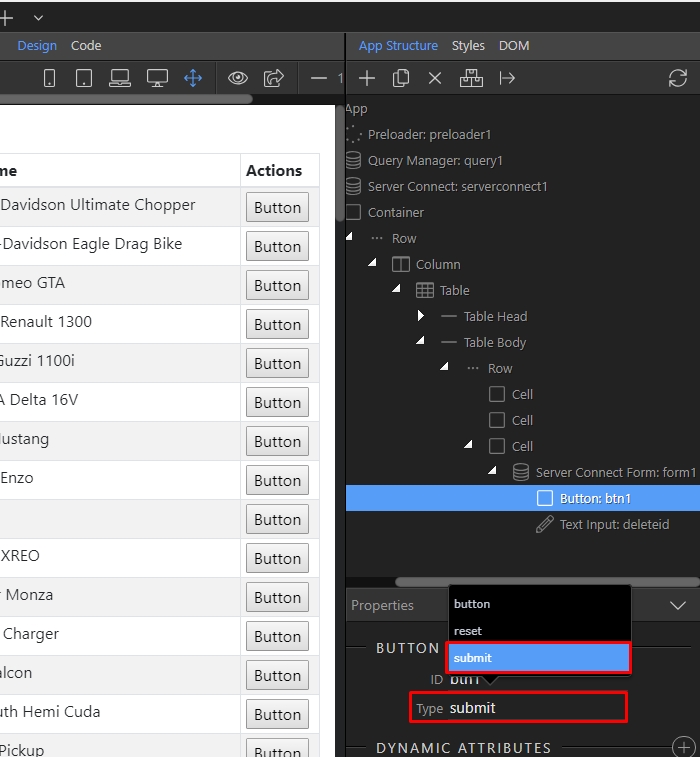
Double click the button in design view and enter the text you need there:
Section titled “Double click the button in design view and enter the text you need there:”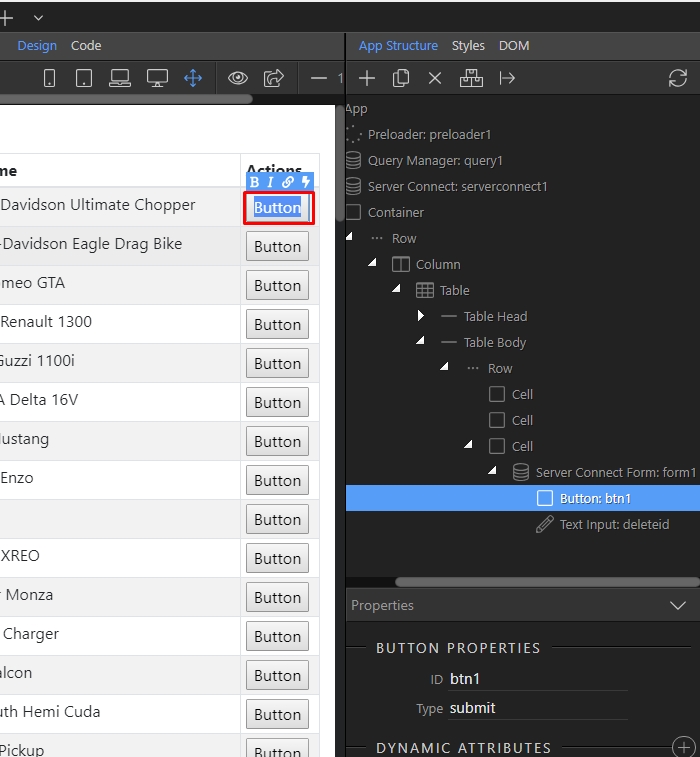
We enter “Delete” as it is a delete button:
Section titled “We enter “Delete” as it is a delete button:”
Step 49
Section titled “Step 49”You want your users to see when a record is deleted, so you need to reload the data source which shows the data on the page. Right click the form(1) and add new dynamic event(2):
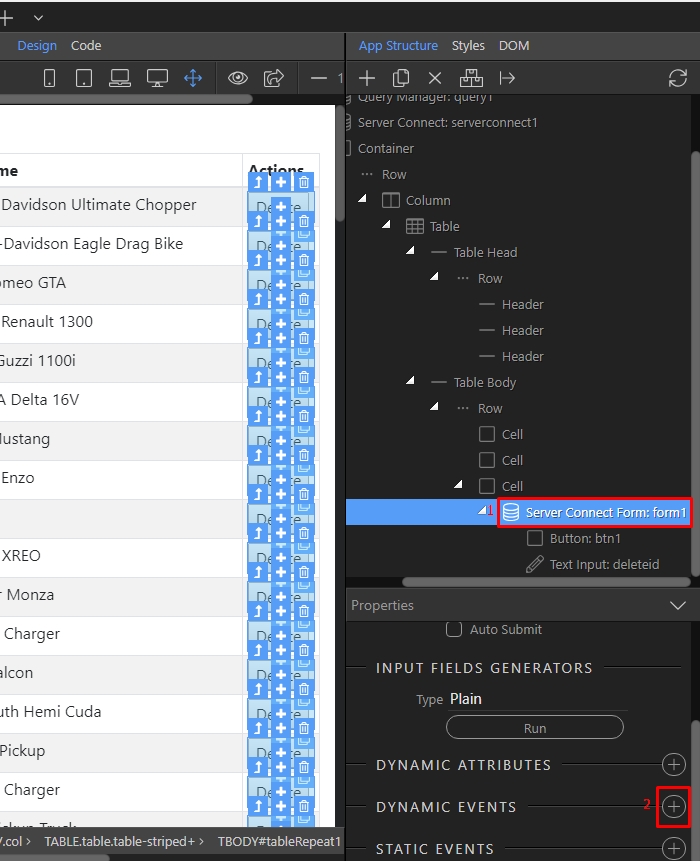
Open the server connect menu:
Section titled “Open the server connect menu:”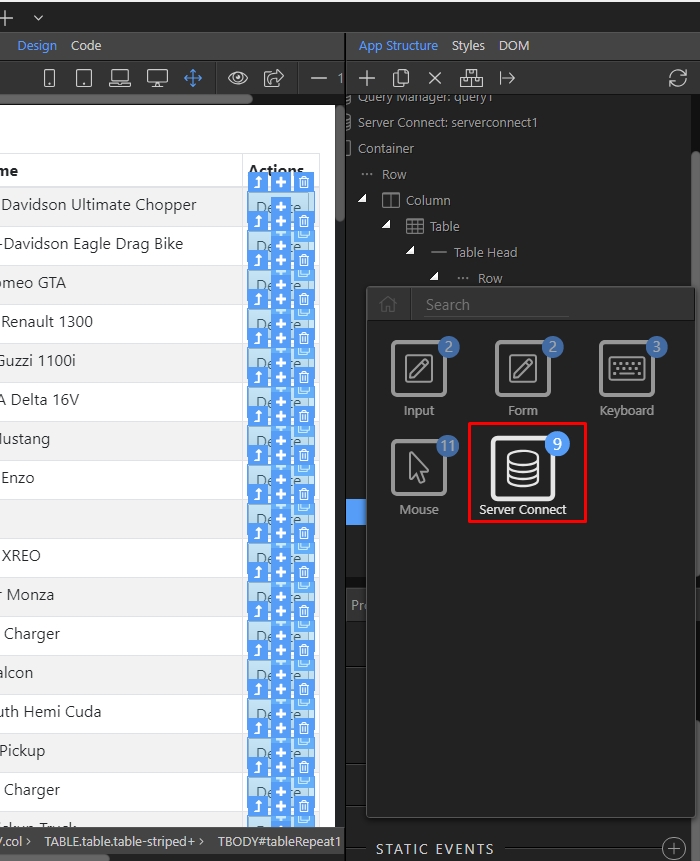
And select on success:
Section titled “And select on success:”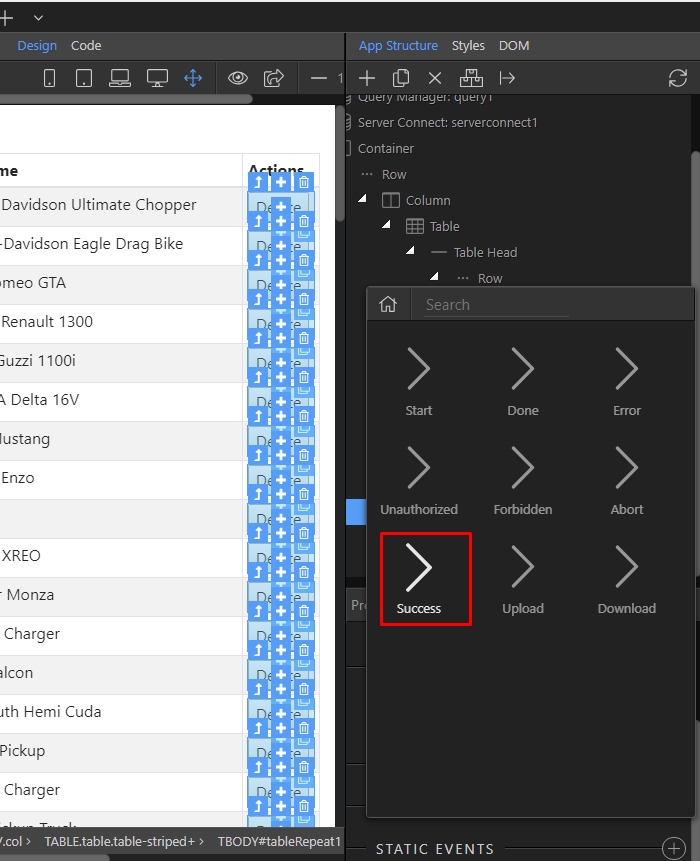
Pick and action to be executed, when a record has been successfully deleted:
Section titled “Pick and action to be executed, when a record has been successfully deleted:”
Step 53
Section titled “Step 53”Under the server action, which repeats the data on the page select Load(1) and click the add button(2).
Make sure not to select the delete record server action!
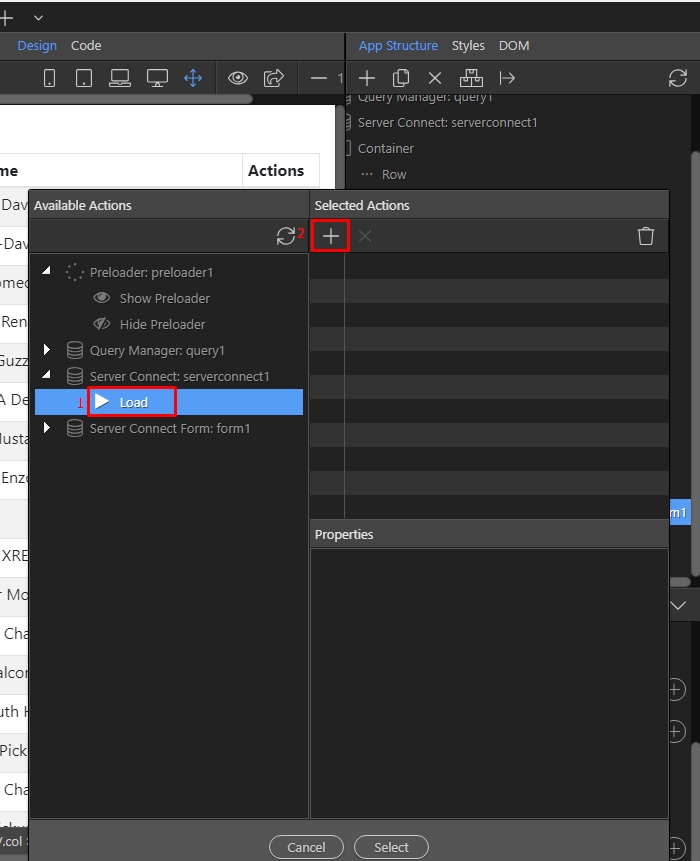
Then click select:
Section titled “Then click select:”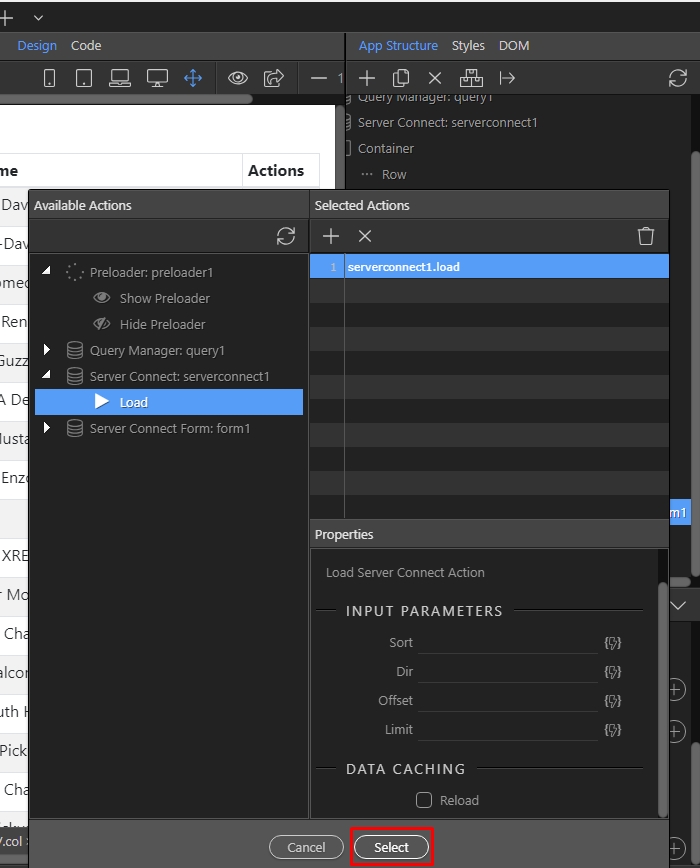
Step 55
Section titled “Step 55”And you are done. As soon as you click the Delete button, the record will be deleted and the data on the page will be reloaded.